.png?width=210&height=40&name=bleu%20et%20gris_Sigle+logo%20SBO%20(4).png)
Benefits of the feature ✨
- Increased personalization : Use your address to personalize your notification and billing emails.
- Strengthening credibility Send emails from your domain, improving customer trust.
- Optimizing email management Centralize your notification sending on a verified account.
1. How does Gmail's SMTP configuration work?
The Gmail SMTP configuration allows you to replace the default address (no-reply@shippingbo.com) via your Gmail address for sending notifications and invoices. By following this guide, you will be able to manage communications with your clients using your own email address.
Example :
Order status change notifications will be sent to your email address (e.g.: myaddress@gmail.com) rather than no-reply@shippingbo.com.
⭐ Key point:
Google's SMTP servers via Gmail limit sending emails to 200 per day. This solution is therefore unsuitable for use with large volumes.
2. Enable two-factor authentication and create an app password on Gmail
1. Enable two-factor authentication
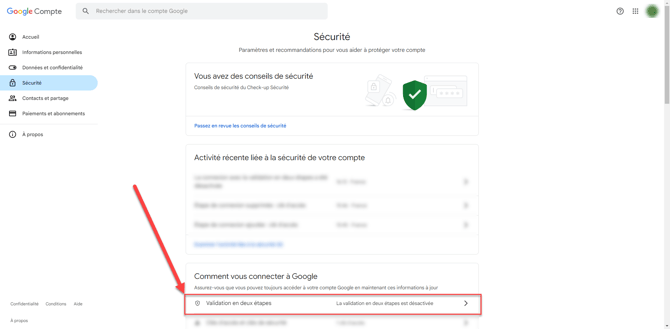
- Access Your Google account - Security and select Two-step validation:
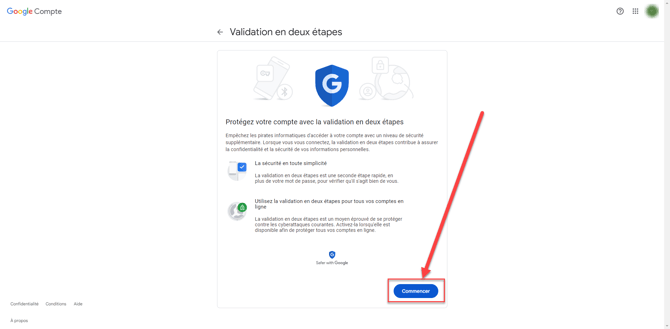
- Click on Start:
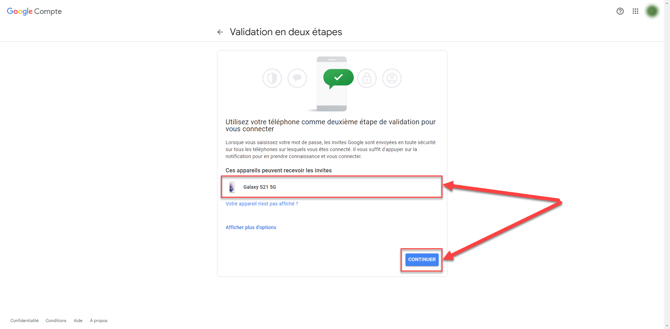
- Select a method for the second step before clicking on Continue :
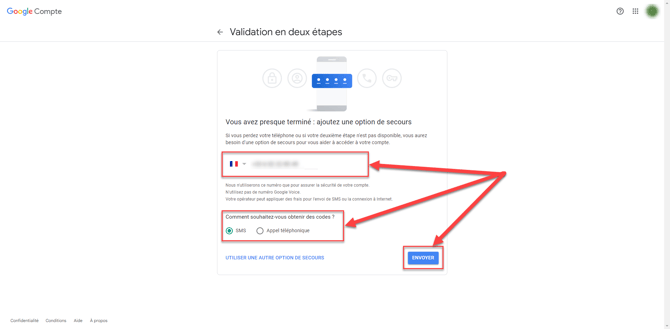
- Next, select a backup option and then click on Send :
- Enter the verification code and then click on Following :
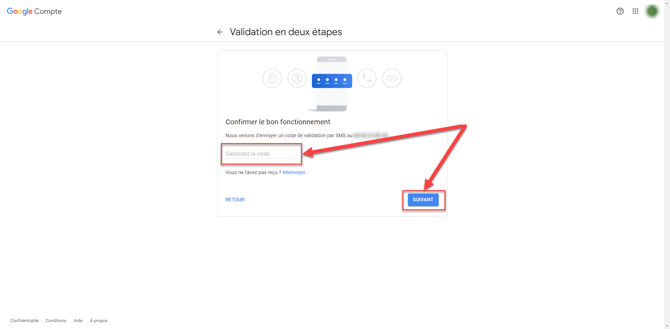
Finally, click on Enable.
2. Create an application password
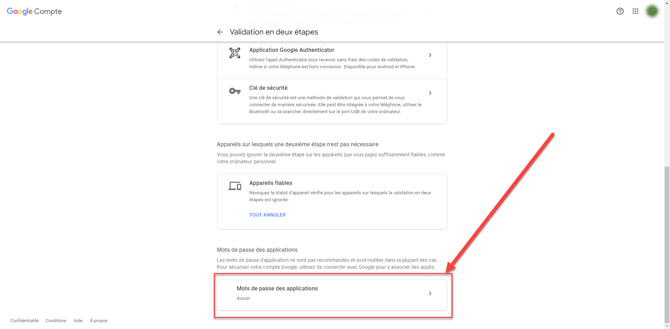
- Still in the section Two-step validation, go down to Application passwords:
2. Enter Shippingbo in the "App Name" field, then click on Create :
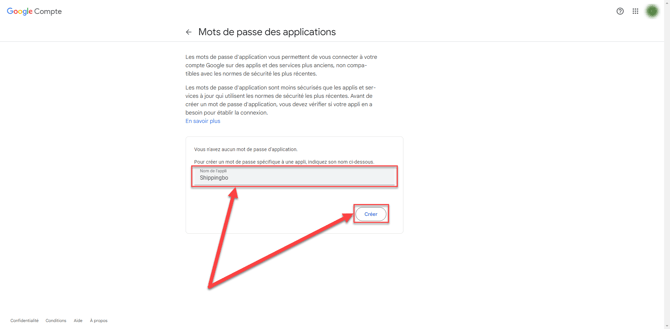
3. A 16-character password will be provided to you: copy it and remove the spaces before using it on Shippingbo.
⭐ Key point:
Make sure you copy the application password correctly, removing all spaces.
3. Configure the Gmail SMTP server on Shippingbo
-
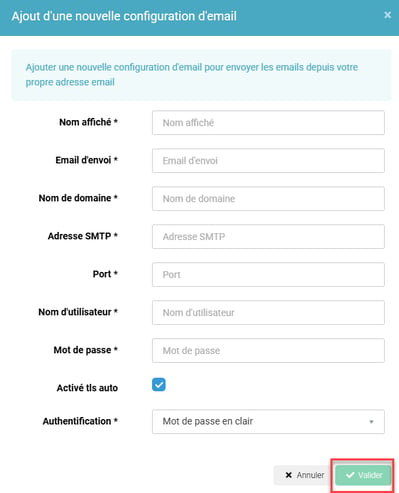
Access Configurations → Accounts → Email configurationthen click on Add new email configuration :
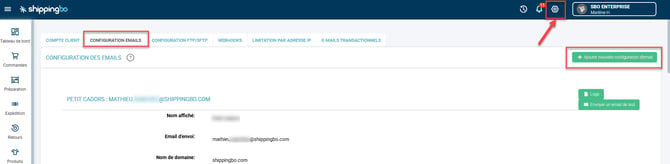
- Fill in the fields according to the following instructions:
- Display name : Enter the sender's name (e.g., Shippingbo Support).
- Sending email Enter the sending email address (e.g.: myaddress@gmail.com).
- Domain name : Specify the domain of your email address (e.g., gmail.com).
- SMTP address : smtp.gmail.com
- Port : 587
- User name Enter your Gmail address (e.g., myaddress@gmail.com).
- Password Enter the application password without spaces. (generated in step 2.2.3.)
- TLS : Enable automatic TLS.
- Authentication Select Password in plain text.
- To test your configuration, click on Send a test email and specify a recipient:

Example : Send a test email to support@yourdomain.com to check the configuration.
⚒️ Framework and responsibilities:
Before fully using the functionality described in this tutorial, it is strongly recommended to performa testing phasefollowing your own parameters to verify that the result meets your expectations. The remaining customerfully responsibleThese tests, based on actions performed on the Shippingbo account, are essential to ensure the tool can be used with complete peace of mind.
To go further 🛫:
- Configure a notification email address
- Order status change notification and invoice sent by email
Contact us 📬:
Questions about this feature? Feel free to write to us. here so that we can answer your questions.