.png?width=210&height=40&name=bleu%20et%20gris_Sigle+logo%20SBO%20(4).png)
Summary

- Time saving : Quick access to product and location information via barcode scanning.
- Improved visibility Precise, real-time tracking of stock and locations.
- Optimizing inventory management : Visualization of available and reserved stock for better planning.
2. Prerequisites✔️
- This feature is available from the Premium pack +.
- There decrement at picking must be activated.
- This option is not available for the mobile apiary.
4. Activate the inventory option during picking
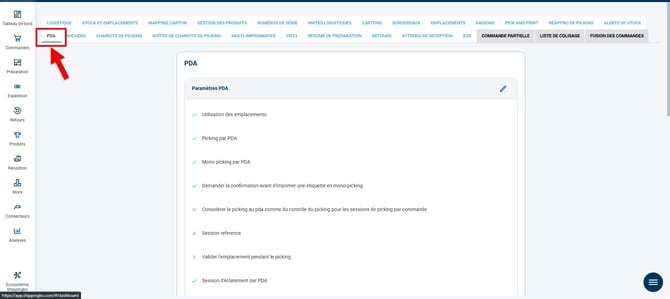
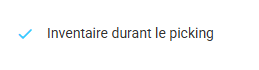
To activate the option that allows you to perform your inventory during picking, go to the menu Configurations →Logistics → PDA →check the option Inventory during picking :
5. Conduct your inventory during picking
Taking inventory during picking allows you to adapt your picking based on the available stock.
💠Noticed :
On the location page during inventory, the list of products already present is displayed in this location.
-
If you add a product already linked to another location, a confirmation window appears. She specifies that the product will be removed from its original location to be added to the current location.
-
If products still need to be scanned in the location, a alert window is displayed in order to We are notifying you that some products have not yet been scanned..
Step 1:Once your preparation session is created, go to your PDA to start your picking session.
Feel free to check out our tutorial Perform your picking using your PDA.
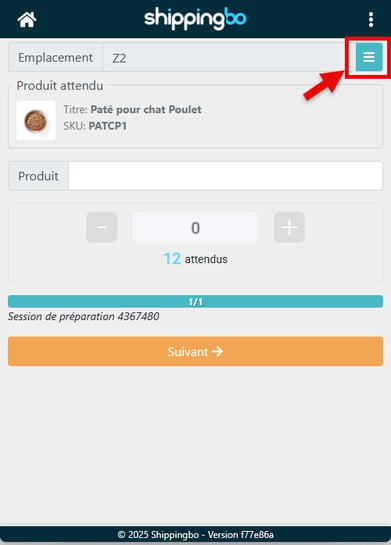
Once your session number has been scanned, click the button to the right of the location to perform the inventory:
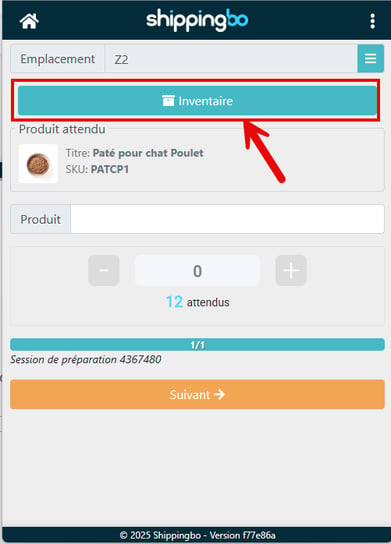
Step 2:Click on "Inventory":
Step 3: Scan your product(s) and enter the requested information to complete the product inventory, then click "Finish":
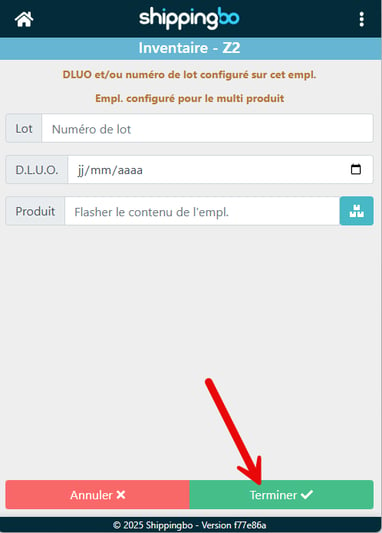
Step 4:By clicking "Finish", a pop-up window appears to warn of a possible stock reservation in progress on the affected location:
Step 5:By confirming the action, the expected quantities for picking are updated and you can complete the picking:
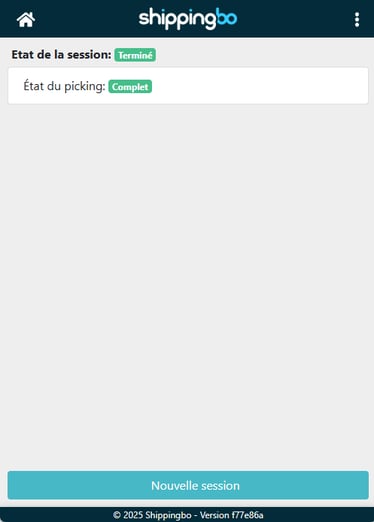
5.1 Special case: if the location does not have a sufficient quantity to fulfill all orders
During a preparation session, it may happen that an item intended for picking is inventoried less than its initial location.
You can control Shippingbo's behavior in this situation via the option Book again after the inventory :
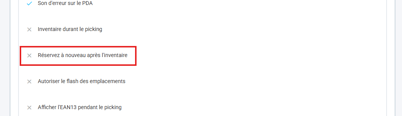
❌ By default, this deficiency results in the automatic exit from the run command in order to avoid out-of-stock items during picking.
✅ With this option checked, the system automatically searches for another picking location containing the missing product.
If one exists, the order remains in the run and your PDA will offer you to pick the item from this new location, either immediately or later in the picking route.
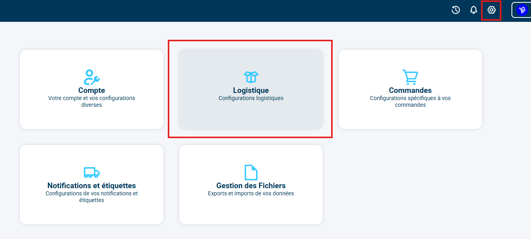
The option Book again after the inventory can be found in Configurations > Logistics:
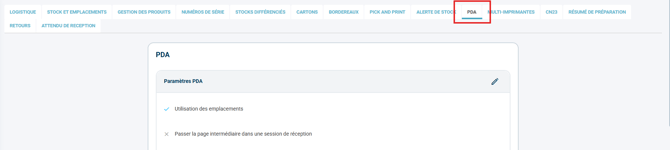
For example, suppose:
- a picking location A-1 having only one stock quantity for item ABC
- two orders, each requesting 1 quantity of item ABC
- a picking location B-1 with 10 stock quantities for item ABC
❌ If the option Book again after the inventory East unseatedone of the two commands automatically exits the run command in order to avoid out-of-stock items during picking.
✅ If the option Book again after the inventory East checkedThe PDA will display the picking route to picking location B-1.
- By default, if the inventory indicates an insufficient quantity of products to fulfill all orders, the most recent orders will be removed from the run
- If some products from orders that have already been picked have been picked, they will need to be put in the restocking bin at the time of the breakout.
- In the case of a multi-product location, all products in the location must be scanned in order to complete the inventory.
📢 Warning:
The option Book again after the inventory allows recalculation only picking locationsIf the location where there is stock is in reserve, the order is taken out of the run.
During a session in a given area, the stock to be reserved again is searched for. only in the locations of the picked zone.
To go further 🛫:
- Configure a usage for a location
- Create locations manually and via import
Contact us 📬:
Questions about this feature? Feel free to write to us.hereso that we can answer your questions.