.png?width=210&height=40&name=bleu%20et%20gris_Sigle+logo%20SBO%20(4).png)
Here are a few simple steps to help you accomplish this task easily:
1: View the warehouse codes associated with suppliers by first going to the "Warehouses" menu:
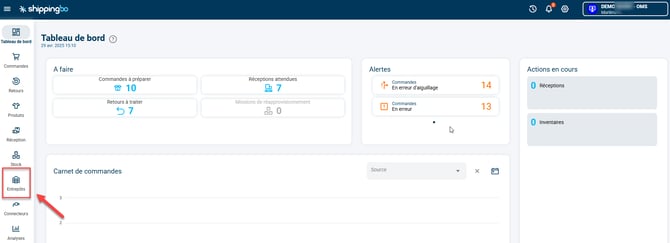
First, make sure you record the warehouse codes corresponding to each supplier. This helps to accurately locate and manage orders.
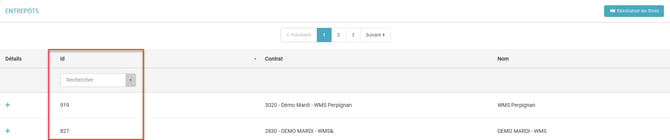
2 Note the supplier codes:
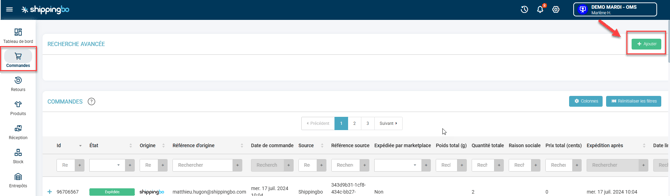
3: Access the command interface and add an advanced filter.
To do this, go to the "Commands" menu, then click on "Add":
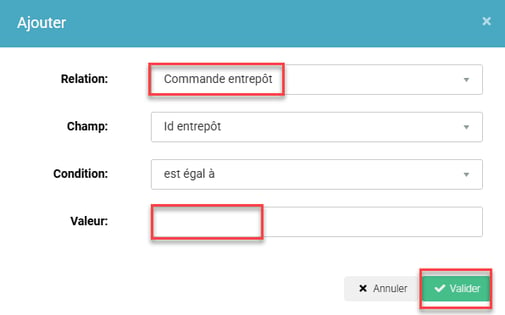
4: Select from the field Relationship the criterion Warehouse order.
Then, the other fields will be filled in by default.
Finally, add the warehouse ID retrieved in the previous step, before validating:
Step 5: All shipping orders from this supplier will appear in the orders menu.
Once the above steps are completed, the system will filter and display all shipping orders related to that specific supplier and the corresponding warehouse. This will allow you to easily track and manage orders from a particular supplier.
Contact us 📬:
Any questions about this feature?
Feel free to write to ushereso that we can answer your questions.