.png?width=210&height=40&name=bleu%20et%20gris_Sigle+logo%20SBO%20(4).png)
Benefits of the feature ✨
- Easily analyze your business thanks to a complete, filterable export of all your billing data.
- Save time on your accounting and tax procedures by generating, in a few clicks, a file ready to be used for your financial statements.
- Keep precise control over your sales by targeting only the invoices from the order sources you are interested in.
1. Prerequisites
- Feature available from the Pack Starter +.
2. How does the billing data export work?
This feature lets you run a complete export of the data of the invoices generated for each customer order. You can filter by date, start and end time, and even specify the source of the orders if necessary.
It can be very useful for your end-of-quarter / end-of-year financial statements.
3. Export your billing data
To create your export, follow these steps:
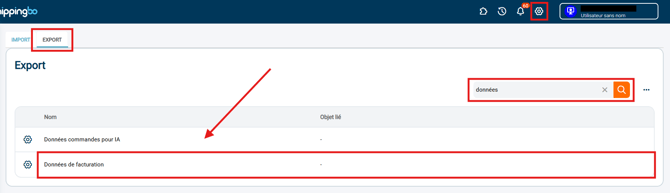
- Go to the menu Configurations > File management > Export > Billing data:
- Click on Generate a new export and select a start date and time, as well as an end date and time for the export.
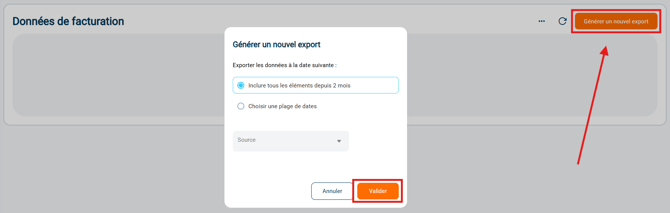
➡️ You can fill in the Source of the orders if you want to filter them this way.
Example: You have several order sources (Amazon, eBay, Shopify) and you only want to export the invoices of orders coming from Shopify. To do this, simply enter the corresponding source in the dedicated field. - Then, click on Validate. Next, Download the export once it has been generated:

💬 Good to know:
Depending on the number of order lines to export, generation may take a few minutes.
💡 Tip:
-
If the data format is not displayed correctly, go to the menu Data and select the desired format.
- If your file contains commas in the exported data, select the separator ";" when configuring your export.
3. Configure the billing data export
You can configure the billing data export to customize the fields included in this export.
In Configurations > File management > tab Export > Billing data > button Configure:
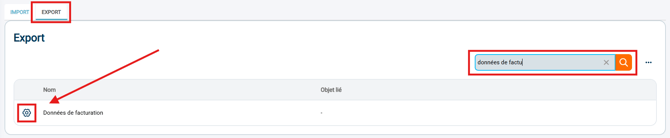
This menu shows the various fields you can show or hide in the next Billing data.
Contact us 📬:
Questions about this feature?
Feel free to write to us here so that we can answer your questions.