.png?width=210&height=40&name=bleu%20et%20gris_Sigle+logo%20SBO%20(4).png)
Benefits of the feature ✨
-
Save time by quickly exporting all your replenishment mission data into a single CSV file.
-
Easily analyze your operations thanks to a complete overview of the missions, their status and the operators involved.
-
Improve your logistics management by filtering exports by period to track performance and plan your next actions.
1. Prerequisites
- This feature is only available with the LMS Expert+ and WMS Expert packs.
2. How does the replenishment mission data export work?
This feature lets you run a complete export of the data of the replenishment missions carried out and recorded on your Shippingbo account. You can filter the data export by start and end date and time.
The data contained in the export will let you view the details of your missions, with their creation date, their status and the person who carried them out.
This way you can easily track the progress of replenishment operations, identify missions in progress or completed, and plan your next actions while monitoring the performance of your logistics operators.
3. Export the data of your replenishment missions
To create your export, follow these steps:
- Log in to your Shippingbo account.
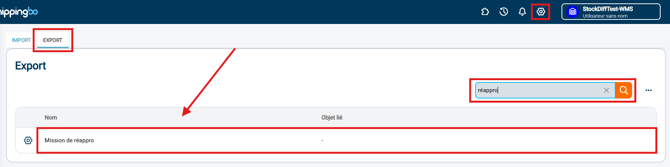
- Go to the menu Configurations -> File management -> Export -> Replenishment missions:
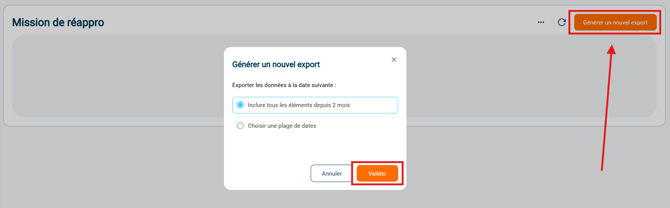
- Click on Generate a new export and select a start date and time, as well as an end date and time for the export:
- Once the CSV export has been generated, download it:

💬 Good to know:
Depending on the number of order lines to export, generation may take a few minutes.
💡 Tip:
-
If the data format is not displayed correctly, go to the menu Data of your spreadsheet and select the desired format.
- If your file contains commas in the exported data, select the separator ";" when configuring your export.
4. Configure the replenishment mission data export
You can also configure this export in the dedicated menu. Go to the menu Configurations > File management > Export > Replenishment missions > Configure:
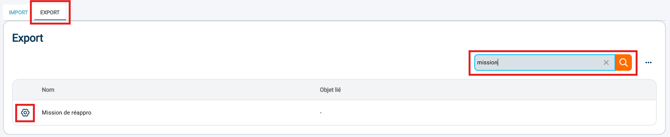
In this menu you can customize the fields that will appear in the export, as well as its format.
⚒️ Framework and responsibilities:
Before fully using the feature described in this tutorial, we strongly recommend running a test phase with your own settings to check that the result matches your expectations. As the customer remains fully responsible for the actions carried out in the Shippingbo account, these tests are essential to use the tool with complete peace of mind.
To go further 🛫:
- Picking replenishment missions on the PDA
- Activate manual replenishment missions
Contact us 📬:
Questions about this feature?
Feel free to write to us here so that we can answer your questions.