.png?width=210&height=40&name=bleu%20et%20gris_Sigle+logo%20SBO%20(4).png)
Benefits of the feature ✨
- Time savings: the return label is generated and emailed to the end customer instantly, with no tedious manual action.
- Fewer errors: automated or forced selection of the right return carrier to ensure flow compliance.
- Unified experience: the label is accessible everywhere, whether by email for the customer or in the Documents tab for the user.
- Better logistics visibility: direct retrieval of the document ID via API for seamless tracking.
1. Prerequisites
-
For the API method: have access to the return creation routes.
-
For automatic sending: have previously configured email templates in Shippingbo.
-
For all methods: have defined a list of return reasons in the application settings
2. How does return label generation work?
There are three entry points for generating a label, adapting to your workflow:
-
From the "Order return" tab: a step-by-step method where you first create the return object before generating the label.
-
From the "Shipment" tab: a "one-click" method that lets you generate the label directly from a parcel that has already been shipped.
- Via the API: a fully automated method where the return creation and label generation are handled in a single request.
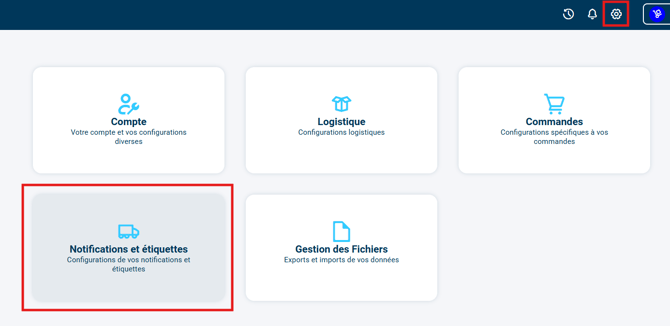
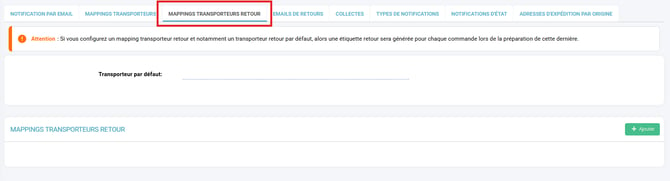
➡️ Whichever of these three ways you use to generate the return label, the choice of the return carrier can be automated via the return carrier mapping. In Configurations > Notifications and labels > Return carrier mappings tab:
3. Generate a return label
3.1 Via the Return tab of the order details
-
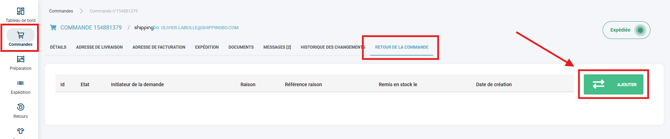
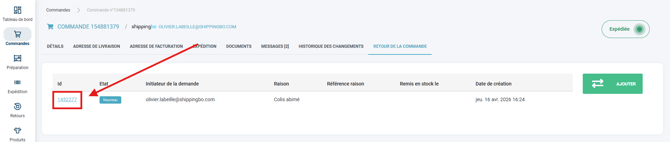
Go to the order page, Order return tab, and click on Add:
-
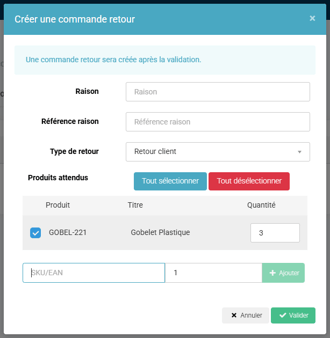
Fill in a Reason (the reason why the return was made), select the returned products, then confirm:
-
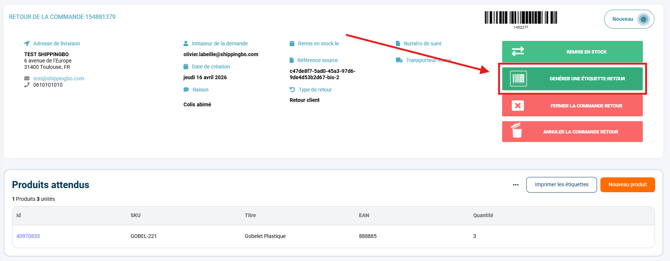
Once the return is created, click on the link that appears to Generate a return label:
-
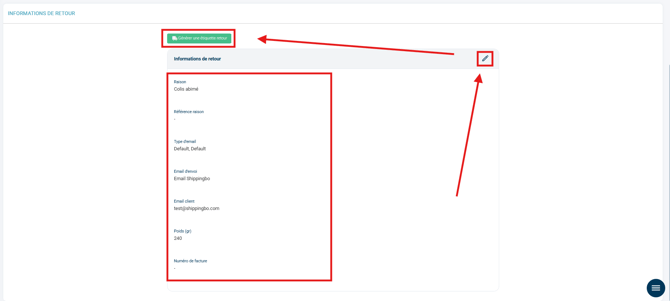
Choose the return carrier if it has not already been determined by your return carrier mapping, fill in the information (weight, customer email), then generate the return label:

3.2 Via the Shipment tab of the order details
-
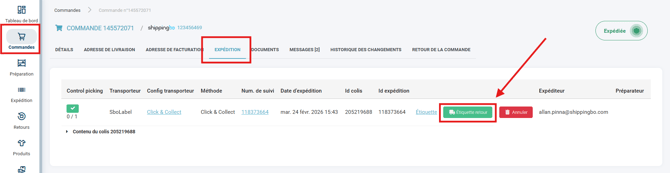
In the order, go to the Shipment tab and click directly on the Return label button on the line of the shipped parcel:
-
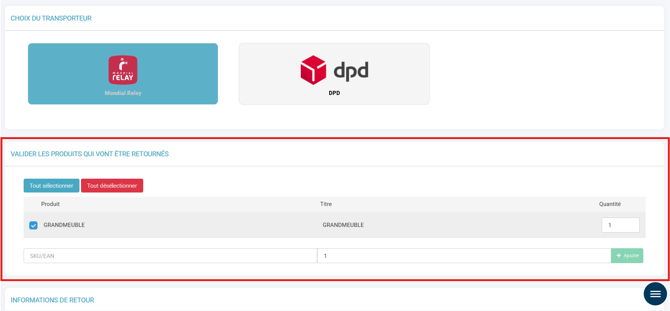
Choose the return carrier if it has not already been determined by your return carrier mapping, fill in the information, then confirm which products of the order are being returned:
-
Finally, fill in the information (weight, customer email), then generate the return label:
3.3 Via the API (Automation)
To automate the generation, you can use the Shippingbo API. To create a Shippingbo API application, go here.
Once your Shippingbo API application is ready to use, you can use the POST https://app.shippingbo.com/return_orders call, whose API documentation can be found here.
-
To generate the return label with the API, your request must contain:
"generate_label": true
-
In this case, the { "label_attributes" } list becomes mandatory. Here are the fields that can be filled in within this list:
  "label_attributes": {
    "return_label_config_id"
    "smtp_credential_id"
    "return_label_email_type"
    "buyer_email"
    "invoice_ref"
    "total_weight"
    "height"
    "width"
    "length"
    "products_price_cents"
    "products_price_currency"
  }
-
In this list, if the return carrier mapping has not determined a return carrier service for the order, only the return_label_config_id field is mandatory:
⸱ "return_label_config_id"
- The following fields are not mandatory. If they are not filled in in the call, by default, no value is sent:
  "height"
  "width"
  "length"
  "products_price_cents"
  "products_price_currency"
-
All the other fields use a default value if they are not specified in the call. They are therefore not mandatory:
  "smtp_credential_id"
➡️ if not filled in, the sending email will be no-reply@shippingbo.com

  "return_label_email_type"
➡️ if not filled in, the configuration named "Default" will be used

  "buyer_email"
➡️ if not filled in, the delivery address email will be used

  "invoice_ref"
➡️ if not filled in, the invoice reference of the order will be used

  "total_weight"
➡️ if not filled in, the sum of the weights of the order's products will be used
Example of an API request to generate a return that includes return label generation:
curl --request POST \
--url https://app.shippingbo.com/return_orders \
--header 'Accept: application/json' \
--header 'Authorization: Bearer 123' \
--header 'Content-Type: application/json' \
--header 'X-API-APP-ID: 123' \
--header 'X-API-VERSION: 123' \
--data '{

"order_id": 0,
"reason": "Damaged parcel",
"reason_ref": "32552",
"return_order_expected_items_attributes": [
{
"quantity": 0,
"user_ref": "SKU-045"
}
],

"return_order_type": "Customer return",
"skip_expected_items_creation": false,
"source": "Prestashop",
"source_ref": "RJY53RHY",
"generate_label": true,

"label_attributes": {
"return_label_config_id": 0,
"smtp_credential_id": 0,
"return_label_email_type": "Default",
"buyer_email": "emailclient@mail.com",
"invoice_ref": "HRTZH32YERH",
"total_weight": 0,
"height": 0,
"width": 0,
"length": 0,
"products_price_cents": 0,
"products_price_currency": "euros"
}
}'
💬 Good to know:
Whichever method is used, the generated return label is systematically archived in the order, Documents tab.
4. Manage returns
Once the return labels have been generated, you can track your returns.
➡️ More information on returns management in the dedicated tutorials:
4. Practical example
A customer wants to return an item because the product size does not suit them.
-
Scenario A (Manual): The customer service team goes to the shipment of the original parcel and clicks on "Generate the return label" to send it immediately.
-
Scenario B (Automatic): The customer's external return portal calls the Shippingbo API with the
générer une étiquetteparameter set totrue. The label is created and sent to the customer, and the document ID is instantly returned in the API response.
⚒️ Framework and responsibilities:
Before fully using the feature described in this tutorial, we strongly recommend running a test phase with your own settings to check that the result matches your expectations. As the customer remains fully responsible for the actions carried out in the Shippingbo account, these tests are essential to use the tool with complete peace of mind.
To go further 🛫:
Contact us 📬:
Questions about this feature? Feel free to write to us here so that we can answer your questions.