.png?width=210&height=40&name=bleu%20et%20gris_Sigle+logo%20SBO%20(4).png)
Benefits of the feature ✨
-
Quick identification: lets you visually and instantly identify each type of carton in the warehouse.
- Easier scanning: offers the ability to scan the label barcode to quickly associate the packaging during the packing process.
- B2B management: simplifies the preparation of B2B orders by precisely matching parcels with their physical containers.
1. Prerequisites
-
To use this feature, you must have previously created cartons in your Shippingbo configuration.
- The carton label generation feature is available by default from the LMS Pro+ and WMS Premium+.
2. How carton label generation works
Carton label generation lets you print a physical medium (with a barcode) for each carton configured in Shippingbo. These labels can then be stuck on your packaging storage areas or on reference cards to be scanned by your operators during preparation.
You can generate these labels in two ways from your Shippingbo interface:
2.1 From the cartons tab or list
-
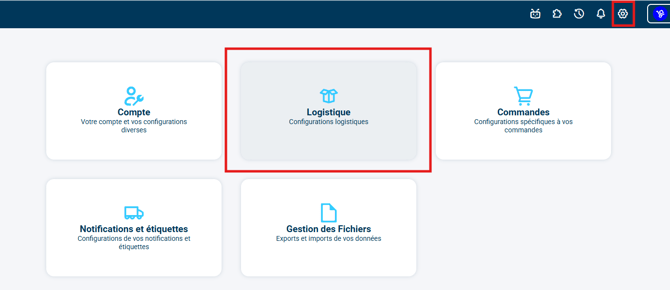
Go to the menu Configurations > Logistics:
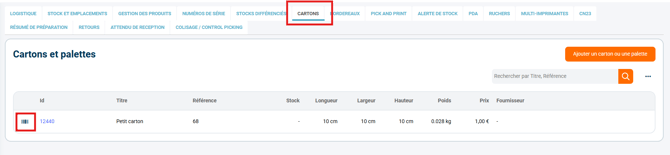
- In the tab Cartons, find the dedicated button to the left of the carton id in the displayed list of cartons. This button lets you generate and download the carton label in PDF format:
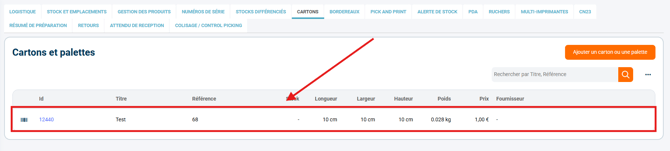
- The PDF is generated and downloaded automatically, 50x25 format:

2.2 Directly from a carton's settings
-
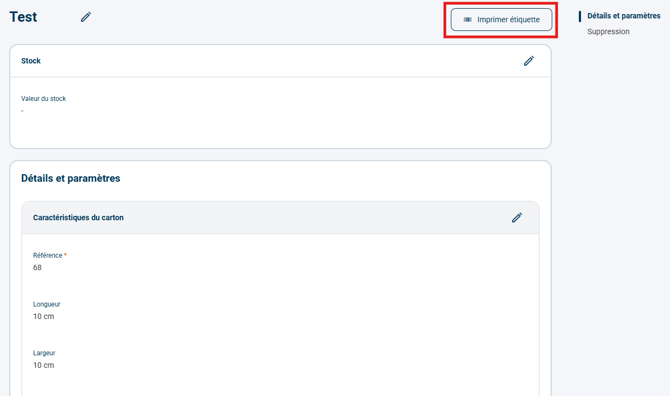
By clicking on a specific carton to open its detail sheet or its settings:
- The Print label button generates the PDF to print for this carton model:
- The PDF is generated and downloaded automatically, 50x25 format:

⭐ Key point:
This method is particularly recommended for complex B2B flows where each carton must be scanned to validate the packing step on the PDA.
3. Activating carton label generation
The carton label generation feature is available by default from the LMS Pro+ and WMS Premium+.
To start using it:
- Go to Configurations > Logistics > Cartons.
- Create or select an existing carton.
- Click on the carton label generation button.
4. Practical example
You prepare B2B orders and use three carton sizes (Small, Medium, Large). To prevent pickers from making mistakes or to save them from entering information manually:
1. You configure your 3 cartons in Shippingbo.
2. You generate the labels for these 3 cartons from the Cartons.
3. You print and stick these labels directly on the preparation stations (or on a cardboard reference card).
4. When preparing an order, the operator simply scans the barcode of the "Medium" label stuck on their preparation table to instantly associate it with the current parcel.
⚒️ Framework and responsibilities:
Before fully using the feature described in this tutorial, we strongly recommend running a test phase with your own settings to check that the result matches your expectations. As the customer remains fully responsible for the actions carried out in the Shippingbo account, these tests are essential to use the tool with complete peace of mind.
To go further 🛫:
Contact us 📬:
Questions about this feature? Feel free to write to us here so that we can answer your questions.