.png?width=210&height=40&name=bleu%20et%20gris_Sigle+logo%20SBO%20(4).png)
Summary
1. Prerequisites ✔️:
- Have the PDA option enabled; activation is available from the Premium+ Pack, and enabled by default on the Expert+ Pack .
2. Configure your PDA
2.1 Insert the battery, then turn on the PDA
2.2 Select the language French (France), then click on Start.
2.3 Turn on Wi-Fi (updates may start automatically.
2.4 Always click on Next or Skip.
2.5 When asked "Protect your device? " answer Not now.
3. Connect the PDA to the PC
3.1 Connect the PDA to your computer via USB. Swipe down from the top of the screen to display the notifications, then click on Android System.
3.2 Turn on file transfer (gear icon at the top of the screen).
If the option does not appear, restart your computer.
4. Keyboard installation
Copy the following two files to the Download folder of the PDA:
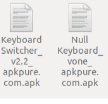
(Files available on the Drive/SupportS/Matériel/Keyboard PDA folder, to be downloaded to your
computer).
On the PDA:
Go to the menu Files → Recent or Downloads
-> Click on the first file → Continue → Install
-> Click on the second file → Continue → Install
5. Honeywell scanner configuration
5.1 Go to the menu Settings, search for Honeywell Settings.
5.2 Open the module Scanning, then Internal Scanner and Default Profile.
5.3 In Data Processing Settings:
-
Open Suffix and enter the value \r
-
Check that Wedge as keys contains the values 9, 10 and 13
-
Go back to the previous menu, then open Symbology Settings:
-
Check that EAN-13 is checked
-
Click on EAN-13 and enable Send check digit
6. Accessing Shippingbo
6.1 Open Google Chrome and enter the URL: app.shippingbo.com
6.2 Scan the QR code to open the application and save the password.
6.3 Click on the Chrome menu (⋮), then on Add to Home screen.
6.4 Place the shortcut on the main screen of the PDA. If in doubt, please see our tutorial here.
7. Finalization
7.1 Turn off the PDA.
7.2 Put it back properly in its shipping packaging.
7.3 The PDA is ready to be used in the warehouse.
Find the video tutorial:
⚒️ Recommendation:
Before fully using the feature described in this tutorial, we strongly recommend running a test phase with your own settings to check that the result matches your expectations. As the customer remains fully responsible for the actions carried out in the Shippingbo account, these tests are essential to use the tool with complete peace of mind.
To go further 🛫
- Connect your PDA to your Shippingbo account
Contact us 📬:
Questions about this feature? Feel free to write to us here so that we can answer your questions.