.png?width=210&height=40&name=bleu%20et%20gris_Sigle+logo%20SBO%20(4).png)
- Time savings: Update shipping dates in bulk via an import file.
- Flexibility: Adjust the dates according to your constraints and those of your customers.
- Simplified tracking: Easily find this information in the order details.
2. Prerequisites ✔️:
- This feature is only available for OMS and LMS accounts, starting from the Starter + Pack.
- The file to import must be in CSV format and encoded in UTF-8.
3. How does the "Ship after" import work?
This feature allows you to set or change in bulk the desired shipping dates for your orders, using a structured import file. This is useful if you need to postpone shipments based on new lead times or other logistical constraints.
💡 Tip: If you need to check the sources and source references of your orders before importing, export the orders from Shippingbo to get this information.
4. How to import a new shipping date?
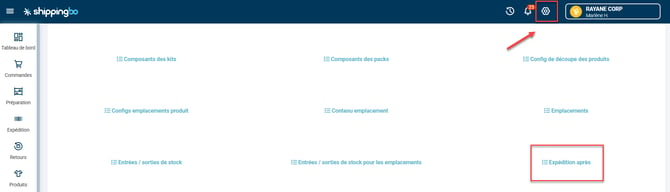
- Go to the menu Configurations -> File management -> Import -> Ship after:
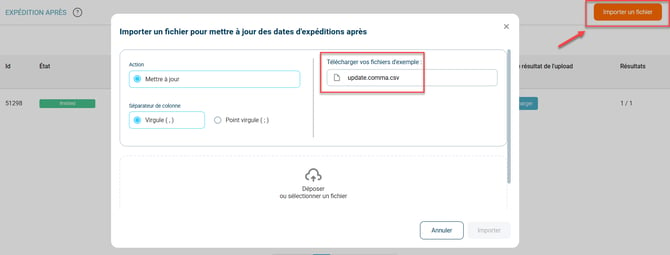
- Click on Import a file, then download the sample file that will serve as a template for the import:
-
Fill in the import file following these instructions:
- source: Corresponds to the source of the order (1).
- sourceRef: Source reference of the order (2).
- earliestShippedAt: Enter the new desired shipping date here using the following format:
YYYY-MM-DDTHH:mm:ss.
Example: If you want to enter the date and time of February 22, 2024 at 8:00 AM, enter:2024-02-22T08:00:00.
You can find the source and source reference information in your orders via an order export. See our tutorial on exporting orders for more information.
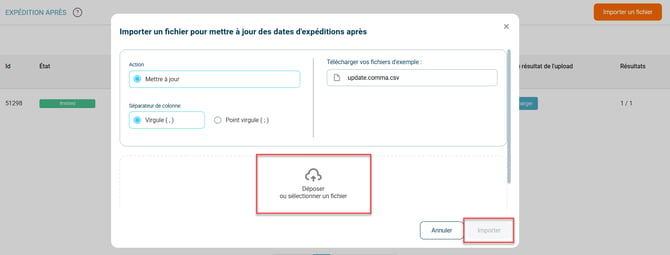
- Once the file is ready, click on Drop or select a file, then select the file and confirm to import it into Shippingbo:
5. Example scenario
Context:
You are an online merchant with a special restocking operation that shifts your shipping dates.
Using the feature:
To manage this efficiently, you can import a file containing the new shipping dates for all the orders concerned.
You download the sample file from Shippingbo, fill in the new shipping dates in the earliestShippedAt column, and proceed with the import.
Result:
All your orders will be updated with the new dates, guaranteeing you optimal control over your shipments.
💠 Note:
You can change these dates at any time via the import or directly in the order details.
⚒️ Recommendation:
Before fully using the feature described in this tutorial, we strongly recommend running a test phase with your own settings to check that the result matches your expectations. As the customer remains fully responsible for the actions carried out in the Shippingbo account, these tests are essential to use the tool with complete peace of mind.
To go further 🛫:
FAQ ❔:
No FAQ related to this feature at the moment.
Contact us 📬:
Questions about this feature? Feel free to write to us here so that we can answer your questions.