.png?width=210&height=40&name=bleu%20et%20gris_Sigle+logo%20SBO%20(4).png)
Summary
1. Benefits of the feature
2. Prerequisites
3. Feature description
4. Activation and configuration
5. Practical example
6. To go further
7. Contact us
Productivity gain: Bulk addition of products to a catalog in a few minutes, with no repetitive manual entry.
Fewer errors: Using a structured file limits the risk of inconsistencies in prices, minimum purchase quantities or multiples.
Reliable supplier data: Centralizes and automatically updates purchase conditions, ensuring catalogs are always up to date.
2. Prerequisites ✔️:
- Feature available from the pack Premium +.
- Import reserved exclusively for accounts using Smart Procurement Shippingbo. To activate it, please see our documentation here.
- Having previously created a supplier product catalog.
3. How does the purchase conditions catalog import work?
The "Purchase conditions catalogs" import lets you quickly add a large number of products to an existing catalog. Specifically, this import is used to define, for each supplier product, its price excl. VAT, its minimum purchase quantity and its purchase multiple, directly in the chosen catalog.
4. How do I use the purchase conditions catalog import?
4.1 Retrieve the catalog data
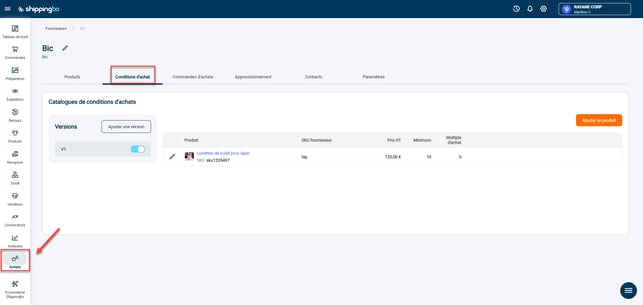
- Go to the menu Purchases -> Suppliers -> Open the details of the supplier in question -> tab Purchase conditions:
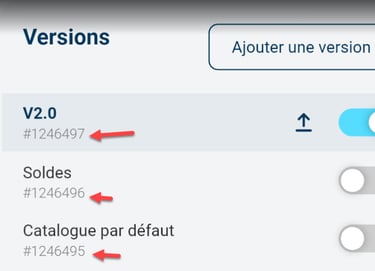
- Select the ID of the desired catalog version and save it:
4.2 Import the catalog's purchase conditions
- Then go to the menu Configurations -> File management -> Import -> Purchase conditions catalog:
- Click on Import a file, then download the sample file:
- Fill in the file with the following information:
- merchantManufacturerPriceCatalogId: ID of the catalog in question, retrieved in the previous step
- SKU / id / EAN13: of the product concerned
- priceWithoutTaxCents: price in cents excluding taxes
- minOrderQuantity: minimum quantity to order
- orderMultiple: purchase multiple for this product. If you do not want a purchase multiple for the product, enter "1".
- Once the file is filled in, import it by clicking on Drop or select a file, then on Import:
5. Practical example
Context:
You are an e-merchant specialized in electronic accessories. You work with a supplier who offers you more than 800 references, each with a purchase price excl. VAT, a minimum order quantity and sometimes a specific purchase multiple. Until now, updating this information in your catalog was done manually, which was time-consuming and error-prone.
By using the feature "Purchase conditions catalog import", you can now update all your supplier's purchase conditions in a single operation.
Using the feature:
-
You retrieve the supplier catalog ID.
-
You complete the import file with the SKUs, prices excl. VAT, minimum and multiple purchase quantities.
-
You import the file in the Purchase conditions catalog area to update all the products at once.
Result:
Thanks to this feature, you save a considerable amount of time in managing your purchase conditions. Your catalog is updated with reliable, consistent data, greatly reducing manual errors. Purchasing teams now have a clear basis to trigger replenishments, which streamlines the entire procurement process.
⚒️ Recommendation:
Before fully using the feature described in this tutorial, we strongly recommend running a test phase with your own settings to check that the result matches your expectations. As the customer remains fully responsible for the actions carried out in the Shippingbo account, these tests are essential to use the tool with complete peace of mind.
To go further 🛫:
- Smart Procurement Shippingbo
- Import supplier products into Shippingbo
Contact us 📬:
Questions about this feature? Feel free to write to us here so that we can answer your questions.