.png?width=210&height=40&name=bleu%20et%20gris_Sigle+logo%20SBO%20(4).png)
- This feature is available from the LMS Expert+ pack or WMS Expert+ pack.
2. How does lot number management work?
Lot number management in Shippingbo makes it possible to effectively trace the stock of products with lot numbers in the warehouse.
These lot numbers are visible in particular in locations, product sheets, and via detailed exports.
3. Activate and use lot number management
3.1 Enabling the requirement on the product sheet
To force your operators to enter a lot number when stock is received, you must configure the product concerned.
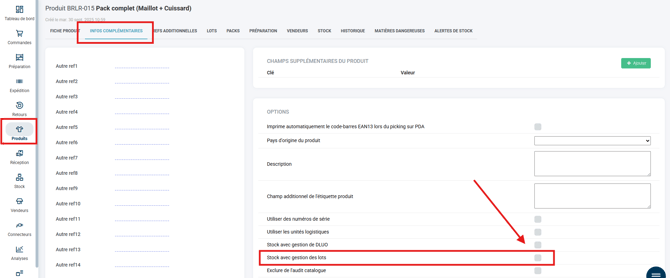
- Go to the sheet of the desired product, then in the ADDITIONAL INFOtab, you can check the option Stock with lot management, which makes entering a lot number mandatory:
💬 Good to know:
These options are visible and can be activated only for users with an Expert+ pack.
3.2 Adding and modifying stock (PC and PDA)
As soon as a product has the option Stock with lot management enabled, any stock creation operation (Receipt, Inventory, Stock entry) will require these values to be entered.
Visually, the mandatory fields are highlighted to indicate that a value is required to validate the operation.
3.2.1 Manually adding stock (PC interface)
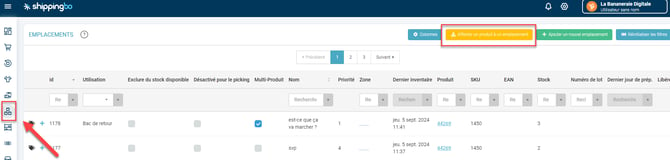
- Go to the menu Locations, then click on Assign a product to a location.
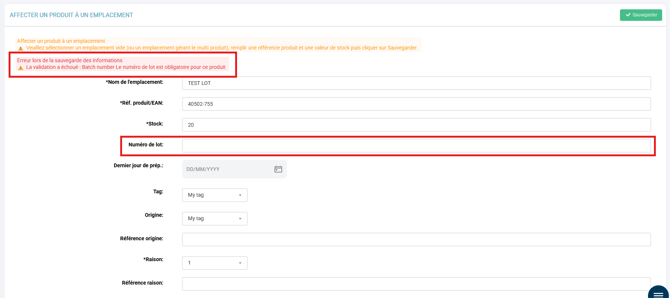
- If the product has the option Stock with lot management enabled, the system does not allow the product to be added to the location if its lot number has not been entered:
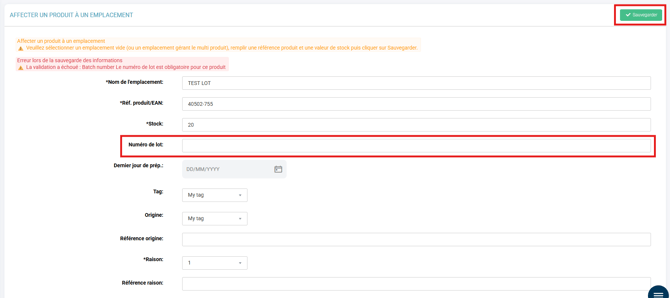
- Enter the lot number in the field Lot number and save:
➡️ For the same product reference, it is not possible to have several different lot numbers in the same location.
3.2.2 Adding or modifying stock via the PDA
- On the PDA, go to Stock management -> Stock addition (or Inventory).
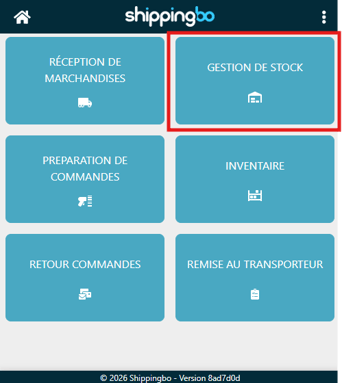
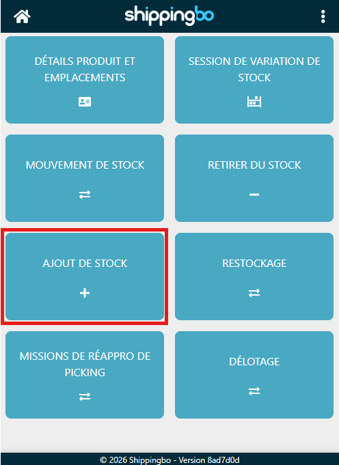
- Scan the product.
- Mandatory fields configured on the product are displayed with an asterisk indicating that completion is required. Here, you must scan or enter the lot number before you can validate the quantity and finalize the stock entry.
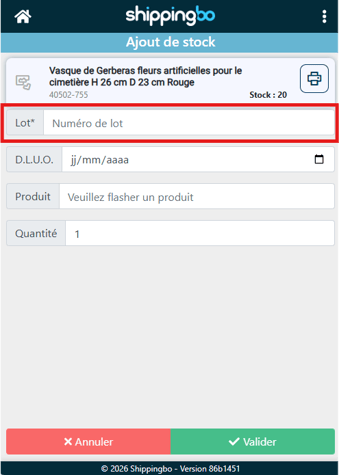
➡️ For the same product reference, it is not possible to have several different lot numbers in the same location.
3.2.3 Stock removal with lot numbers
The procedure is identical for stock removal. Go to Stock management -> Stock removal, select the product, enter the highlighted lot number, and confirm.
3.2.4 Picking with lot numbers
- If the option Use the Best-Before Dates and lot numbers chosen at reservation is checked, the lot numbers shipped match those chosen when the products were reserved

3.3 Visibility and Exports
3.3.1 Exporting locations with lot numbers
-
Go to the menu Configurations -> File management -> Export -> Locations -> Generate a new export:
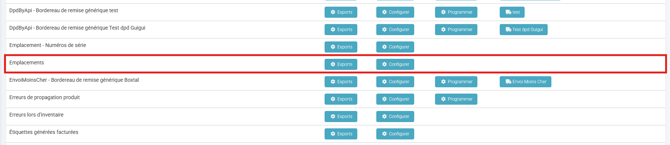

➡️ Lot numbers are found in the columnslot_contents.batch_number.
🚩 Special case:
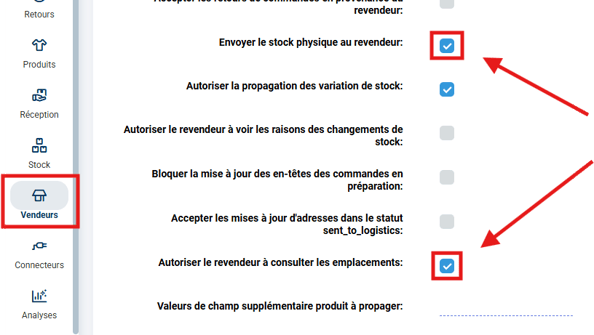
If you are using Multi-Shippingbo, on the WMS, it is recommended to enable the visibility of lot numbers by the OMS:
-
In the Sellers pane, check Allow the reseller to view locations and Send physical stock to the reseller:
-
Lot numbers will appear in the Stock pane, section Locations, in the column Lot number:
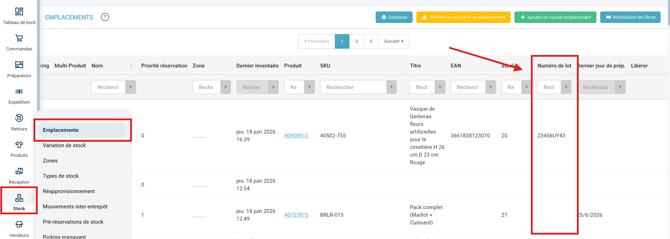
➡️ Lot number information may take several minutes to appear on the OMS account.
4. Managing replenishments and receipt of products with lot numbers
4.1 Replenishment of locations
Replenishment missions work with products that have the same lot number.
➡️ To learn more, see the tutorial on Picking replenishment missions on the PDA.
4.2 Receiving products with lot numbers
When receiving an expected receipt, the stock is added as for any other product, with lot number management.
Example: When receiving an expected receipt containing products with lot numbers, you follow the normal steps for adding stock, entering this information in the corresponding fields.
5. Managing PDA returns of products with lot numbers
5.1 Restocking returned products
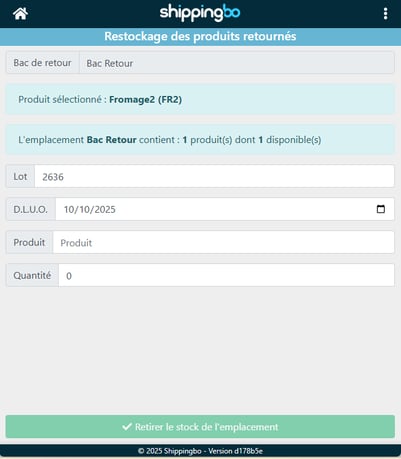
Go to the PDA, in the menu Order returns -> Restocking of returned products. Scan the return location and the returned product, enter the lot number, and the quantity to restock.
5.2 Restocking the product
Scan the destination location, and your product units will be correctly restocked.
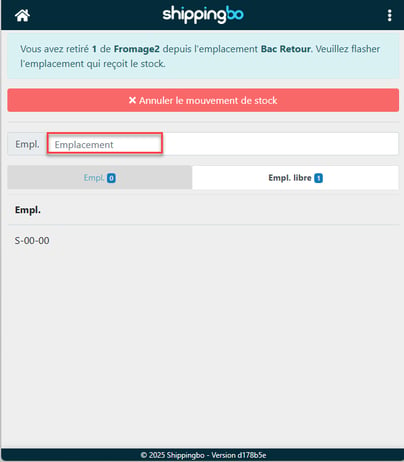
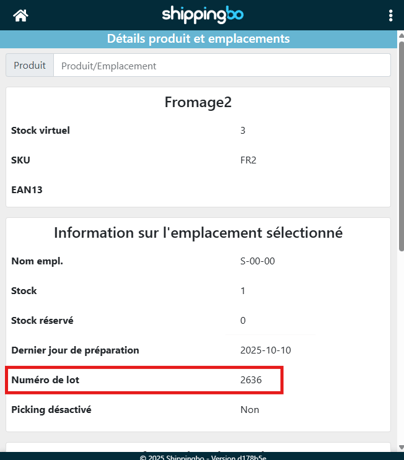
Example: When restocking a returned product, first scan the return location, then the destination location to finalize the operation.
6. Benefits of the feature

- Full traceability: Precise identification of each lot of products from the supplier to the end customer.
- Safety and compliance: Ability to isolate or recall a defective lot of goods very quickly.
- Fine-grained stock management: Better visibility of the actual composition of your warehouse stock.
⚒️ Recommendation:
Before fully using the feature described in this tutorial, we strongly recommend running a test phase with your own settings to check that the result matches your expectations. As the customer remains fully responsible for the actions carried out in the Shippingbo account, these tests are essential to use the tool with complete peace of mind.
To go further 🛫:
- Picking replenishment missions on the PDA
- Create locations manually and by import
- How the advanced warehouse works
- Create a preparation session
FAQ ❔:
How to modify a Best-Before Date?
Contact us 📬:
Questions about this feature? Feel free to write to us here so that we can answer your questions.