.png?width=210&height=40&name=bleu%20et%20gris_Sigle+logo%20SBO%20(4).png)
Summary

Logistical flexibility: It makes it easy to split a bulky order or one made up of several items into multiple parcels directly via the PDA. This avoids blockages during preparation and optimizes the space used.
Time savings in preparation: Staff can add, delete or navigate between parcels in a few clicks, without going back to a fixed workstation. This streamlines the warehouse process.
Wider carrier compatibility: The feature supports the main carriers with full or partial tracking options. This ensures better parcel tracking and adaptation to the constraints of each operator.
2. Prerequisites✔️:
- Available for preparation sessions of type Mono picking or order-by-order picking on PDA.
-
Disable the option "Automatically click the print button when the parcel is ready" in the menu Configuration -> Logistics -> Logistics.
-
Not all carriers support multi-parcel. See the list below.
Types of multi-parcel depending on the carriers:
-
✅ Full multi-parcel (a single tracking number for all parcels)
Compatible carriers: DB Schenker, DHL, DPDbyAPI, Geodis, Kuehne, Nacex, TNT, UPS, Dachser. -
🔢 Partial multi-parcel (one tracking number per parcel)
Compatible carriers: Colissimo, Amazon Merchant, Delivengo, Fedex, Frequenceo, GLSbyAPI, Post N, Showroom Privé, Veepee.
-
3. How to ship an order as multi-parcel via the PDA?
3.1 Before starting preparation, you must first enable the multi-parcel feature on PDA.
To do this, go to the menu Configurations -> Logistics -> PDA -> Enable the option Allow multi-parcel when preparing order by order on PDA:

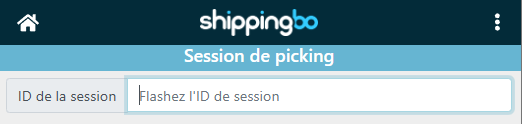
3.2 Then go to your PDA, menu Order preparation -> Select the type of session to carry out, then scan the ID of your session:
3.3 Scan your products.
- The product you scan at this point will be included in the parcel shown at the bottom of the page:
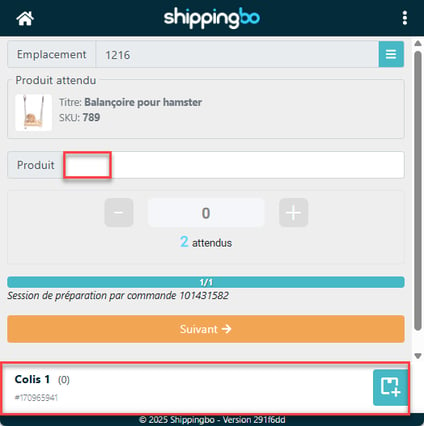
- To add a new parcel, click on the box icon at the bottom right of the screen:

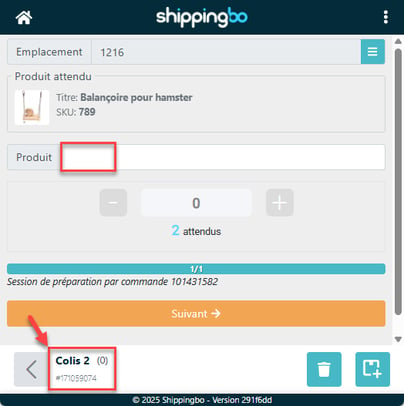
- Parcel number 2 appears and is ready to be filled with the remaining products to scan:
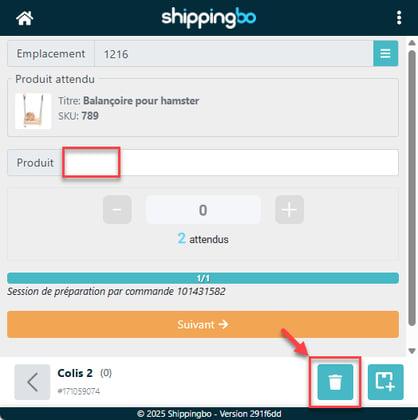
- You can delete the parcel if needed by clicking on the trash can icon:
📢 Warning:
If you delete a parcel, the products it contains will automatically be put back in the list of products to pick.
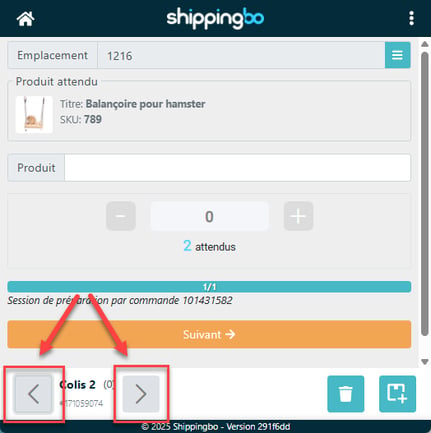
- To go back to the previous parcel or move forward to the next one (provided you have added it), use the arrows around the title of the current parcel:
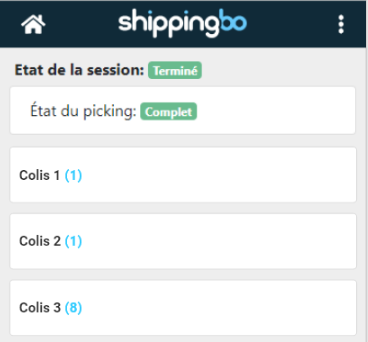
- Once all your products have been scanned and added to the desired parcels, a summary of their distribution appears:
-
The packing list and the parcel labels will be printed at that point.
🔷 Note:
In multi-parcel mode, insurance may be applied differently depending on your insurance contract.
📢 Warning:
If you assign a product to the wrong parcel, you will need to delete the incorrect parcel and reassign the products it contains to other parcels.
This is not valid if the incorrect parcel is Parcel 1.
⚠️ Special case - Colissimo to French overseas territories (DOM-TOM)
With Colissimo, multi-parcel is allowed to the overseas territories, but:
🚫 Limited to a maximum of 5 parcels per shipment.
This is a specific behavior: Colissimo handles a true multi-parcel for these destinations, but imposes this limit.
4. Example of practical use
You are an e-merchant and you sell sports equipment. A customer orders a yoga mat, two dumbbells and an exercise ball. These items, bulky and of different shapes, cannot fit in a single parcel.
Thanks to the multi-parcel on PDA feature, when preparing the order, you can easily distribute these items into several parcels directly from your PDA: the mat in parcel 1, the dumbbells in parcel 2, and the ball in parcel 3. Once preparation is complete, the labels for each parcel are printed automatically according to the selected carriers.
Result: you optimize packaging, avoid preparation errors and guarantee a clear and traceable shipment, even for complex orders.
⚒️ Recommendation:
Before fully using the feature described in this tutorial, we strongly recommend running a test phase with your own settings to check that the result matches your expectations. As the customer remains fully responsible for the actions carried out in the Shippingbo account, these tests are essential to use the tool with complete peace of mind.
To go further 🛫:
- Manage a multi-parcel shipment on PC
Contact us 📬:
Questions about this feature?
Feel free to write to us here so that we can answer your questions.