.png?width=210&height=40&name=bleu%20et%20gris_Sigle+logo%20SBO%20(4).png)
1. Printing process
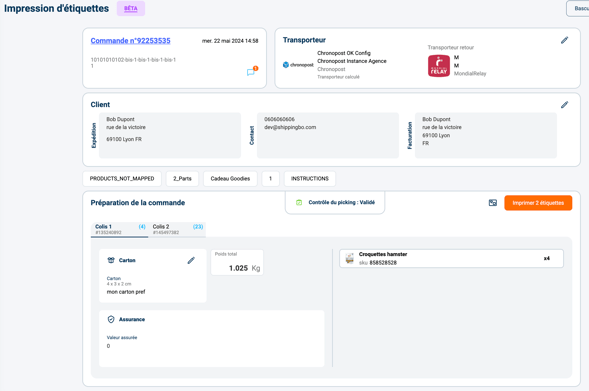
Once the products of the order have been distributed into parcels during the packing process (described here), the printing page lets you check all the information before generating the shipping label and the associated shipping documents.
1.1 Printing labels
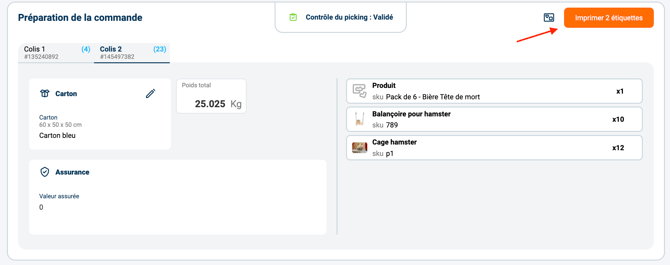
To print the shipping labels as well as the additional documents, simply click on the "print" button.
1.2 Order information
In the order tile, you will find the following information:
- A link to the order, allowing you to return to the details page
- The order date
- The source reference
- The origin reference
- The messages associated with the order
- Information icons depending on the type of order to be prepared
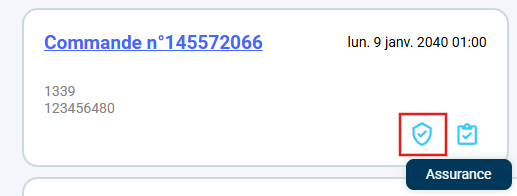
➡️ Here, the icons indicate that the order is eligible for insurance and that it must go through the picking control.
1.3 Shipping information
In this tile you will find the carriers and services selected to generate the outbound and return shipping labels (if configured).
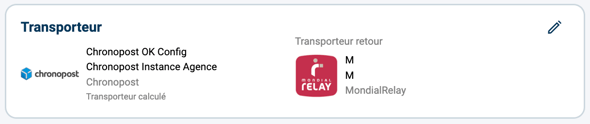
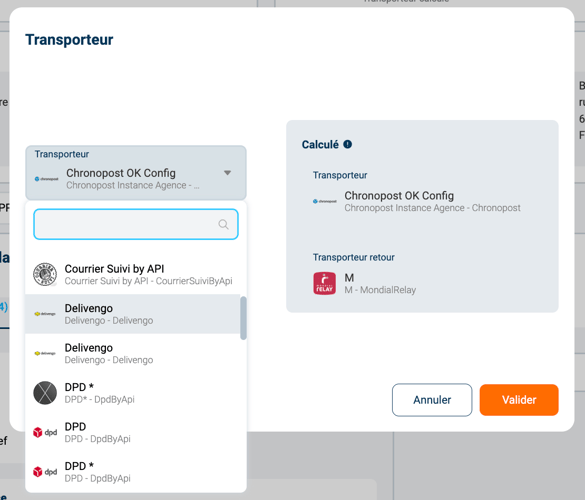
The "pencil" icon lets you change the shipping service values via a modal that offers all the services configured on your account. A search field lets you find the service you need more quickly.
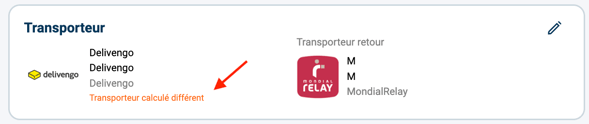
If the selected carrier is different from the calculated carrier, a message appears to warn of a possible risk of error.
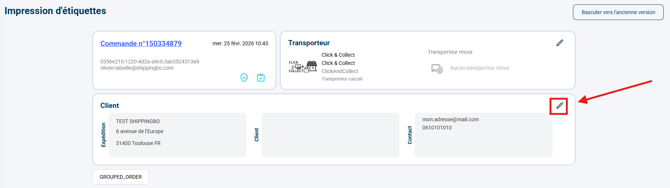
1.4 Customer information
This information block consists of 3 parts:
- Shipping information: Name and delivery address, pick-up point number (for pick-up point delivery)
- Contact information: Customer phone number and email
- Billing information: Billing name and address

The pencil icon on the right lets you manually edit: pick-up point, delivery address, billing address and customer contact information (phone number and email address). 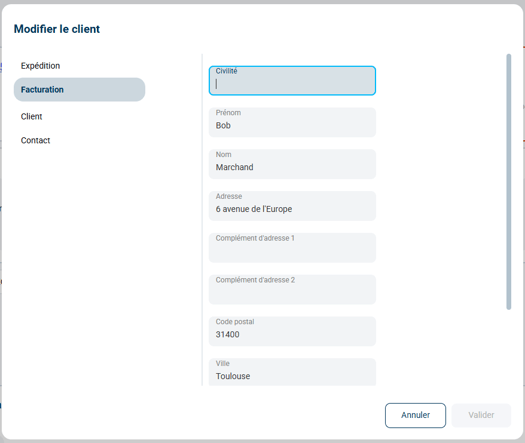
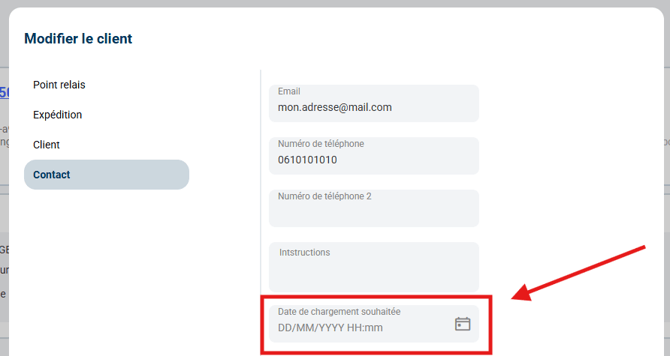
🚩 Special case:
If, as part of a P30 shipment, you need to change the Desired loading date, the setting is found in the Contact tab of the customer address:
1.5 Preparation information
The order tags are always visible at this stage. 
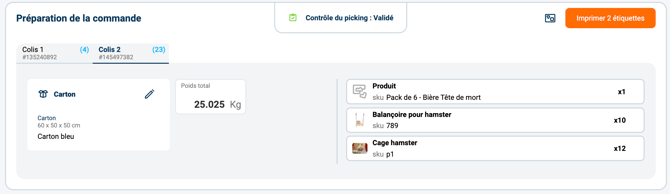
The "Order preparation" box lets you view the picking control status in the central banner, as well as the information relating to the different parcels: carton used, dimensions, parcel weight and packed products.
➡️ If the picking control has not been skipped, a summary of the products in each parcel is displayed.
➡️ If the picking control has been skipped or does not apply to the order, the overall list of products appears outside the parcels.
More information on picking control here.
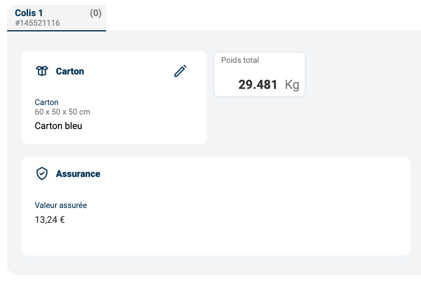
If insurance is configured for the shipment of the order, the insured value is displayed and editable in a dedicated box.
For shipments that require the generation of customs documents / CN23, a customs information block is displayed.
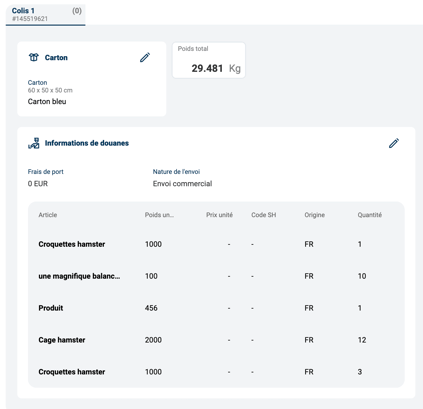
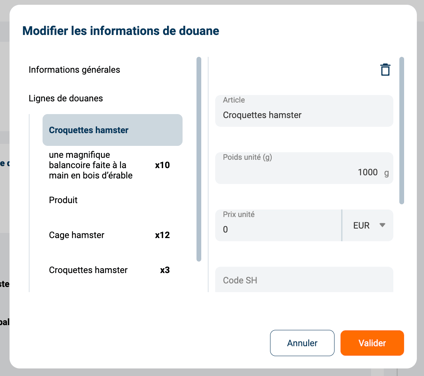
If needed, the customs information can be edited via a dedicated modal (accessible from the "pencil" icon).
1.6 Error handling during printing
Shippingbo detects certain errors before attempting to generate the label. The "Print a label" button is therefore grayed out and blocked, pending the correction of the errors or the completion of the missing information.
To help you detect errors and correct them quickly, a number of help indicators are displayed automatically when an error is detected.
➡️ This is how it appears for an order-level error:
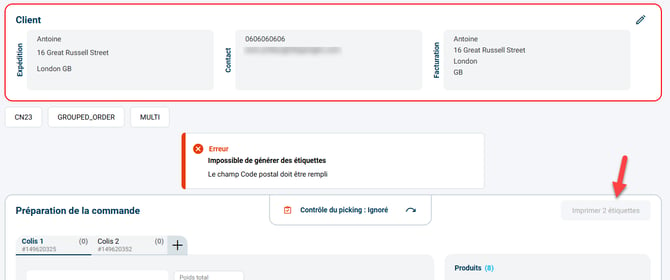
- The "Print" button is grayed out and cannot be clicked;
- The "Error" box indicates the correction to make;
- The block concerned is outlined in red to make the error easier to spot.
➡️ This is how it appears for a parcel-level error:
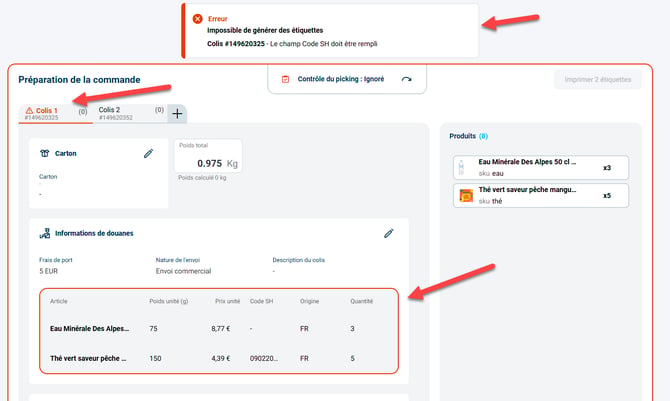
- The "Print" button is blocked
- The "Error" box indicates the correction to make
- The parcel is underlined in red to make the error easier to spot
- The block concerned is outlined in red to make the error easier to spot
➡️ When an error appears, it is possible to remove the order from the preparation session:
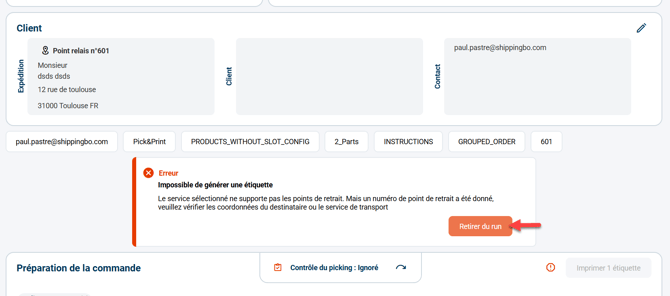
- The "Remove from run" button appears next to the error message
1.7 Configuration options for the printing process
Some aspects of the printing process can be configured in Configurations > Logistics > tab Logistics:
- Option "Automatically click the print button when the parcel is ready"

This option triggers the generation of the label and other shipping documents (automatic click on the Print button) as soon as all the necessary information is filled in and there are no errors.
➡️ This corresponds to the former "Auto-click" option of the former "Generate a label" page: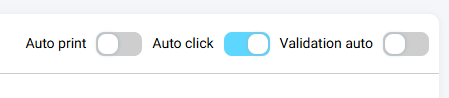
- Option "Enable automatic label printing"

This option automatically triggers the printing of the label. This sends the print order to the Shippingbo multi-print server if configured, or otherwise opens the print window of your browser.
More information on configuring the multi-print server here.
➡️ This corresponds to the former "Auto-print" option of the former "Generate a label" page:
- Option "Print product instructions"

This option triggers the printing of the instructions related to the products in the order when the label is printed.
More information on product instructions here.
- Option "Enable the weight entry interface"

This option makes the weighing of parcels mandatory during the printing process. Label generation will be blocked until the parcels have been weighed.- This option is compatible with the use of a connected scale. Simply place the parcel on the scale to record its weight and move on to the next parcel. Weighing is done through a dedicated modal after clicking on the button Weigh parcels:
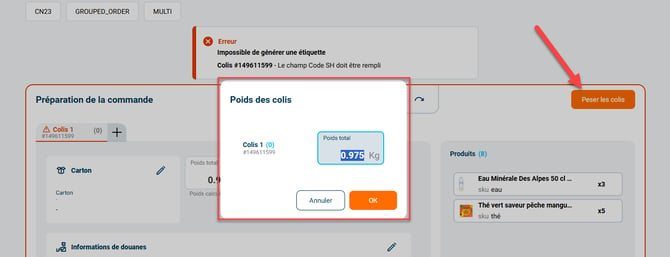
- This option complements the option Automatically click the parcel weighing button when the parcel is ready, which triggers the weighing of the parcel without having to click on the button Weigh parcels.
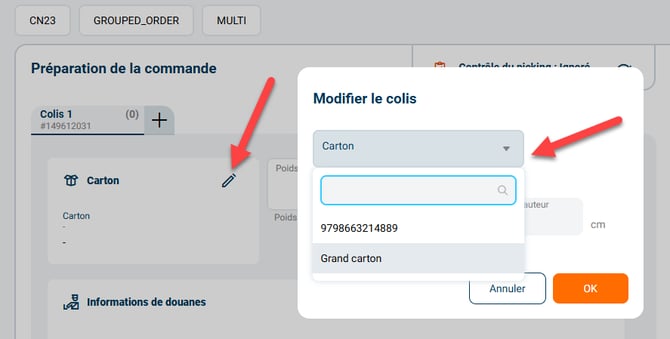
- Option "Cartons are mandatory for each parcel"

This option makes it possible to make the choice of a carton mandatory during the printing process. Label printing will be blocked until a carton is specified:
You must therefore select the carton type associated with the parcel via the pencil in the "Carton" box of the "Order preparation" block and try generating the label again: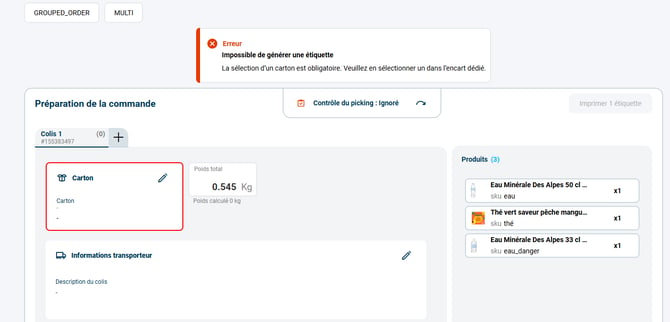
- This option also forces the selection of a carton during the picking control step, if it is performed: