.png?width=210&height=40&name=bleu%20et%20gris_Sigle+logo%20SBO%20(4).png)

- Optimization: Search more efficiently with an intuitive interface and powerful filters.
- Customization: Configure columns and filters to match your specific needs.
- Time savings: Quickly access the essential information to manage your orders.
Prerequisites✔️:
- This feature is available for all Shippingbo Packs.
1. How does the new order search page work?
The new order search page offers a more user-friendly interface and more powerful filters, allowing you to search for your orders according to precise, personalized criteria.
Example:
You manage many orders and want to filter those with a specific status or coming from a particular source. The new page lets you carry out this search efficiently thanks to advanced filters.
2. Enable the new search page
Enable the new search page for your orders:
- Go to your Shippingbo account.
- Go to the Orders menu in the sidebar.
- Click on "Switch to the new version" in the pop-up window at the top of the page
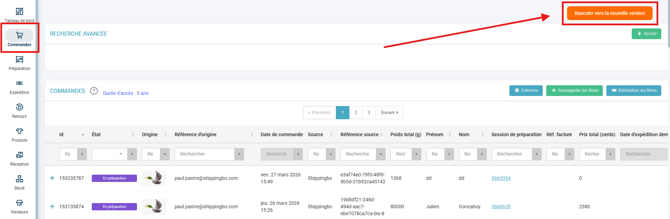
3. Use the new search page
On this new page, you will find all the previous features along with new, more powerful ones.
3.1 Configure the columns of the search page
Previously, in the old Orders view, the order search columns were configured with the blue Columns button:
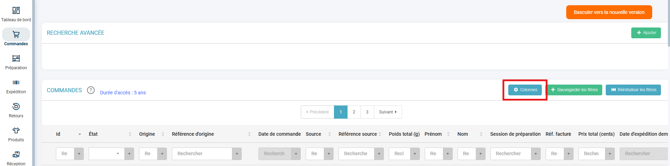
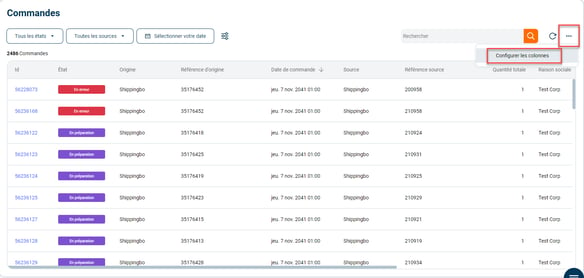
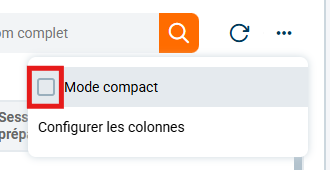
- Now, the column configuration is found under the three small dots on the right of the page.
- Click on the dots and select "Configure columns":
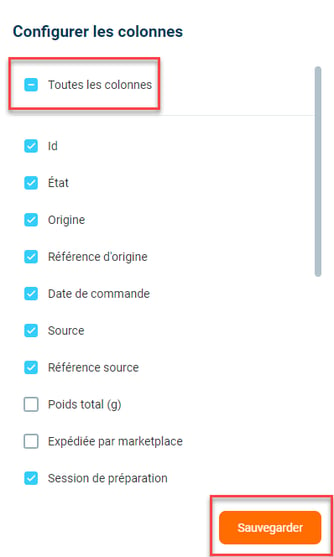
- Check or uncheck the columns you want to see in the table, then click on "Save". To display all columns, select the option "All columns":
- Enable the option "Compact mode" if you want to tighten the rows.
3.2 Filter your orders
Previously, in the old Orders view, orders were filtered using one field per column:

- Quick filters:
Use the filters located under the title "Orders", such as order status, sources, and dates: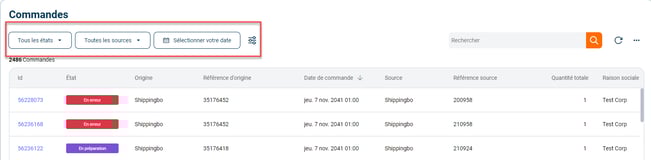
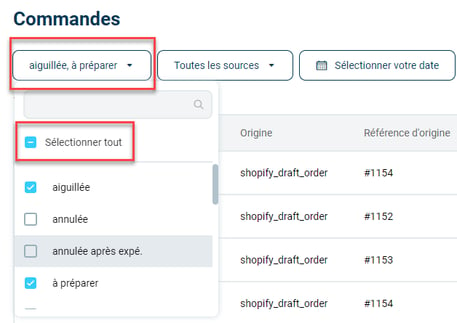
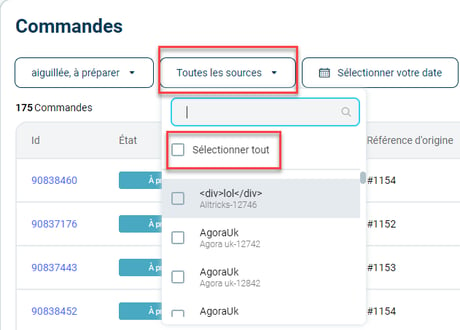
- To select all order statuses or sources, check "Select all":
- You can customize the date by selecting "Custom dates":
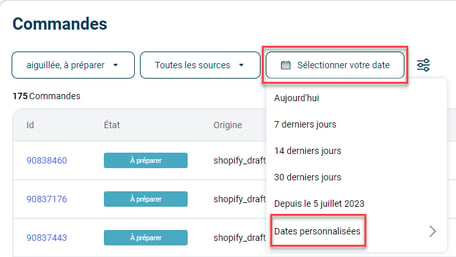
Example:
You can quickly filter orders awaiting shipment or those from a specific marketplace, directly via the quick filters.
- To select all order statuses or sources, check "Select all":
- Column sorting:
- You can also sort the data by clicking on the arrows in the column headers.
- A downward arrow sorts in descending order, while an upward arrow sorts in ascending order:
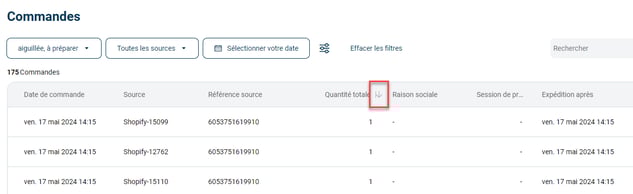
Example:
You sort the orders to see those with the highest number of ordered products first.
- Simplified search :
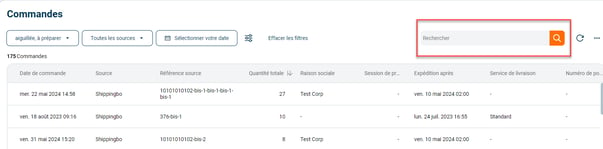
In this single field, you can search for any of the information listed below to quickly find your order:
-
-
ID
-
Origin reference
-
Source reference
-
Last name
-
First name
-
Company name
-
-
-
Advanced search:
-
Click on the three lines to the right of the option "Select your date":

-
Click on "Add a condition":
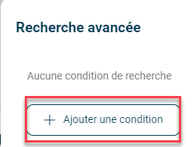
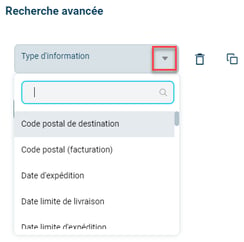
- Select the desired type of information and associate a criterion with it:
-
💬 Good to know:
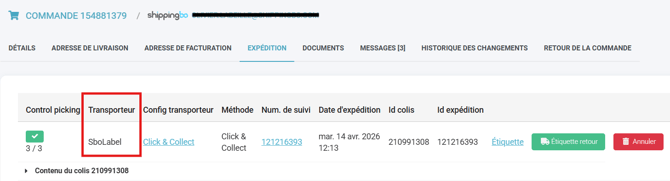
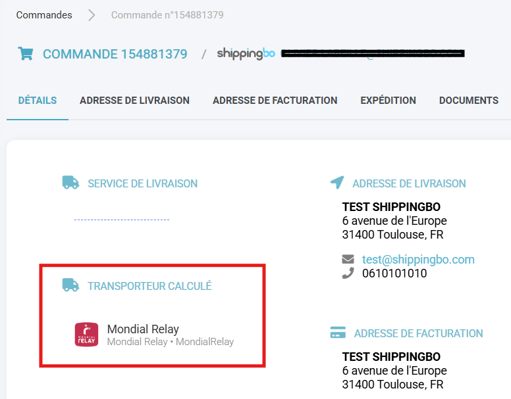
You will find a new filter here, Carrier. The filters distinguish between Carrier and Calculated carrier:
- Carrier corresponds to the carrier service actually used to ship the order. It can be found in the Shipping tab of the order:
- Calculated carrier corresponds to the carrier service determined by the carrier mapping. It can be found in the Details tab of the order:
-
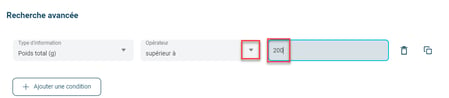
- Add other conditions if needed and run the search:
-
Once all your advanced search filters have been created, they will appear under your simple search fields:
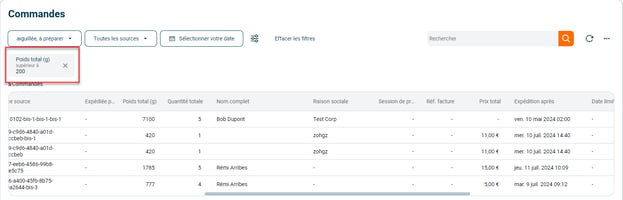
- Add other conditions if needed and run the search:
💡 Tip:
You can duplicate a search criterion by clicking on the two-copies icon, or delete it with the trash can icon:
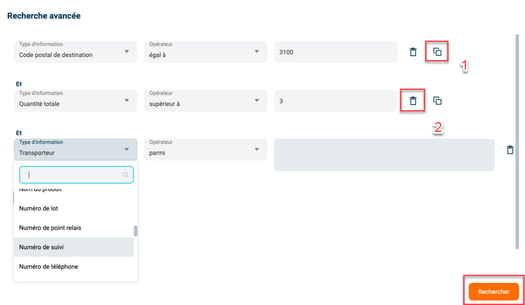
-
Id
-
City (billing)
-
Company name (billing)
-
Country (billing)
-
First name (billing)
-
Last name (billing)
-
Postal code (billing)
-
Carrier
-
Delivery service
-
EAN
-
Earliest delivery date
-
Earliest shipping date
-
Email
-
Shipped by the marketplace
-
Invoice reference
-
Latest delivery date
-
Latest shipping date
-
Order date
-
Origin
-
Origin reference
-
Phone
-
Preparation session
-
Pick-up point reference
-
Serial numbers
-
Shipping date
-
City
-
Company name
-
Country
-
First name
-
Last name
-
Postal code
-
SKU
-
Source
-
Source reference
-
Status
-
Supplier
-
Tags
-
Product name
-
Total price
-
Item quantity
-
Total weight (kg)
💡 Tip:
You can save your column configurations so that you do not have to reconfigure them each time you use them.
➡️ To do this, bookmark the URL once all the filters have been applied.
⚒️ Recommendation:
Before fully using the feature described in this tutorial, we strongly recommend running a test phase with your own settings to check that the result matches your expectations. As the customer remains fully responsible for the actions carried out in the Shippingbo account, these tests are essential to use the tool with complete peace of mind.
To go further 🛫:
Contact us 📬:
Questions about this feature? Feel free to write to us here so that we can answer your questions.