.png?width=210&height=40&name=bleu%20et%20gris_Sigle+logo%20SBO%20(4).png)
Benefits of the feature ✨
-
Better readability: The Warehouse tab has been improved in terms of clarity and ergonomics for smoother tracking.
-
Immediate visibility of routing: Instant identification of the preparation location(s) directly from the global order view.
-
Control and responsiveness to unforeseen events: Real-time tracking of orders rejected by warehouses (WMS) and automation of their handling (rerouting or error status).
1. Prerequisites
- This feature is only available in Multi-Shippingbo, for all OMS packs.
2. Feature description
On theOMS, in the details of an order, the Warehouse tab interface evolves: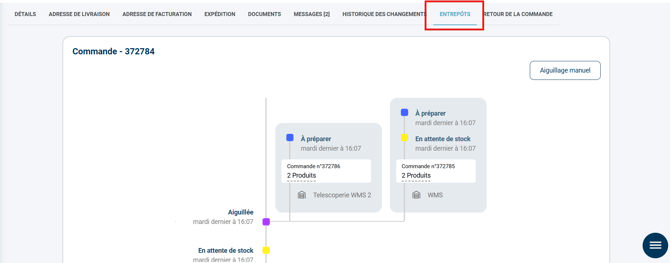
➡️ This view offers complete transparency on the logistics journey of your orders, from their initial assignment to the final handling by the WMS.
2.1 Related additional features
This new view comes with several changes that give a better understanding of the routing path of an order:
-
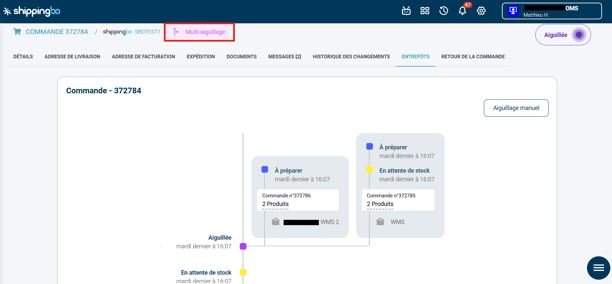
In the Order details, an order Routed to several warehouses (order split into several parts that are shipped via different warehouses) will display the label Multi-routing next to its title:
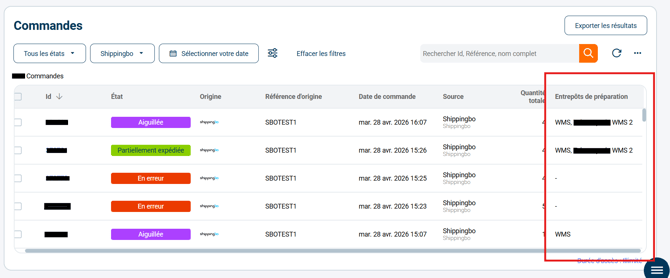
- A new column in the Orders view makes it possible to identify in which Preparation warehouse the order was routed:
- A WMS can manually reject an order (see the related tutorial: MANUALLY REJECT THE ROUTING OF AN ORDER IN A WMS).
➡️ Once the order is rejected, the information is sent back to the OMS and is noted in the Warehouse tab.-png.png?width=551&height=273&name=image%20(5)-png.png)
➡️ If the settings allow it, the order is automatically rerouted to a new warehouse; otherwise, the order changes to the status In error.
2.2 New architecture of the order routing path
This new view in the Warehouse tab presents the order's path in detail:
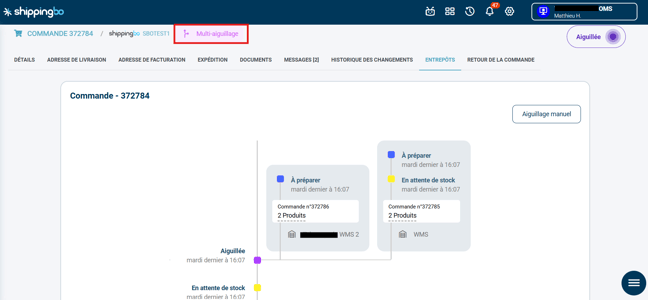
- The order's routing history is displayed as an ascending vertical timeline:
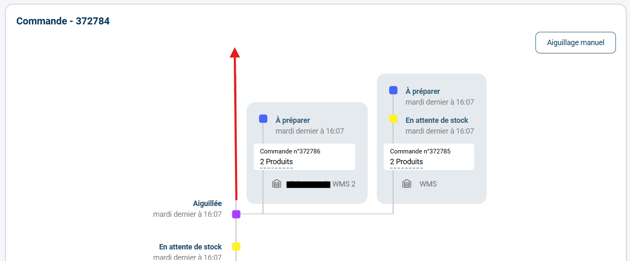
➡️ Here, the order was in the status Awaiting stock before changing to the status Routed.
- The routing appears as a block to the right of the timeline:
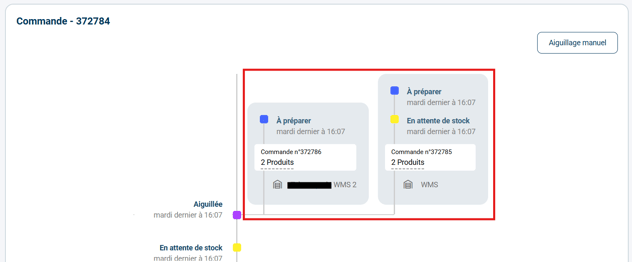
➡️ Here, the order was routed to several warehouses.- The warehouse WMS 2 therefore received a sub-order of 2 products whose stock was available; it appeared on WMS2 with the status To prepare.
- The second sub-order, with the rest of the products, was routed to the other WMS, appearing with the status Awaiting stock; the settings of this WMS provide for all orders to arrive with this status before calculating the available stock. The order then changed to the status To prepare.
-
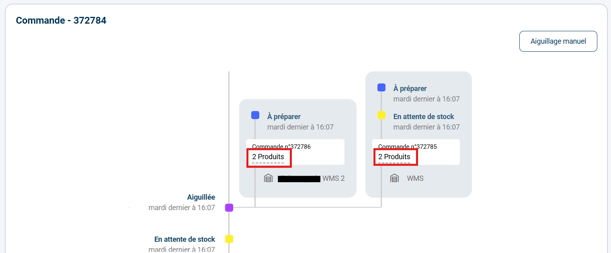
By clicking on the product mention, you can go directly to the product sheets concerned:
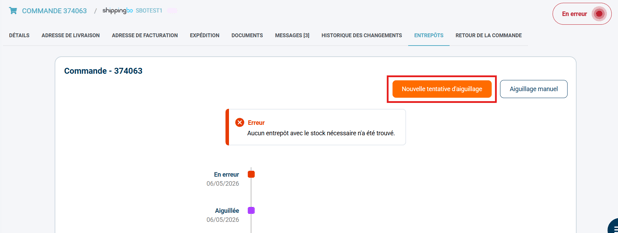
- At any time; if the settings allow it, depending on the order status; manual rerouting is always available:
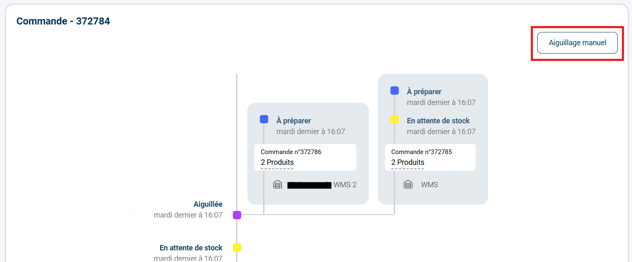
➡️ A modal will appear showing the different connected warehouses to attempt the routing.
💡 Tip:
In case of a routing error, the reason for the error will be displayed at the top of the page in the Warehouses tab: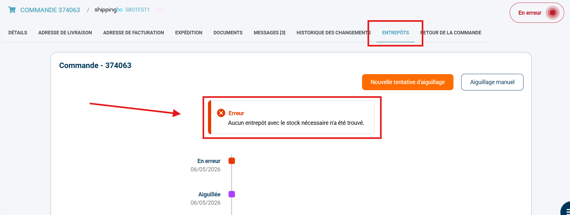
➡️ Here the order attempted a routing but ended up with the status In error, so Shippingbo offers a new manual routing attempt:
- The Multi-routing label next to the order title, the new Preparation warehouses column in the order list, and the new view of the Warehouses tab are available by default on all OMS.
- The ability for a WMS to reject an order manually requires granting permissions, more information in the dedicated tutorial: MANUALLY REJECT THE ROUTING OF AN ORDER IN A WMS.
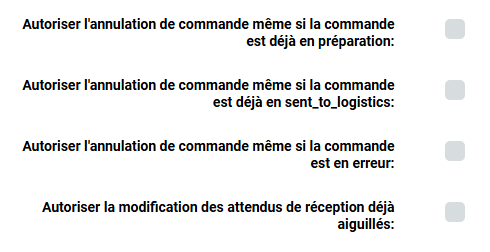
- Once routed, the OMS and the WMS can interact on orders according to the permissions granted:
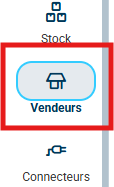
- On the WMS in the Sellers pane:
- On theOMS in the Warehouses pane:

- On the WMS in the Sellers pane:
⚒️ Framework and responsibilities:
Before fully using the feature described in this tutorial, we strongly recommend running a test phase with your own settings to check that the result matches your expectations.
As the customer remains fully responsible for the actions carried out in the Shippingbo account, these tests are essential to use the tool with complete peace of mind.
To go further 🛫:
- CONFIGURE ROUTING ERROR MAPPING
- FILTER ORDERS BY ROUTING WAREHOUSE
Contact us 📬:
Questions about this feature? Feel free to write to us here so that we can answer your questions.