.png?width=210&height=40&name=bleu%20et%20gris_Sigle+logo%20SBO%20(4).png)

• Time saving: No more need to manually process the orders intended for your logistics provider.
• Reliability: Fewer errors thanks to automated order routing.
• Centralized tracking: View the progress of preparation and shipment in real time directly from your seller account.
2. Prerequisites✔️:
- Available starting from the Premium + pack in Multi-Shippingbo
-
The products must be present in:
-
The "classic" product catalog of the seller account,
-
The "classic" product catalog of the warehouse account,
-
The seller product catalog in the warehouse account,
-
The warehouse product catalog in the seller account.
-
3. How does the processing of routed orders work?
As soon as an order enters your Shippingbo seller account, if the routing conditions are met (see prerequisites), it automatically switches to the "Routed" status:
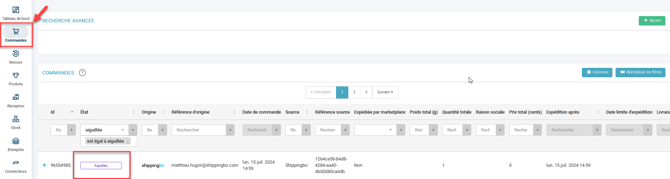
This means that the order is transmitted to your warehouse, which receives it with the "To prepare" status. The order does not appear in your seller preparation sessions:

Once the order has been shipped by the warehouse, it automatically switches to the "Shipped" status on your seller account.
💡Tip: To check that the routing worked correctly, you can view the order details in the "Warehouses" tab.
4. How do you enable automatic routing?
This feature is automatic once the prerequisites are configured. No manual action is required to enable routing.
4.1 Manually retry a routing attempt:
Go to the details of the order for which you want to retry the routing, then, in the tab Warehouses, click on New routing attempt:

📢 Warning:
Make sure all product catalogs are properly synchronized before using the manual retry.
4.2 View the details of a routed order
In your Seller account, you can view the preparation information of your order at any time.
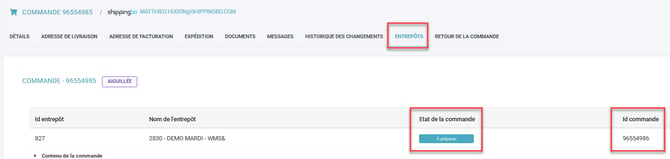
- Go to the details of the order for which you want to view the routing, then to the tab Warehouses.
- Here you can view the status of your order in the warehouse as well as the ID of this order in the warehouse account:
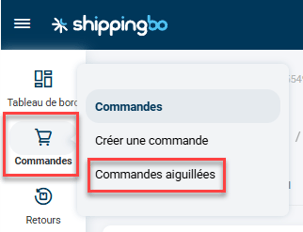
- You can also view all routed orders by going to the menu Orders -> Routed orders:
5. Practical example
Context:
You are an e-commerce seller and you work with a logistics provider via Shippingbo. You have correctly configured your product catalogs between your seller account and the warehouse account.
Using the feature:
When an order is placed on your website, it is sent up to Shippingbo and is automatically routed to your partner warehouse. The warehouse receives the order with the "To prepare" status and can start the shipment.
Result:
You have no action to take to prepare the order. From your seller account, you can check the progress at any time (preparing, shipped, etc.).
📢 Warning:
If the routing does not work, check that the products are present in the right catalogs and use the "New routing attempt" feature if needed.
⚒️ Recommendation:
Before fully using the feature described in this tutorial, we strongly recommend running a test phase with your own settings to check that the result matches your expectations. As the customer remains fully responsible for the actions carried out in the Shippingbo account, these tests are essential to use the tool with complete peace of mind.
To go further 🛫:
- Add a warehouse product catalog
- Order processing on the warehouse side
FAQ ❔:
- Filter orders by routing warehouse
Contact us 📬:
Questions about this feature?
Feel free to write to us here so that we can answer your questions.