.png?width=210&height=40&name=bleu%20et%20gris_Sigle+logo%20SBO%20(4).png)
Benefits of the feature ✨
-
Logistics flexibility: Lets you ship the items that are already available without waiting, without blocking the entire order.
- Fast handling: Immediately identifies incomplete orders through a visual alert on the supervision screen.
- Customer satisfaction: Reduces delivery times by sending a first part of the ordered products.
1. Prerequisites
-
Partial shipping of orders requires activation by Shippingbo support, which you can contact here. (((Check the option Enable partial shipping with apiary sessions in Configurations > Logistics > tab Partial Order)))
-
The apiary preparation module must be enabled on your Shippingbo account.
➡️ More information on SET UP AND USE THE DYNAMIC APIARY.
2. How partial shipping works in a dynamic apiary
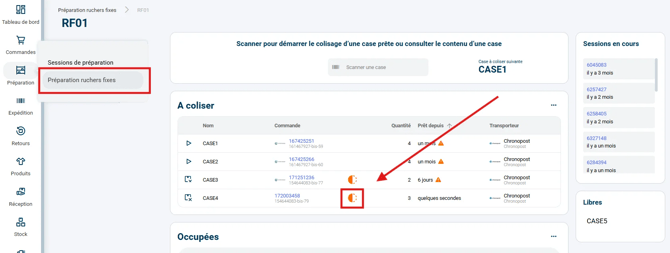
During a dynamic splitting session, when an order is incomplete (missing item or parcel), the corresponding cell is automatically flagged with an alert icon in Preparation > Fixed apiary preparation to allow the operator to handle it quickly:
The system behavior then depends on the permission to ship partial orders:
2.1. Without partial shipping (default behavior)
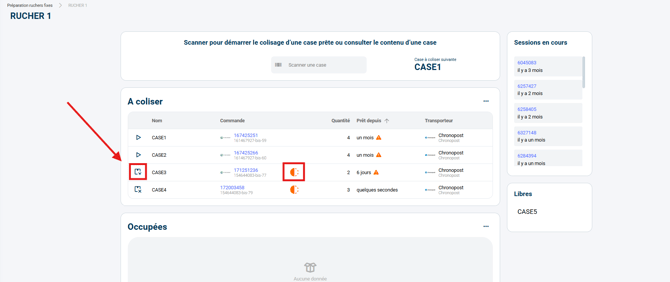
For incomplete cells due to under-picking, the label generation button is replaced by a button to exit the run and empty the cell. The only action available to the operator is therefore to Exit the run and empty the cell by clicking the dedicated button:
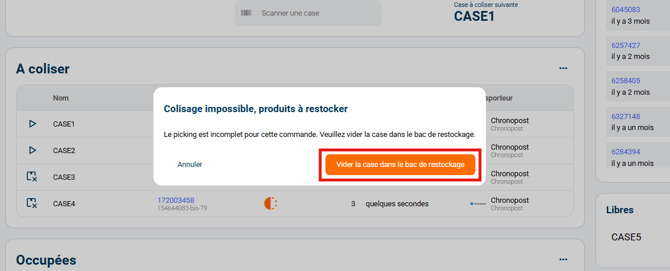
A modal window is displayed to confirm the action:
- The order leaves the current shipping flow entirely.
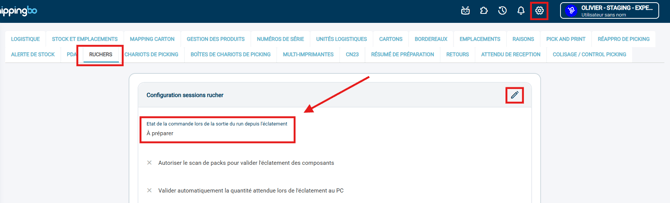
- It returns to status To prepare or Awaiting stock depending on the setting defined in Configurations → Logistics → Apiaries, in the field Order status when exiting the run from splitting:
2.2. With partial shipping (requires activation)
For an incomplete order that has already been partially split in the apiary, the operator has two choices: Ship partially or Exit the run and empty the cell:

➡️ The order in the cell is indeed under-picked, as indicated by the badge (More information on under-picking and over-picking badges in part 5. of the tutorial CARRY OUT YOUR PICKING WITH YOUR PDA).
➡️ The button displayed opposite is the label generation button, unlike the default behavior, which replaced this button with a button to exit the run.
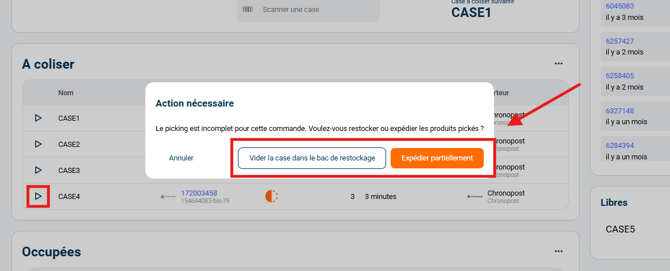
Clicking the button displays the modal window where the operator makes their choice:
-
By clicking on Empty the cell into the restocking bin: The order is fully put back into preparation according to the standard behavior.
- By clicking on Ship partially: Shippingbo generates a shipment for the items that are already available and packed. The remaining backorder is handled separately according to the partial shipping rules configured on your account.
⭐ Key point:
Partial shipping only applies to incomplete orders that have already been partially split in a cell. An incomplete order that has not been split can in all cases only exit the run.
3. Activating partial shipping in the apiary
To activate the partial shipping feature, please make a request to our technical teams here.
(((
- Go to Configurations → Logistics → Apiaries.
- Check the option Enable partial shipping with apiary sessions.
- Order status when exiting the run: set it according to your operational needs (To prepare or Awaiting stock).
- Click on Save.
- Check with the customer the desired behavior described in 2.2, last point, regarding how the backorder is handled following a partial shipment.
)))
4. Practical example
An operator performs a dynamic splitting for an order containing two items, A and B. Item A is scanned and placed in an apiary cell, but item B cannot be found or is out of stock:
- An alert icon appears on the relevant cell in the dynamic apiary supervision screen.
- The operator selects the cell and chooses Ship partially.
- The shipping label is generated for the parcel containing item A, which goes out for shipment.
- Item B, which was not found, remains as a backorder to be shipped later once it is restocked.
⚒️ Framework and responsibilities:
Before fully using the feature described in this tutorial, we strongly recommend running a test phase with your own settings to check that the result matches your expectations. As the customer remains fully responsible for the actions carried out in the Shippingbo account, these tests are essential to use the tool with complete peace of mind.
To go further 🛫
- CONFIGURE YOUR FIXED APIARY
- FIXED APIARY PREPARATION PROCESS (1/2) - Global picking
- FIXED APIARY PREPARATION PROCESS (2/2) - Apiary splitting on the PDA
- FIXED APIARY PREPARATION PROCESS (2/2) - Apiary splitting on the PC
Contact us 📬
Questions about this feature? Feel free to write to us here so that we can answer your questions.