.png?width=210&height=40&name=bleu%20et%20gris_Sigle+logo%20SBO%20(4).png)
- Time saving: Quick identification of locations thanks to barcodes.
- Better organization: Labels clearly structure your stock.
- Ease of use: Compatible with specialized printers such as the Dymo for quick setup.
2. Prerequisites✔️:
- Available from the pack Premium +.
- Have locations created in your stock management system.
- Have access to a printer, ideally a Dymo or Zebra printer for custom labels.
3. How does location label printing work?
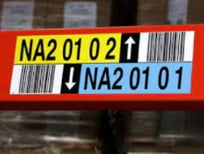
Label printing makes it easy to identify your locations in stock using labels containing barcodes or location names. You can print manually from the interface or import a file containing your locations for automatic barcode generation.
Example:
- You create several locations in your stock management system.
- You print labels containing the names and barcodes of these locations to stick them on your shelves or storage areas.
4. Activate label printing
Manual printing is activated directly via the interface, whereas importing a location file and using a Dymo printer require a few additional steps.
- Manual printing:
Step 1: Go to the menu Stock -> Locations
Step 2: Click on the label-shaped icon to the left of the location ID:
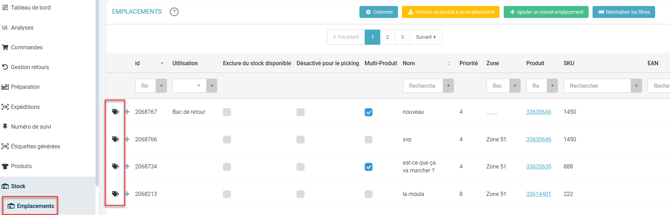
Step 3: A PDF file with the label will be downloaded, ready to be printed.
- Import and barcode generation:
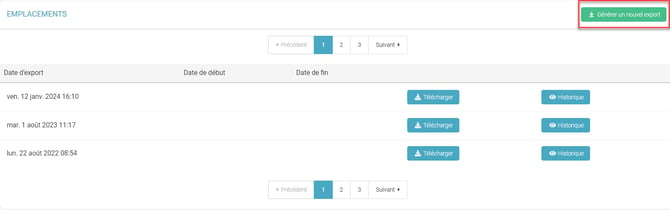
Step 1: Go to Configurations -> File management ->Export -> Locations and click on Generate a new export:
Step 2: Delete all unnecessary columns except the column name (A).
Step 3: Click on Data then on Remove duplicates and confirm.
Step 4: Go to a barcode generator (e.g. barcode.tec-it.com).
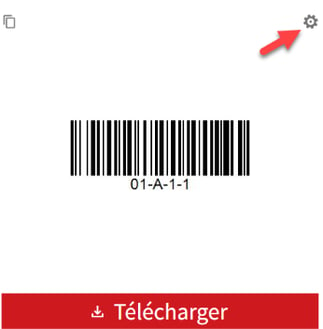
Step 5: Select the barcode type (code-128 or code-39), enter your previously selected location names, then generate the barcodes:
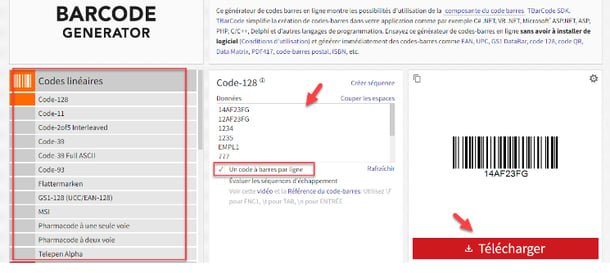
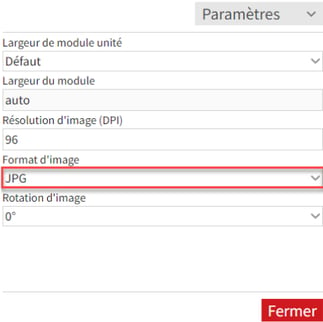
Step 6: If the file format does not suit you, you can change it. To do so, click on the small wheel above the barcode and choose the format you want:
Your file is downloaded; all that is left is to print the barcodes:
📢 Warning:
The free version of the Barcode Generator site limits generation to 10 labels per batch. You will need to subscribe to a paid plan on this site if you need to increase the batch size.
💠Note:
You can also use the site Online barcode generator which allows generating up to 500 labels with its free version.
5. Use label printing
You can print the labels using different methods: manually or by importing a file into a Dymo printer.
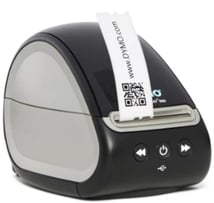
- Printing via Dymo:
- Prepare an Excel file with the location names.
- Install your Dymo printer's software. To do so, plug in your printer, then download the installation driver on their site here.
- Open the software that has just been installed on your PC:
4. Choose the label format (barcode with the location name).
5. Click on New, then choose Barcode, then choose the label style you want to print (for locations, the style with a barcode followed by the location name below is recommended). Finally, click on Open once done.
6. Check that the barcode format is code 39, then delete the sample text that automatically appears in the left frame.
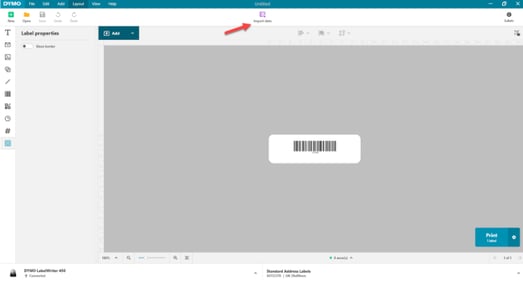
7. All that is left is to import your file containing the locations by going to "Import data", then look for your file containing the locations to print (Warning: the file must not be open at the same time, otherwise the import will not work):
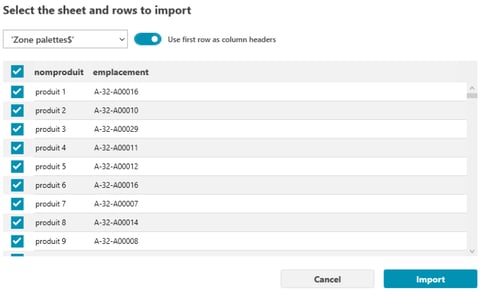
8. The software then asks you to choose which sheet of the file to import (you can select only some of the data if you do not want to print everything). Then click on "Import":
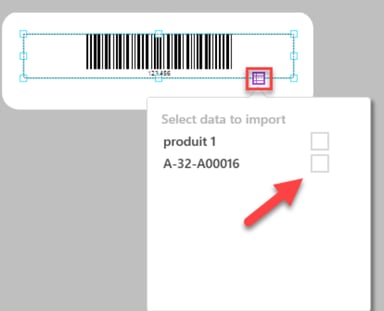
9. Once your file is imported, a small purple window on the barcode asks you to choose which field to include. Here, choose your location name:
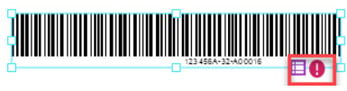
10. Once selected, an exclamation mark may appear near the small purple window, which means the barcode is too small to be scanned. You must therefore change the size so that everything fits on the label:
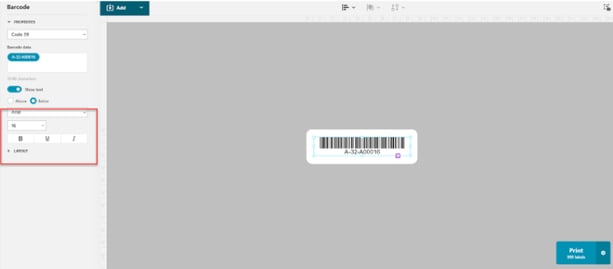
11. Once everything is correct, you can change the font and size of the location name in the left menu:
12. To print, you can click on the cogwheel next to "print" then choose to print several copies.
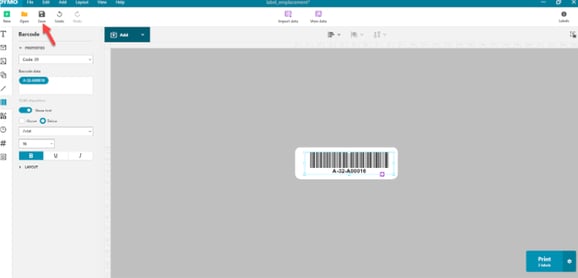
13. Finally, if you want to keep the label template you have just configured, you can save it so that you can reuse it later.
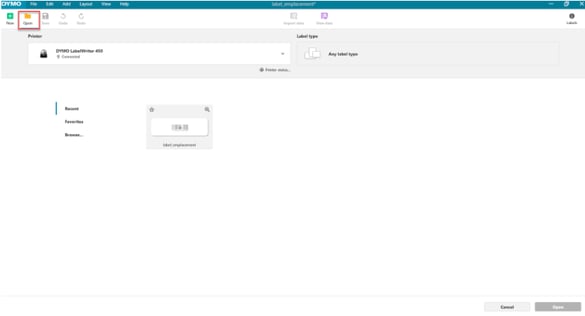
14. To reuse this template later, go to "Open" instead of "New" then select your previous template:
⚒️ Recommendation:
Before fully using the feature described in this tutorial, we strongly recommend running a test phase with your own settings to check that the result matches your expectations. As the customer remains fully responsible for the actions carried out in the Shippingbo account, these tests are essential to use the tool with complete peace of mind.
To go further 🛫:
- Create locations manually and by import
- Create locations from your PDA
FAQ ❔:
No FAQ related to this feature at the moment.
Contact us 📬:
Questions about this feature?
Feel free to write to us here so that we can answer your questions.