.png?width=210&height=40&name=bleu%20et%20gris_Sigle+logo%20SBO%20(4).png)
Summary

- Time saving: a single configuration applied everywhere in the platform.
- Fewer errors: automatic selection of the right picking location on the labels.
- Unified experience: the same printing interface from product sheets, expected receipts, receiving and the PDA.
- Better logistics visibility: smart display of the location according to the defined priorities.
2. Prerequisites ✔️:
- This feature is available from the Pro + pack for printing from the product sheet.
- This feature is available from the Premium+ pack for printing the product sheet via PDA.
- For the display of locations: have an Expert + plan and configured picking locations.
3. How do product label printing and configuration work?
A single menu now lets you choose the product label template: Configurations -> Logistics -> Product management:
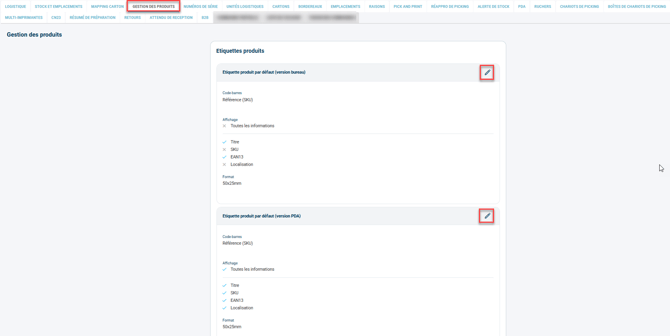
This menu serves as the configuration base for all printing.
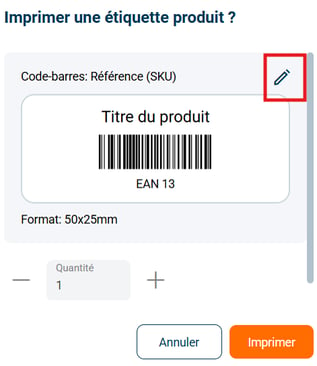
No matter where you print a label from (product sheet, expected receipt, return…), the same window is displayed.
-
Quantity prefilled according to the context
-
Possibility to temporarily override the settings
-
One-off changes are not saved: the configuration returns to the standard at the next print.
On the Expert + pack:
If locations are enabled, Shippingbo automatically displays the most relevant picking location:
The selection rules are as follows:
-
No picking location → no location
-
One picking location → displayed
-
Several picking locations →
-
priority to the fixed picking (zone not automatically releasable) with the highest priority
-
in case of a tie: alphanumeric sort
-
if there is no fixed one: selection of the priority temporary picking with the highest priority
-
in case of a tie: alphanumeric sort
-
The goal is to display only a picking location, never a reserve location.
4. Printing from different modules
4.1 From product sheets on PC
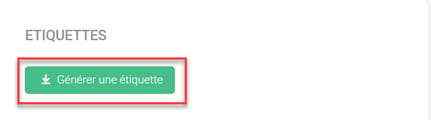
Click on the button Print the label.
→ Default quantity = 1.
4.2 From expected receipts on PC
Alignment with how returns work:
-
General button: lets you print all the product labels of the expected receipt, automatically prefilled with the expected quantities.
-
Button per product line: lets you print only the labels of the selected product.

When you click on these buttons, a modal window appears, containing by default the information checked in the initial configuration. You can change it by clicking on the pen logo:
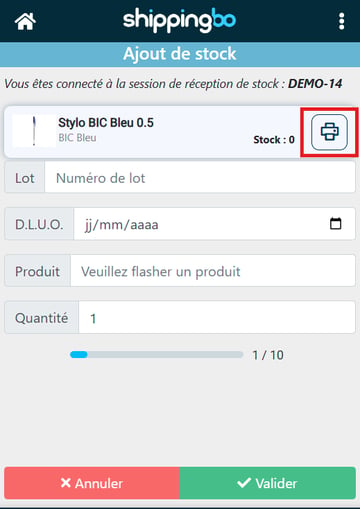
4.3 From receiving on the PDA
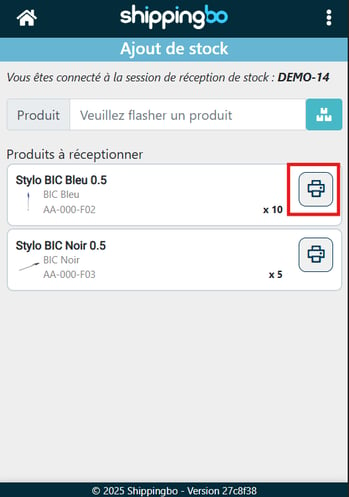
Printing is possible at two moments:
-
Before scanning, if the option “Display the product summary…” is activated:
-
After scanning, via a button on the product screen
→ Prefilled quantity = remaining quantity to receive
→ Editable:
4.4 Pack Expert +: Location displayed on the PDA
The location displayed on the PDA is selected with the same logic as for labels, that is, by choosing the picking location with the highest priority.
If differentiated stock is activated, only the locations in the zones corresponding to the stock type defined in the expected receipt are taken into account.
📢 Warning:
Make sure you have correctly configured your picking locations, as they are the ones that will appear on the labels in the pack Expert +.
5. Practical example
A customer in the cosmetics sector receives 200 units of the same SKU. From the expected receipt, they use the general button to automatically print all the corresponding labels, already prefilled with the expected quantities.
💠Note:
If a product has only reserve locations, no location will be displayed on the label.
📢 Warning:
In the case of differentiated stocks, only the picking addresses corresponding to the stock type configured in the expected receipt are used to determine the location.
⚒️ Recommendation
Before fully using this feature, we recommend running a test phase with your own settings.
The customer remains fully responsible for the actions carried out in the Shippingbo account.
To go further 🛫:
- Select the desired information on product labels
Contact us 📬:
Questions about this feature? Feel free to write to us here so that we can answer your questions.