.png?width=210&height=40&name=bleu%20et%20gris_Sigle+logo%20SBO%20(4).png)
Benefits of the feature ✨
- Time saving: Fast receipt of goods via PDA.
- Improved traceability: Detailed tracking of quantities received.
- Inventory optimization: Instant inventory updates.
1. Prerequisites
- This feature is available from thePremium Pack +.
- Using a PDA for your logistics activities, and a user with PDA usage rights.
2. How does receiving goods work on the PDA?
Receiving goods via PDA with Shippingbo allows you to process your goods receipts according to the receiving requirements. Once the receiving requirements are created in Shippingbo, you can track their progress at each stage:
Status of expected receipt:
- On hold : By default, before any action.
- Reception in progress : When an expected value is scanned on the PDA.
- In progress The reception has begun.
- Fence : All merchandise is recorded in stock.
💡Trick :
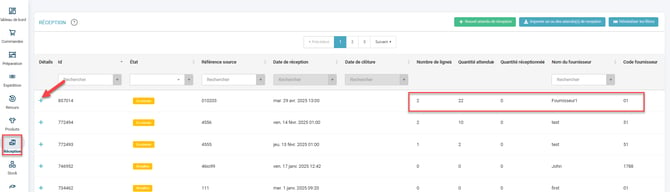
You can view the details of the expected delivery date in the menu. Receptionincluding the reference, date, supplier name, as well as the expected and received quantities:
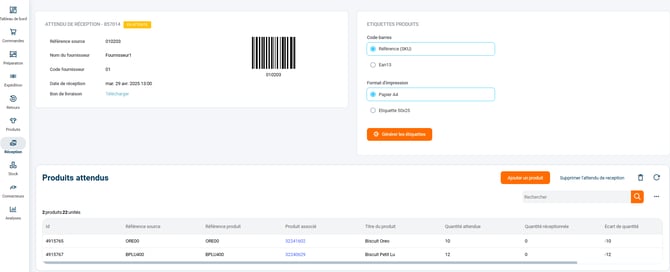
By clicking on the "+"On the left side of the line, you will be able to view the details of the products in your expected delivery. Including the expected quantity and the quantity received:"
3. How do I activate goods receipt on the PDA in Shippingbo?
3.1 Enable the feature
This feature requires activation by our support team; you can contact them. here to request this activation.
3.2 Closing a receipt request
3.2.1 From the WHO account
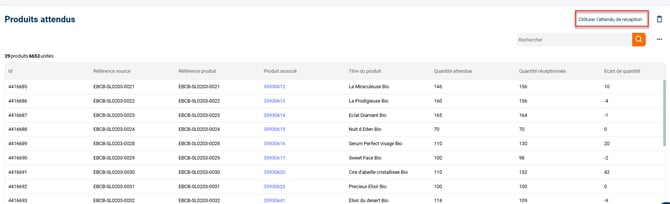
Once all the goods have been received, you can close the receipt order directly in your OMS account. To do this:
- Go to the menu Reception where you can find your expected delivery dates and click on the + of an expected delivery date to access the details of the relevant expected delivery date.
- Click on "Close the acceptance expectation":
3.2.2 From the WMS account
- On the computer, access the menu Reception
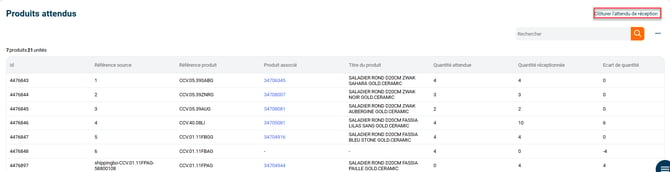
- Click on the " symbol+"to open the receipt you have just processed.
- Check that the expected quantity corresponds well to the quantity received.
- Next, click on "Close the acceptance process"The expected delivery date is now displayed as "fence"

💡 Tip :
If you wish to export the reception data to a CSV file, go to the menu Stocks → Stock variation session and close the session. You will then be able to download the CSV file containing the stock changes.
4. Configuration options for reception expectations
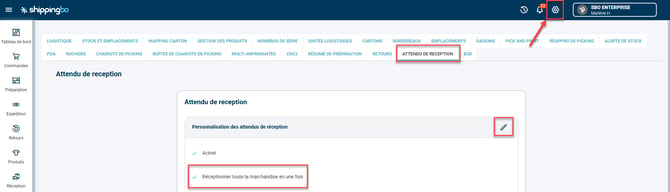
Several options are available to optimize and secure your receiving processes. To configure them, go to the menu. Configurations → Logistics → Expected delivery date:
- Tick the option Receive all the merchandise at once :
-
-
On the PDA, after opening the receiving session, click on the option Receive all the merchandise.
-
⭐ Key point:
This option requires two conditions to work:
- No product should have a Best before date or batch number
- The location used must be multi-product
➡️ The stock is added automatically in an empty location
- Tick the option Enable strict reception :
- This option prevents the validation of more products than expected in the receiving order. It thus blocks the entry of larger quantities to avoid unintentional over-receipts.
- Tick the option Automatically close the expected process upon complete receipt. :
- This option allows the goods receipt to be closed automatically as soon as all expected quantities are reached on the ground.
5. Example of practical application
Context :
You are an e-commerce merchant who regularly manages stock replenishment from several suppliers. When receiving your products in the warehouse, you must ensure accurate tracking of the expected and received quantities.
With the "Goods Receipt via PDA" feature, you can now automate and simplify this process. Once your receiving schedule is created in Shippingbo, you or your team can use a PDA to scan the items upon receipt. This allows you to record the quantities received in real time, without having to manually enter each piece of data on a computer.
Using the feature:
- You receive a large order from your supplier.
- Using your PDA, you scan the items as they are received in the warehouse.
- The quantities are instantly updated in the system and compared with the expected quantities.
- Once all the merchandise has been received, you close the receipt request directly from your PDA or computer.
Result :
With this feature, your inventory is automatically updated upon receipt. This gives you a clear overview of received quantities compared to expected quantities, reducing human error and optimizing your inventory management. You also gain efficiency, as your team can quickly close orders and move on to other tasks.
⚒️ Framework and responsibilities:
Before fully utilizing the functionality described in this tutorial, it is strongly recommended to perform a testing phase following your own parameters to verify that the result meets your expectations. The remaining customer fully responsible These tests, which are essential for ensuring the tool can be used with complete peace of mind, are crucial for the actions carried out on the Shippingbo account.
To go further 🛫:
- Create a reception expectation
- Carry out a goods receipt related to your expected receipt in the advanced warehouse.
- Complete a goods receipt related to your expected delivery outside the advanced warehouse.
Contact us 📬:
Questions about this feature? Feel free to write to us.hereso that we can answer your questions.