.png?width=210&height=40&name=bleu%20et%20gris_Sigle+logo%20SBO%20(4).png)
1. Prerequisites
This feature is only available if you have subscribed to the Return management option. You must also use your PDA.
2. Create the return in Shippingbo
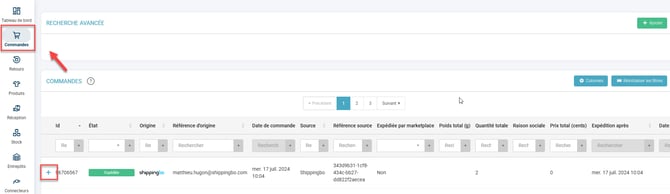
Step 1: In the Shippingbo interface, go to your order to create the return:
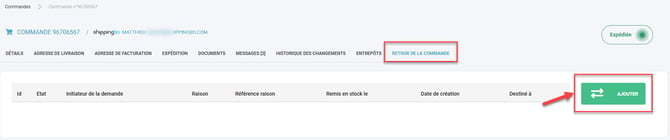
Step 2: In the Return tab of the order, click on Add.
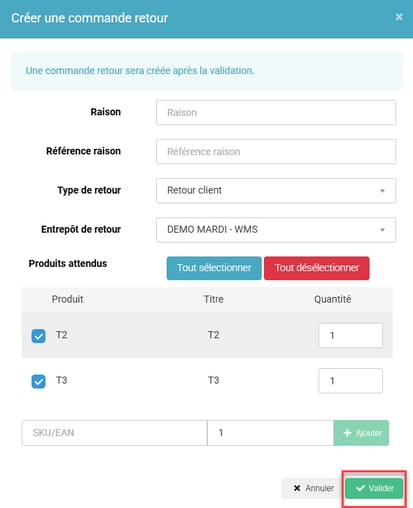
Step 3: Fill in the desired fields, then click on Confirm:
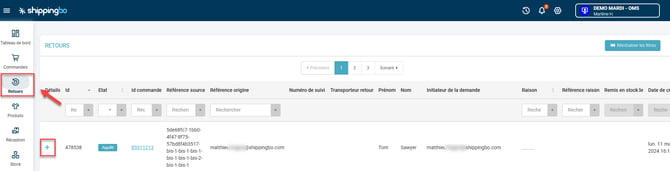
The return is created in the order and you can click on the ID of this return to go to it (or go to the Returns menu in the sidebar).
3. Receive your return on the PDA
In your return, you will find a barcode at the top right of the screen corresponding to the return ID:
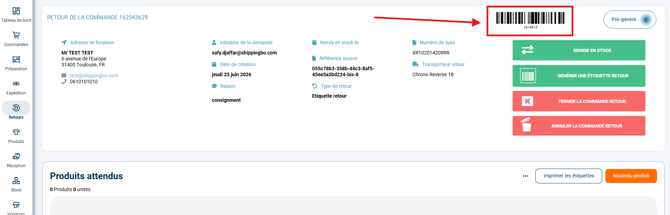
➡️ You can click on the barcode to print it and stick it on your return while you process it.
💡 Tip:
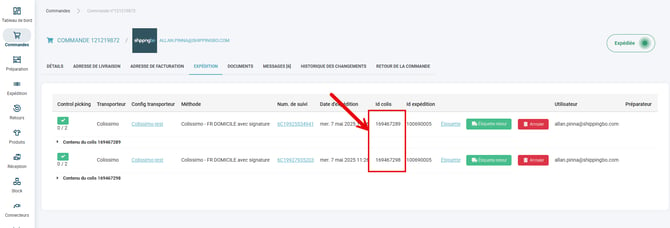
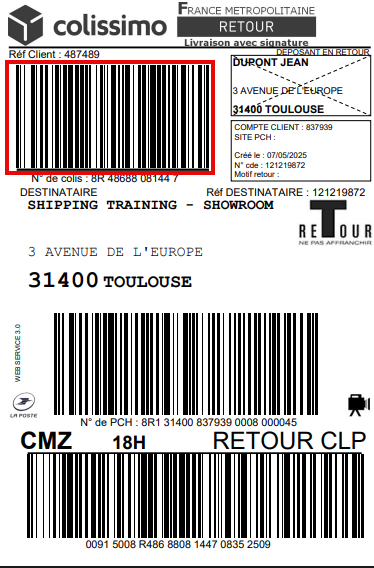
You can also identify your return via the parcel ID in the Shipment tab of your order, or via the parcel number visible on the return label of your order. For example for Colissimo:
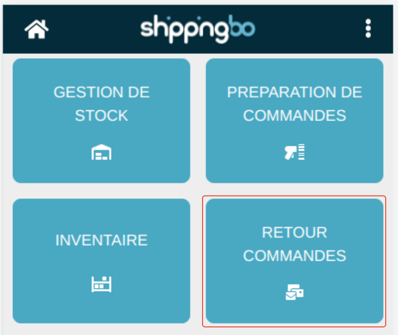
Step 1: On your PDA, go to the Order returns menu.
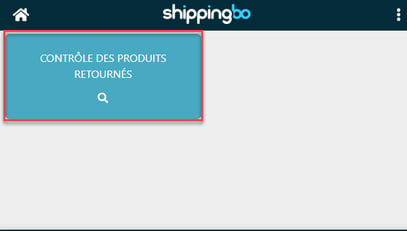
Step 2: Then go to the Returned products check:
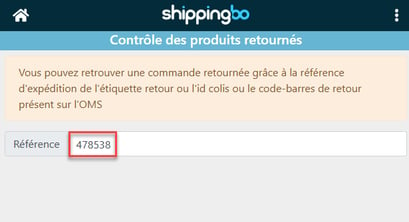
Step 3: Scan your return ID (barcode shown previously)
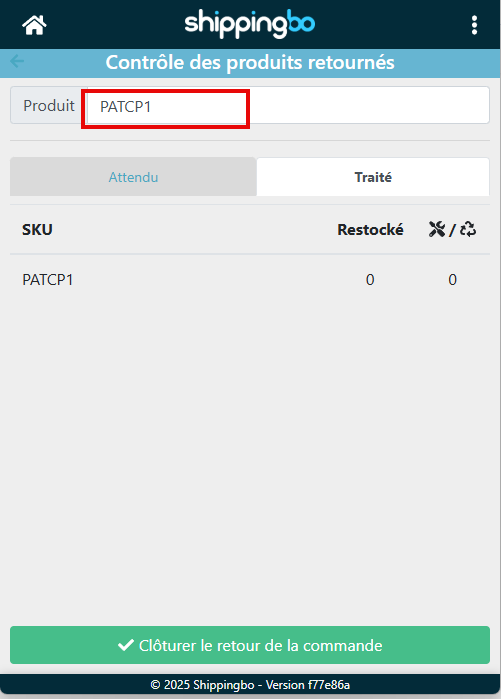
The PDA displays all the products of the order in the Expected tab, and in the Processed tab the products that you have restocked or not put back in stock for various reasons: sent for repair, recycled, thrown away, etc.
Step 4: Scan your returned product
💠Note:
If you manage serial numbers and the returned product is configured for serial number management, you will be asked to scan this number.
Step 5: If the product can be restocked, scan the name of the return location.
If you cannot scan the name of a location, you can scan the product barcode by default.
If the product cannot be restocked, click on the Not restockable button.
In the interface, the return will be marked as Returned and you will be able to view the details of the returned products.
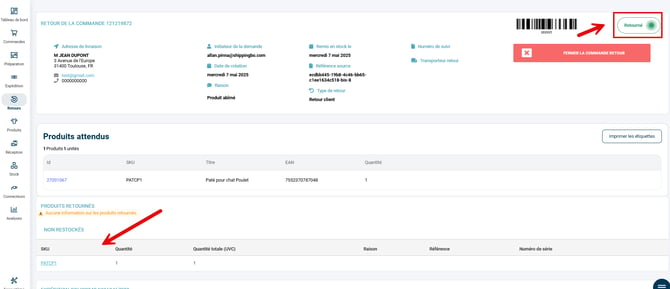
Here, the products have been returned and put back in stock on your Shippingbo account.
💠Note:
If you start the restocking from the interface, you will not be able to continue it on the PDA because at the end of the restocking in the interface, the return is marked as Returned and the return ID is no longer valid on the PDA.
4. Find your actions in an export
You can find the products that were not restocked during your receptions in the menu: Configurations -> File management -> Exports -> Products not restocked during a return:
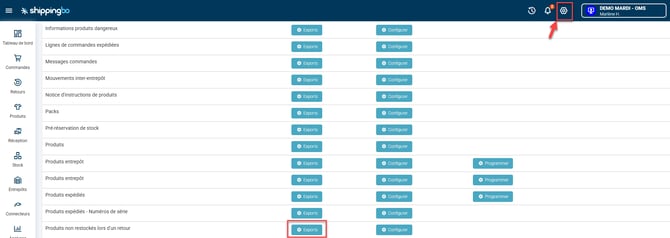
You will find the following information there: IDs of the returned orders, return ID, ID and SKU of the returned products, reasons, users who recorded the return and the return creation date.
If you are using Multi-Shippingbo, it is possible to create a return from the OMS and propagate it to the WMS so that it is processed there directly, see: Return management in Multi-Shippingbo.
⚒️ Framework and responsibilities:
Before fully using the feature described in this tutorial, we strongly recommend running a test phase with your own settings to check that the result matches your expectations. As the customer remains fully responsible for the actions carried out in the Shippingbo account, these tests are essential to use the tool with complete peace of mind.
Contact us 📬:
Questions about this feature?
Feel free to write to us here so that we can answer your questions.