.png?width=210&height=40&name=bleu%20et%20gris_Sigle+logo%20SBO%20(4).png)
Benefits of the feature ✨
- Simplified returns: Easily generate return labels and send automated emails to your customers.
- Fast restocking: Quickly put returned items back into your inventory thanks to centralized management.
- Optimized logistics flows: Ensure smooth returns management while improving the customer experience.
1. Prerequisites
-
This feature is available from the Premium + pack and must be activated on request for each customer. To request activation, please contact our support team here.
🚩 Special case:
If you are on the TMS Expert+ pack, returns management is specific.
➡️ More information on this topic in the dedicated tutorial: RETURNS MANAGEMENT IN TMS EXPERT+.
2. How does returns management work?
The returns management feature lets you generate return labels for your customers, send customized return emails and manage the restocking of returned items.
2.1 Return email configuration
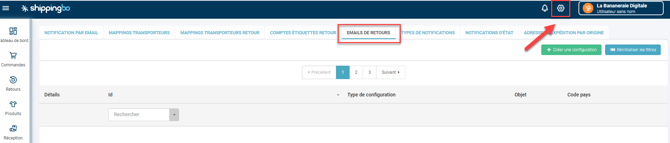
- Go to the menu Configurations → Notifications and labels → Return emails:
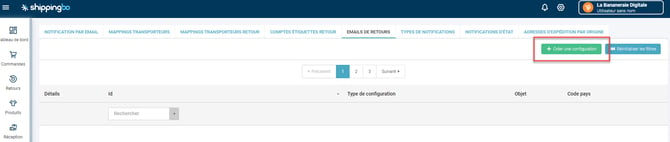
- Click on Create a configuration to create a new email template:
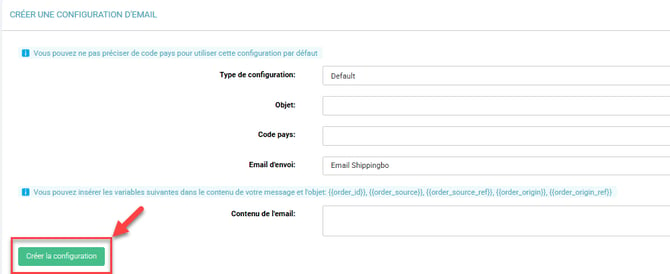
- Fill in the requested fields:
- Configuration type: The name of the email template (displayed in the return menu).
- Subject: The subject of the email.
- Country code: If you create multilingual versions, specify the country codes for each language.
- Email content: Use the following variables to personalize your emails:
-
Shippingbo "Id" of the order
-
"Source" of the order
-
"Source reference" of the order
-
"Origin" of the order
-
"Origin reference" of the order
-
Tracking number of the order shipment
-
Tracking URL of the carrier used to ship the order
-
Name of the carrier used to ship the order
-
First and last name of the order's delivery address
-
SKUs of the order's products
-
Shipping date
-
- Then, click on the button at the bottom left "Create the configuration":
2.2 Using return emails and printing labels
- Go to the shipped order in the Shipment tab, then click on return label to print the label:

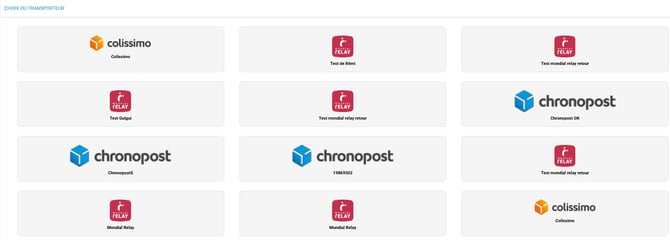
- Choose the carrier (DPD, Colissimo, Mondial Relay, DHL) and confirm:
- Fill in the requested information:
- Reason / Reason reference
- Email type (choose the configured template)
- Customer email (filled in automatically)
- Then click on Generate return label:
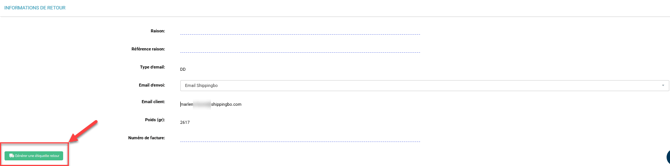
- You will find the return label in the Return tab of the order details:

⭐ Key point:
This action creates a return in the menu, but does not automatically put the products back in stock (step 3.2).
3. Activate and configure returns management
3.1 Activate returns management
Activation of the returns management feature is carried out by the Shippingbo team on request. Once activated, a new Returns menu will appear in your dashboard.
3.2 Returns management and restocking
Once a return is recorded, you can put the product back in stock:
- Go to the Returns menu and select the order concerned:
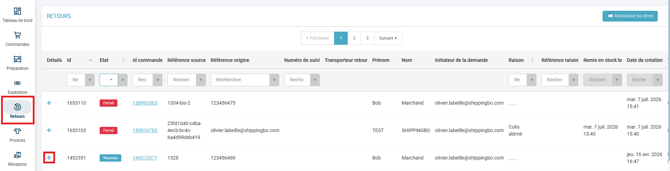
To make your search easier, you can:- Filter by: Return ID, Status, Order ID, Source reference, Origin reference, Tracking number, Reason, Reason reference.
- Sort by: Return ID, Status, Reason.
💡 Tip:
Here you can filter by the Status Pre-generated. This status corresponds to Returns that were pre-generated following the generation of a return label for an order.
You can generate a return label at the same time as the outbound label thanks to the return carrier mapping. More information here.
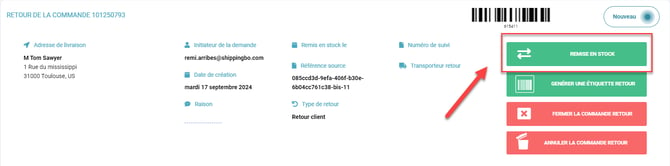
- Click on Restock:
- Enter the SKU of the returned product (remember to confirm with the Enter key), then click on Validate to finalize the restocking:
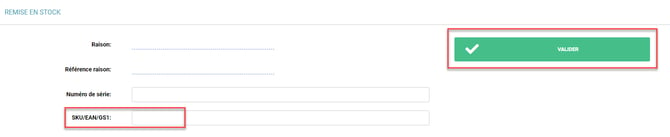
➡️ If you have several products to restock, enter each SKU individually and confirm each entry before finalizing.
⭐ Key point:
- Don't forget to confirm each item with the Enter key before clicking Validate for the restocking.
- Shippingbo does not handle customs documents for return labels. You must retrieve them from your carrier interface.
⚒️ Framework and responsibilities:
Before fully using the feature described in this tutorial, we strongly recommend running a test phase with your own settings to check that the result matches your expectations. As the customer remains fully responsible for the actions carried out in the Shippingbo account, these tests are essential to use the tool with complete peace of mind.
To go further 🛫:
- Returns management in Multi-Shippingbo
Contact us 📬:
Questions about this feature? Feel free to write to us here so that we can answer your questions.