.png?width=210&height=40&name=bleu%20et%20gris_Sigle+logo%20SBO%20(4).png)
Summary

-
Control of logistics flows: avoid routing orders to an unavailable warehouse (weekend, closure, maintenance).
-
Smart automation: orders are put on hold and then automatically rerouted at the end of the blocking period.
-
Fewer manual interventions: no need to monitor or reassign orders when activity resumes.
2. Prerequisites ✔️:
-
Have a Shippingbo OMS connected to one or more WMS.
-
Have access to the OMS and WMS settings.
-
Use a routing mapping for order assignment.
3. Definitions
OMS (Order Management System)
Central system that receives orders and applies the mapping rules to determine the destination WMS.
WMS (Warehouse Management System)
Logistics warehouse connected to the OMS, in charge of preparing and shipping orders.
Routing mapping
Set of rules analyzed by the OMS to determine which WMS an order must be routed to.
4. Activation and configuration of the scheduled routing block
4.1 Activating the feature
The feature must be activated via admin fields. You can send your activation request to support here.
4.2 Configuring the blocking window
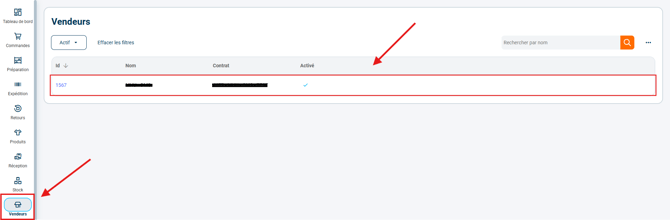
Once the feature is activated, on the WMS, you will be able to set the blocking window in the Sellers>Seller details section:
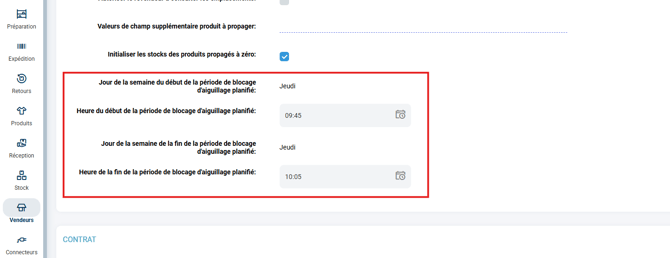
The blocking window is configured using four fields, which define the day and time at which the blocking window starts and ends:
-
-
a start day and time (e.g.: Friday 18:00)
-
an end day and time (e.g.: Monday 08:00)
-
🔷 Note:
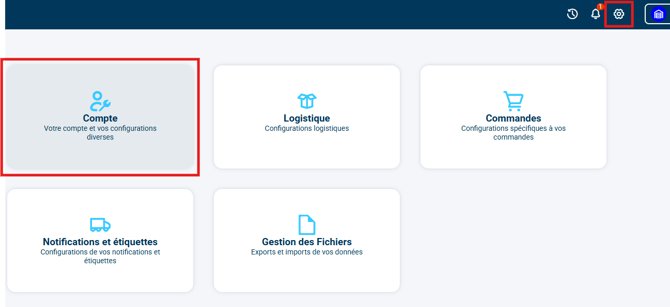
Times are expressed according to the time zone of the Shippingbo account WMS, set in Configurations>Account:
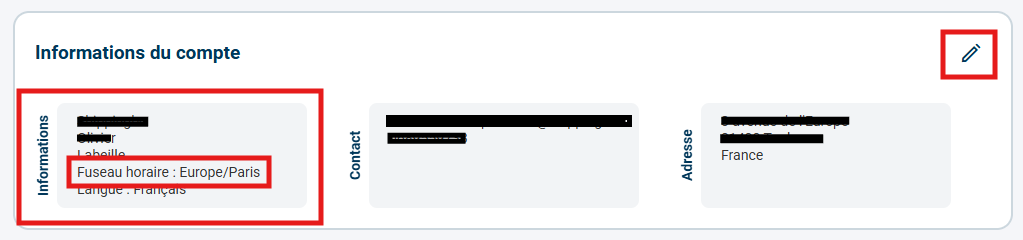
You can correct the time zone in the Account information:
4.3 Processing new orders
When a new order is received by theOMS, theOMS analyzes the routing mappingrules, one by one. For each rule, the system checks whether the target WMS is in a blocking period. Two scenarios are possible:
-
Case 1: the target WMS is in a blocking period
-
The order is immediately set to the status “Awaiting stock”.
-
The following mapping rules are not evaluated.
-
-
Case 2: the target WMS is not in a blocking period
-
The mapping rule is applied normally.
-
The order is routed to the WMS if the conditions are met.
-
4.5 Automatic resumption of routing
TheOMS knows the exact end date and time of the blocking period for each WMS. At the end of this period, all orders blocked by the blocking period are automatically rerouted to the WMS concerned.
5. Example of practical use
A logistics provider sets up a scheduled routing block for their warehouse, which is closed from Friday 18:00 to Monday 08:00. The feature is activated on both the WMS and the OMS, with the blocking window defined on the WMS.
When an order is received during this period (for example on Saturday), it is automatically set to the status “Awaiting stock” without evaluating the other mapping rules. At the end of the block, an automated process reroutes all the orders “Awaiting stock” to the warehouse, without any manual intervention. They will therefore move to the status “Routed” on the WMS if their stock is sufficient.
⚒️ Recommendation:
Before fully using the feature described in this tutorial, we strongly recommend running a test phase with your own settings to check that the result matches your expectations.
As the customer remains fully responsible for the actions carried out in the Shippingbo account, these tests are essential to use the tool with complete peace of mind.
To go further 🛫:
- Select the desired information on product labels
- Existing order statuses in Shippingbo
Contact us 📬:
Questions about this feature? Feel free to write to us here so that we can answer your questions.