.png?width=210&height=40&name=bleu%20et%20gris_Sigle+logo%20SBO%20(4).png)
Benefits of the feature ✨
-
Productivity gain: lets you start the splitting of a preparation session without waiting for the picking on the PDA to be fully completed.
- Space optimization: immediately reuses freed cells for other orders of the same session or of another session.
- Operational flexibility: lets you pack and ship ready orders as the splitting progresses, avoiding bottlenecks in the warehouse.
1. Prerequisites
- This feature requires activation by Shippingbo support, which you can contact here.
(((In the admin, in the settings of the paid option apiaries_enabled, you must check Dynamic preparation: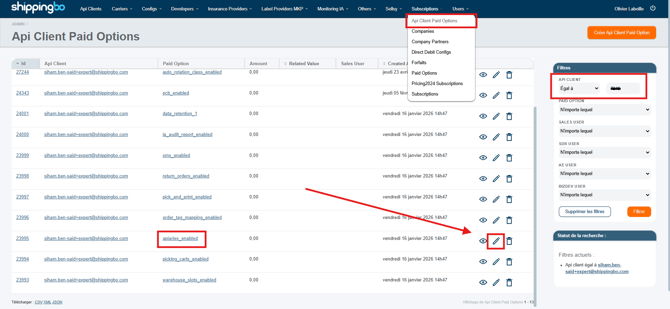
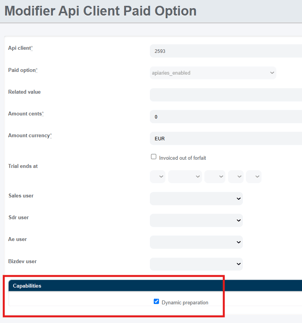 )))
))) - Feature available from the Premium+ Pack with PDA option, or by default from the Expert+ Pack.
- Other prerequisites:
- Having set up one or more fixed apiaries and their associated cells in Configurations → Logistics → Apiaries.
- Having the Shippingbo PDA application if you carry out picking and splitting on the PDA.
2. How the dynamic fixed apiary works
Unlike the operation of a standard (sequential) fixed apiary, the dynamic apiary lets you run the preparation, splitting and packing steps in parallel.
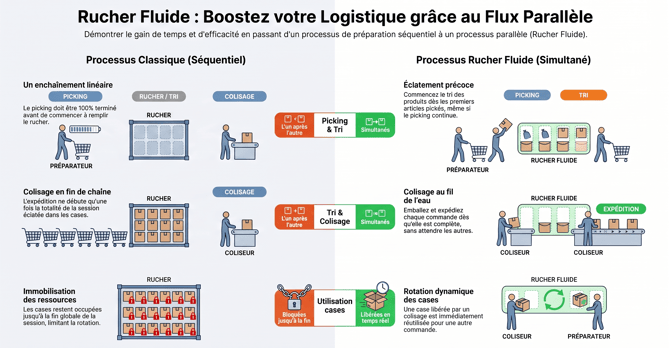
2.1. Overview and real-time supervision
Once the option is enabled, the status of your apiaries is dynamically visible:
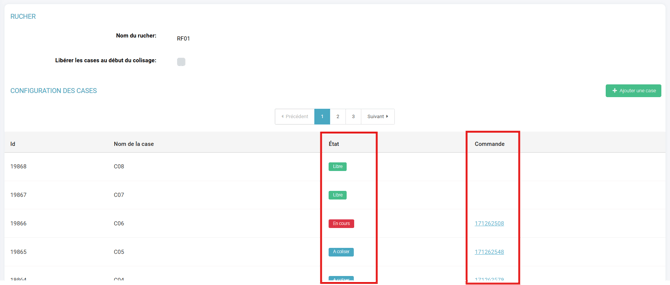
- Cell visualization: In the configuration screen of your apiary, you can now see the status of each cell (Free, In progress or To pack) as well as the order ID assigned to it.
- New menu "Preparation > Fixed apiary preparation" (on PC): This menu offers a global view of your dynamic apiaries, updated automatically. You will find the number of sessions in progress, the total number of cells, the number of free cells, occupied cells (waiting for additional products), cells ready to be packed, as well as the orders "to assign" (orders of the session that do not yet have a dedicated cell).
Example of a database with an apiary RF01 occupied by two distinct preparation sessions: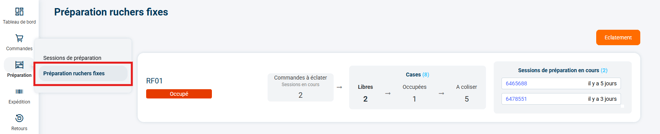 The details of this apiary show:
- the cells To pack (a cell represents an order; it is To pack when all the products of the order are in the cell);
- the cells Occupied, which are therefore being filled by apiary splitting;
- the cells Free, which are available for a next preparation.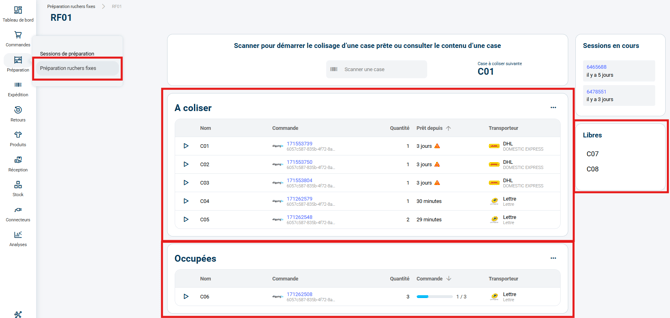
💬 Good to know:
Enabling the option Dynamic apiary impacts all your apiaries in your Shippingbo space. All your existing and future apiaries will adopt this dynamic behavior; it is not possible to mix standard apiaries and dynamic apiaries.
2.2. Dynamic splitting on the PDA and on the PC
Splitting a session in a dynamic apiary brings several major new features:
-
Splitting on the PDA
- Dynamic apiary splitting on the PDA follows the same splitting process as for the standard fixed apiary, adding some major new features.
➡️ More information on standard fixed apiary splitting on the PDA in the dedicated tutorial: FIXED APIARY PREPARATION PROCESS (2/2) - Apiary splitting on the PDA. - Reversal of PDA pairing: To start splitting on the PDA, the scan order is aligned with the PC. You must first scan the barcode of the preparation session, then the barcode of the apiary.
- Splitting before the end of picking: You can start splitting even if the picking of the session on the PDA is still in progress. A warning message is displayed: "Picking of session XXXXXXX is not finished. Do you want to start splitting?". Only products that have already been physically picked can be scanned and distributed.
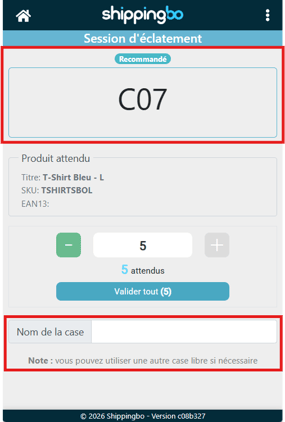
- Manual cell selection: When scanning the very first product of an order, Shippingbo suggests a cell. You can choose another free cell by scanning it directly. If the chosen cell is free, the order is assigned to it. If it is already occupied, an error message is displayed. For the following products of the same order, you must use the cell thus defined.
- Resuming an interrupted splitting on the PDA: If you leave the splitting screen before the end, scan the session again on the PDA. The screen will tell you in which apiary the splitting is in progress. You then just need to rescan this apiary to resume the operation where you left off.
- Dynamic apiary splitting on the PDA follows the same splitting process as for the standard fixed apiary, adding some major new features.
⭐ Key point:
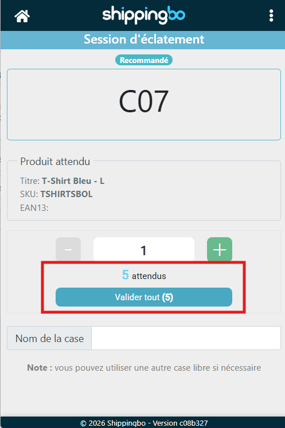
The splitting screen display shows in real time the remaining quantity to split (based on the picked quantity if PDA picking is in progress, or on the total quantity if no PDA picking is used).
Example: Let's assume:
- a preparation session containing 2 orders each requesting 5 units of a product
- 6 products picked for this preparation session
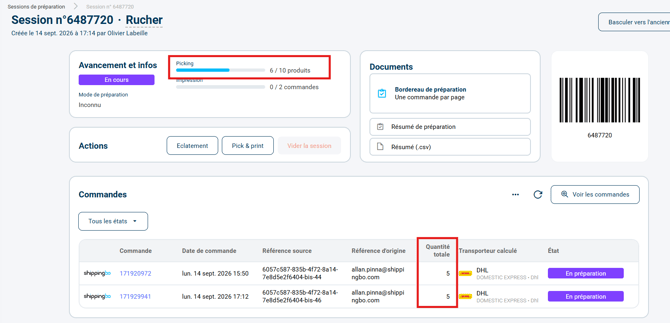
A splitting session can be started, which will only request 5 units of the product (since the picked quantities can only cover one order):
-
Splitting on the PC
-
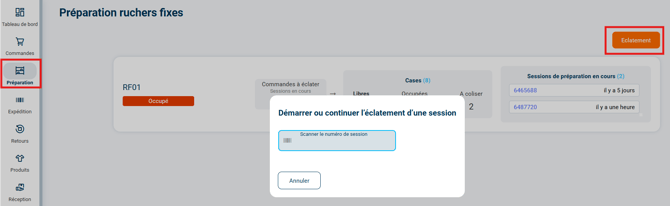
From the new view Fixed apiary preparation, in the list of available fixed apiaries, the button Splitting lets you perform a Splitting on PC:
-
💬 Good to know:
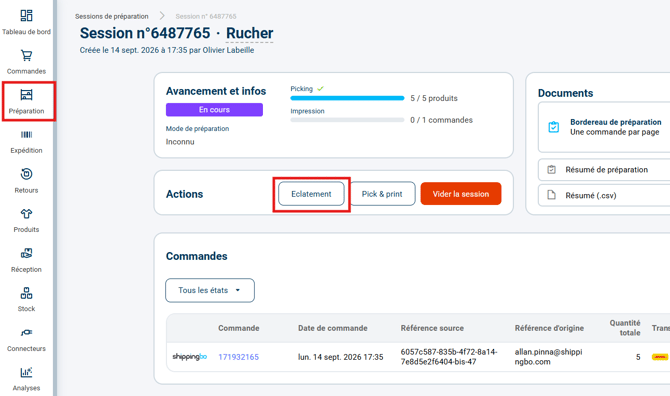
This new process is absolutely identical to the standard apiary splitting process on PC which consisted of finding the button Splitting in the details of a preparation session. The two methods remain available and are compatible with the dynamic apiary:
-
-
Once the preparation slip is scanned, a modal window appears asking for the apiary to split for this session:
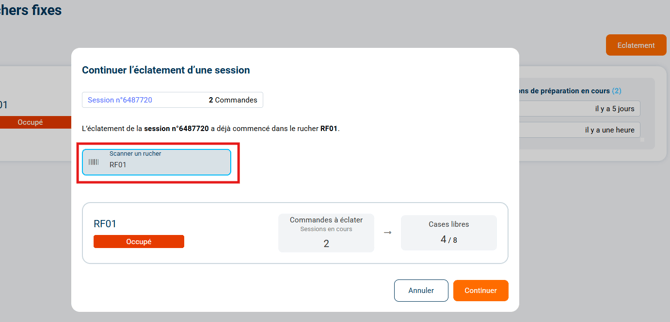
- Once the apiary is scanned, you enter a standard fixed apiary splitting session on PC:
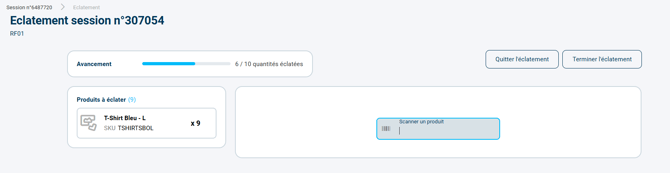
➡️ More information on standard apiary splitting in the dedicated tutorial: FIXED APIARY PREPARATION PROCESS (2/2) - Apiary splitting on the PC.
-
2.3. Capacity management and saturation cases
The dynamic apiary lets you handle order volumes greater than your number of physical cells:
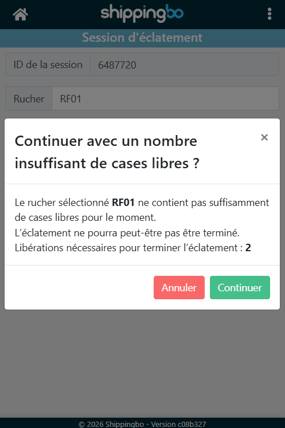
- More orders than free cells: You can start the splitting of a session containing more orders than cells available in the apiary. An alert message is displayed to tell you the number of free cells, the number of orders in progress without a cell, and the number of cells needed for the session.
- No cells available: If you scan the product of a new order while no cell is free, the screen displays: "No free cell in apiary XXXXXXX. Please free a cell before scanning the product". You must then pack and ship a ready order to free its cell.
2.4. Packing and cell release
You no longer need to wait for the entire session to be split before starting to ship:
- As soon as an order is complete in its cell, it changes to the status To pack.
- From the detailed apiary tab on PC, the cells ready to be packed are listed and sorted by age (FIFO method).
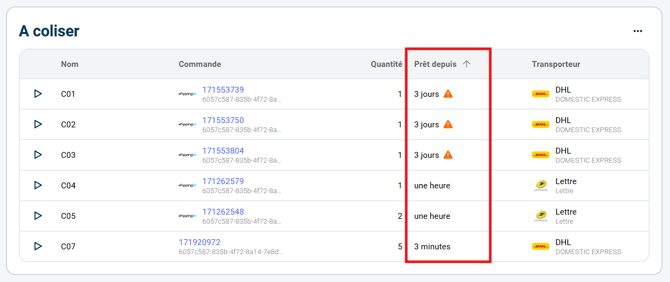
➡️ An icon ⚠️ indicates when the order has been ready for more than 5 hours. - The operator scans or selects the ready cell on the screen, which instantly redirects them to the picking check or the label editing page.
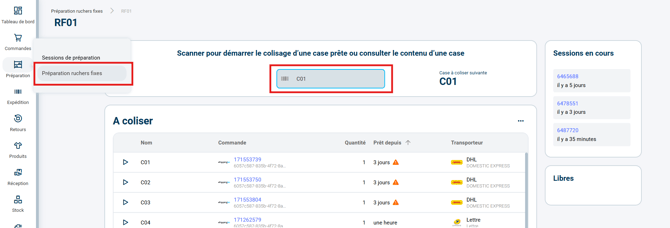
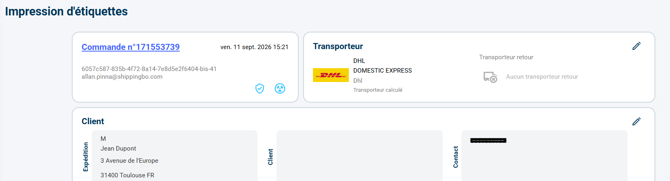
- A configuration option lets you release the cell either as soon as packing starts (to immediately place another product in it), or only after the transport label or an error label has been generated (default behavior).
In the details of an apiary in Configurations > Logistics > tab Apiaries > Apiary details: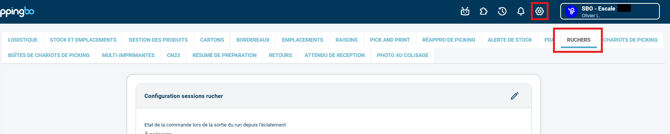
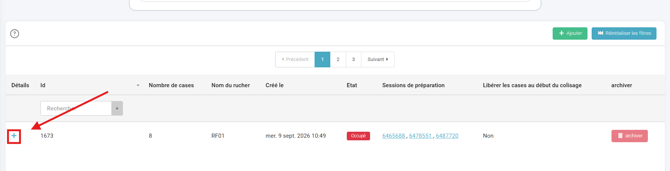
The option Release cells at the start of packing is unchecked by default, so the cell is released when the transport label is generated; checking it releases the cell as soon as packing starts: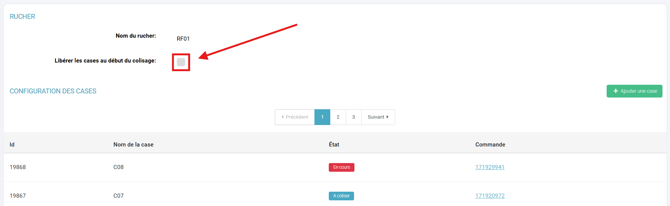
2.4. Special case of an incomplete cell
If a picking ended with missing items or if an order is incomplete, the cell concerned is flagged with the under-picking icon in the apiary view:
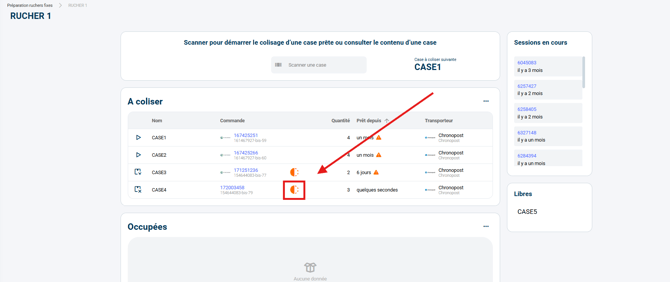
-
By default, this cell cannot be packed, since products are missing for the order preparation to be complete.
- By default, the only action available to the picker is to remove the order from the run and empty the cell by clicking on the dedicated button:
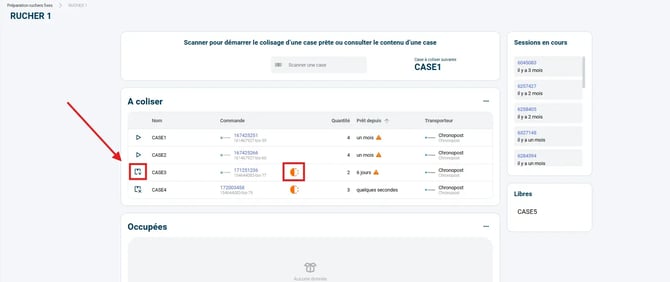
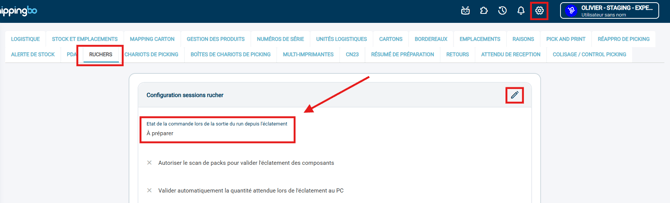
- It goes back to the status To prepare or Awaiting stock depending on the setting defined in Configurations → Logistics → Apiaries, in the field Order status when exiting the run from splitting:
➡️ However, if you want to perform partial shipments, the dynamic apiary may be compatible. More information in the dedicated tutorial: PARTIAL SHIPPING IN A DYNAMIC APIARY.
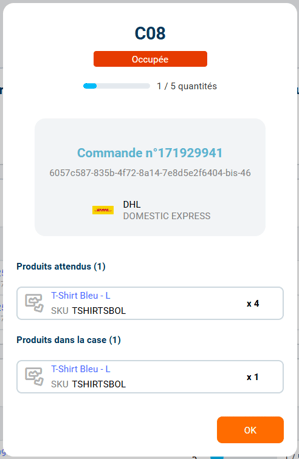
Example: my configuration follows the default settings, I scan the cell C08, which is Occupied, and therefore not yet ready to be To pack, since it is missing 4 products out of 5 at picking.
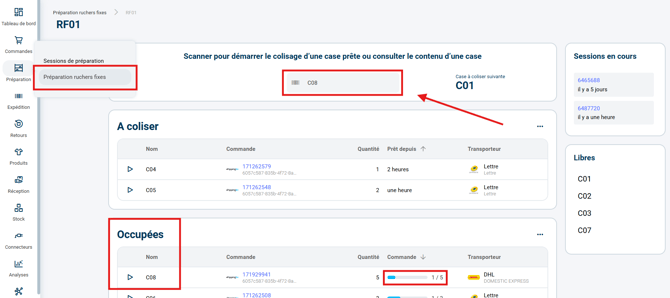
Shippingbo therefore displays an error and does not accept the packing of cell C08, clicking on OK takes me back to the previous interface :
3. Enabling the dynamic fixed apiary
3.1 Requesting activation from Shippingbo support
The dynamic fixed apiary requires activation of the paid option by our technical team. You can contact them to request this activation here. (((Explanations described in the Prerequisites section.)))
3.2 Checking the configuration of your fixed apiaries
To fully use these features, you need to have fixed apiaries configured with available cells.
➡️ More information on the configuration of fixed apiaries in the dedicated tutorial: CONFIGURE YOUR FIXED APIARY.
3.3 Configuring the cell release option
Once the option is enabled on your account, you can check the option Release cells at the start of packing described in step 2.4, depending on your needs (release as soon as packing starts or only when the label is issued).
✅ Once this setup is done, you are ready to use the dynamic apiary in Shippingbo.
4. Practical example
Situation: You need to prepare a session of 50 multi-item orders, but your fixed apiary has only 30 cells.
- Step 1: Your first operator starts the picking of the 50-order session on the PDA.
- Step 2: As soon as the first items are picked, a second operator scans the session and then the apiary on their PDA to start splitting. A message informs them that picking is not finished; they confirm to continue.
- Step 3: The operator scans the products. For Mr. Dupont's order, Shippingbo suggests cell 02. The operator prefers to use cell 05, which is more accessible: they scan cell 05 and the system validates the assignment.
- Step 4: Very quickly, 10 orders are fully split. The corresponding cells change to the status "To pack" on the apiary supervision PC screen.
- Step 5: The packer standing in front of the apiary scans the first ready cell. They pack the items and generate the shipping label. The cell is instantly released and becomes available again for the splitting operator, who can assign the remaining orders of the session to it.
⚒️ Framework and responsibilities:
Before fully using the feature described in this tutorial, we strongly recommend running a test phase with your own settings to check that the result matches your expectations. As the customer remains fully responsible for the actions carried out in the Shippingbo account, these tests are essential to use the tool with complete peace of mind.
To go further 🛫
Contact us 📬
Questions about this feature?
Feel free to write to us here so that we can answer your questions.