.png?width=210&height=40&name=bleu%20et%20gris_Sigle+logo%20SBO%20(4).png)
Prerequisites✔️:
- The picking control and decrement at picking options must be enabled. To enable them on your account, you can request it from our support team here.
1. How to split an order at shipment?
This feature lets you ship an order in several shipments when, for example, some items are out of stock. It is only available for orders from Shopify and Prestashop, with a B2B process enabled.
Example:
An order contains 1 unit of product IPOD2012 and 2 units of product IPOD2014. If product IPOD2012 is out of stock, you can ship the 2 units of IPOD2014 immediately.
2. Enable the split at shipment feature
To enable this feature, you need to contact the support team, who can configure it on your account. Also check that your order sources support partial shipment (some marketplaces do not allow it).
3. Use split at shipment
3.1 Partial shipment process:
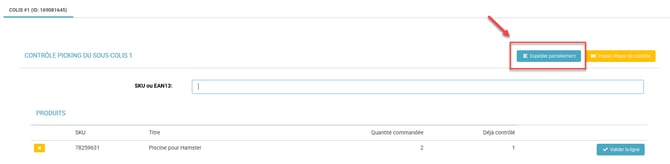
- During picking control, scan the products you want to ship at this time, then click on Ship partially:
- Print the label for this first shipment.
- The order changes to the status Shipped, and a new order is automatically created, containing the remaining products to ship.
- In the order that changed to "Shipped" status, the product lines now look like this: the scanned product and quantity have moved to "Shipped" status while the unscanned product remains in "To prepare" status but its quantity changes to 0.
3.2 Shipping the missing products:
- To ship the remaining products, follow the usual shipping process for the newly generated order.
Example:
You ship 2 units of IPOD2014, and a new order is automatically created for IPOD2012, which is still out of stock. This new order will be in the "To prepare" state.
💠 Note:
If you use this feature with B2B sessions, make sure that label printing via the PDA is configured correctly
📢 Warning:
The main order will change to the status Shipped on your external service only once all products have been shipped.
- Shipment optimization: Ship the available items without waiting for the entire order.
- Reduced delays: Process orders partially, thereby reducing delivery times for items in stock.
- Process simplification: Partial shipment directly from the picking control interface, with automatic management of the remaining orders.
- Automated management of remaining products: Automatic creation of new orders for products that were not shipped.
⚒️ Recommendation:
Before fully using the feature described in this tutorial, we strongly recommend running a test phase with your own settings to check that the result matches your expectations. As the customer remains fully responsible for the actions carried out in the Shippingbo account, these tests are essential to use the tool with complete peace of mind.
To go further 🛫:
Contact us 📬:
Questions about this feature? Feel free to write to us here so that we can answer your questions.