.png?width=210&height=40&name=bleu%20et%20gris_Sigle+logo%20SBO%20(4).png)
Benefits of the feature ✨
- Time saving: Quick stock reorganization via the PDA.
- Space optimization: Better management of available locations.
- Error reduction: View a location’s capacity before any movement.
Make a stock movement from your PDA
💠 Note:
This feature is only available if you have already entered the product into both locations
➡️ More information on how to enter goods into locations: ADVANCED WAREHOUSE OPERATION.
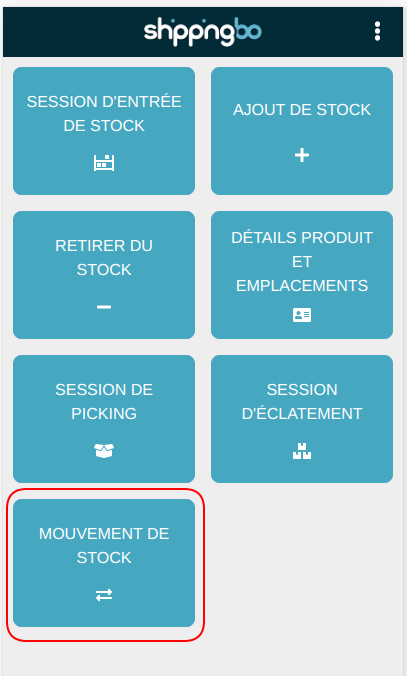
Step 1: On your PDA, go to the "Stock movement" menu.
Step 2: Scan the SKU or EAN of the product you want to transfer.
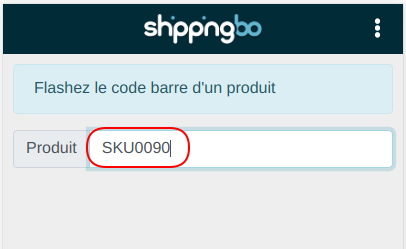
Information with the product name is displayed.
Step 3: Then scan the barcode corresponding to the location from which you want to remove the stock of your products.
The information for this first location is displayed on the PDA.
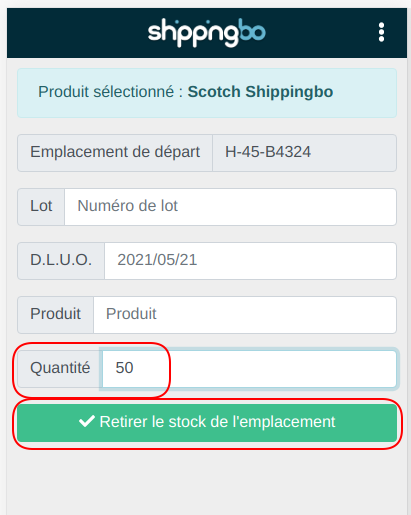
Step 4: Here you can transfer the stock in several ways:
- Manually enter the quantity of product you want to remove from this location. Then click on "Remove stock from location".
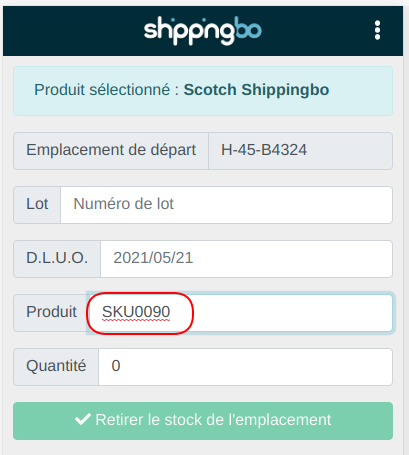
- Or scan the product barcode as many times as the number of products you want to take out of this location. Then click on "Remove stock from location".
- Or scan a GS1-128 code to take out an entire lot. Then click on "Remove stock from location".
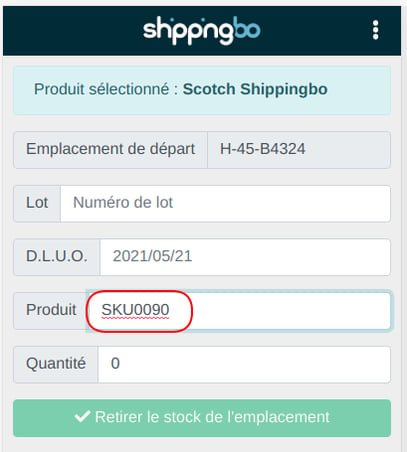
Step 5: At the end of the stock removal from a location, you can cancel your stock movement, if you realize you made a mistake, by clicking on "Cancel stock movement".
This option puts the removed quantity back into the location it was removed from:
Step 6: Then scan the location where you want to place the products previously taken out.
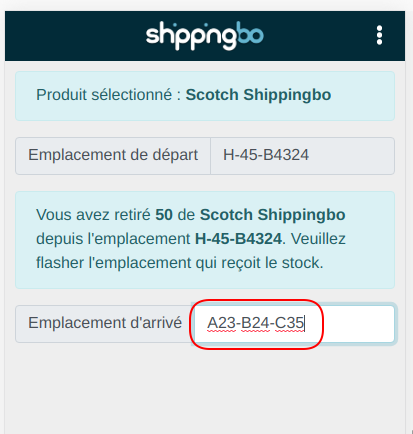
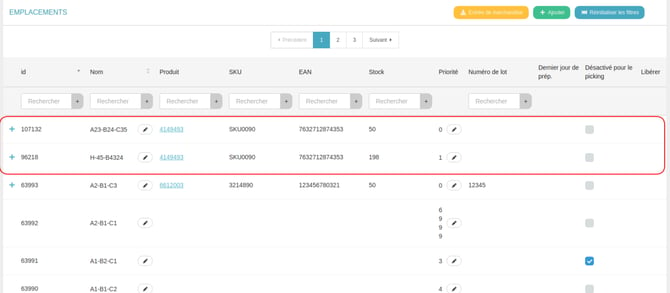
Once the destination location is scanned, you can check in the Stock / Locations menu that the stock has been moved from your departure location to your destination location.
⭐ Key point:
If you do not complete the manipulation, i.e. you take a product out of a location without assigning it a new one, the stock is put in transition.
⚒️ Framework and responsibilities:
Before fully using the feature described in this tutorial, we strongly recommend running a test phase with your own settings to check that the result matches your expectations. As the customer remains fully responsible for the actions carried out in the Shippingbo account, these tests are essential to use the tool with complete peace of mind.
To go further 🛫:
- Inter-warehouse stock movements
FAQ ❔:
- When should I use the PDA restocking feature?
Contact us 📬:
Questions about this feature? Feel free to write to us here so that we can answer your questions.