.png?width=210&height=40&name=bleu%20et%20gris_Sigle+logo%20SBO%20(4).png)
Summary
1.Benefits of the feature
2. Prerequisites
3. Feature description
4. Activation and configuration
5. Using tag mapping
6. Example of practical use
7. To go further
8. Contact us

- Automated control: Reduces the need to manually check orders that require special control.
- Fewer errors: Thanks to automated verification, errors during picking are minimized.
- Time savings: Adding tags by import lets you process a large number of orders at once.
- Reliability: The feature ensures that all orders marked with the tag go through a rigorous check before shipment.
2. Prerequisites✔️:
- This feature is available for all Shippingbo packs.
3. Using the "PICKING_CONTROL_REQUIRED" tag
The "PICKING_CONTROL_REQUIRED" tag allows you to automatically trigger picking control at the time of shipment, only for orders with this tag.
➡️ This automation ensures that orders requiring a specific check are handled rigorously, thus minimizing errors during shipment.
Users can add this tag in two ways:
- Manually, by adding the tag directly in the details of an order.
- By file import, via the bulk import of tags for several orders.
4. How to add the "PICKING_CONTROL_REQUIRED" tag?
4.1 Manually add the "PICKING_CONTROL_REQUIRED" tag:
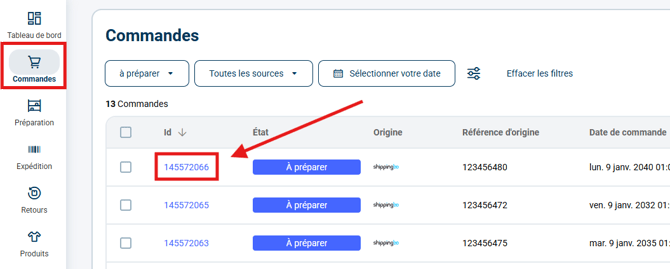
4.1.1 Go to the details of the order to which you want to add the tag via the menu Orders:
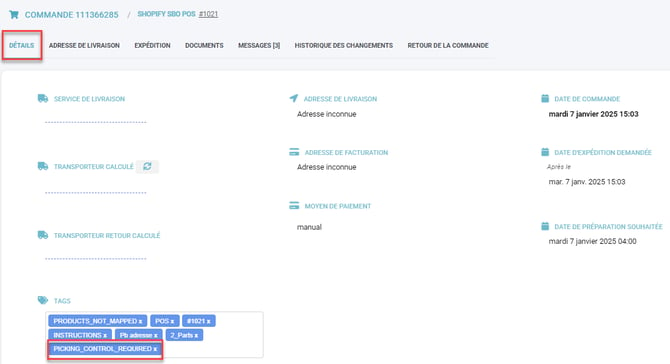
4.1.2 Open the Details tab of the order and add the tag in the TAGS section by pressing the ENTER key on your keyboard:
💬 Good to know:
For the software to recognize it, you must add the tag using exactly the following format: PICKING_CONTROL_REQUIRED
4.2 Add the tag by import
If you want to add the tag to several orders at the same time, you can do so by file import. To do this, please follow these steps:
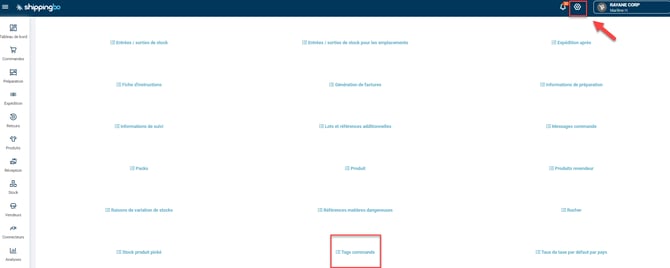
4.2.1 Go to the menu Configurations -> File management -> Import -> Order tags:
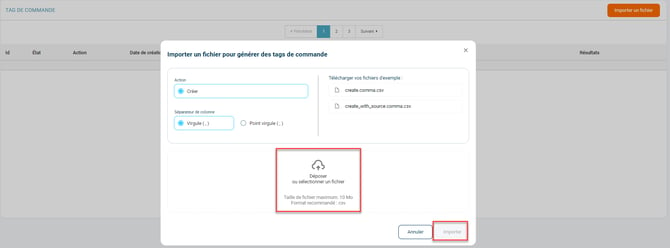
4.2.2 Click on Import a file, then download the sample file:
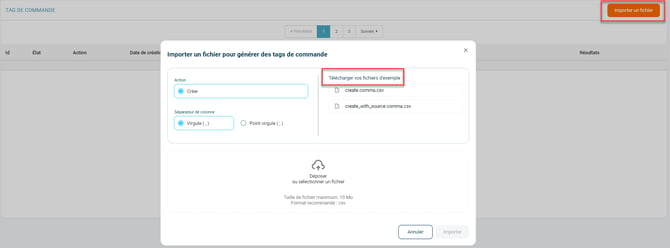
4.2.3 In the first column (A), add the order ID, and in the second column (B), add the tag value to apply to the order:
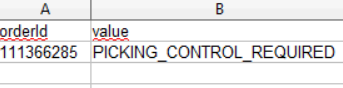
4.2.4 Once the file is completed, click on Drop or select a file, then on Import:
5. Use tag mapping (optional)
5.1 Check your configuration
This feature requires the use of tag mapping, which is available from the Premium + pack.
5.2 Configure your tag mapping
Using the dedicated tutorial here, you can define a tag mapping so that all orders matching certain criteria are assigned the tag PICKING_CONTROL_REQUIRED:
In Configurations > Orders > tab Tag mapping, you can add the dedicated tag (it is essential that the value field contains exactly PICKING_CONTROL_REQUIRED:
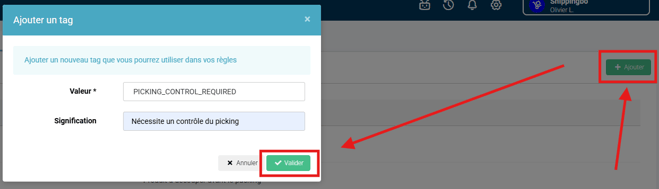
You can add a Rule type by clicking on Add:
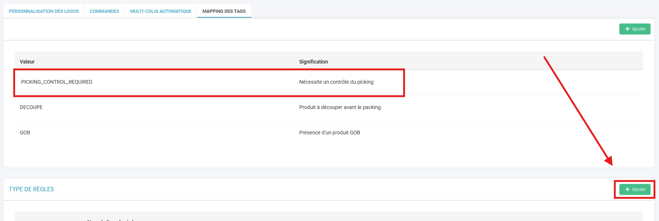
A dialog window will ask for a name of your choice:
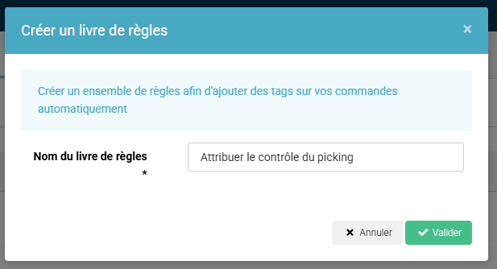
In the details of this new rulebook, you can click on Add to create the rule that will assign the tag PICKING_CONTROL_REQUIRED:
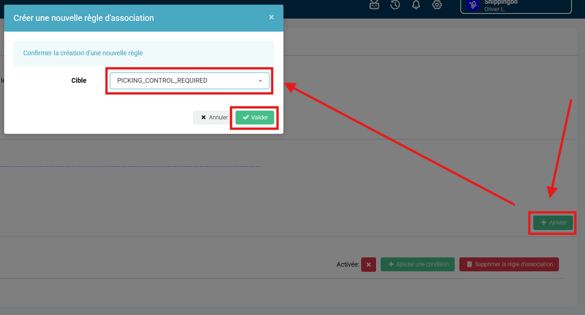
You can then click on Add a condition so that the tag is automatically assigned to orders according to the criteria of your choice:

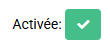
Make sure to activate the rule once your configuration is complete:
➡️ All orders matching the conditions described in your tag mapping will automatically be assigned the tag PICKING_CONTROL_REQUIRED as soon as they are received/created in Shippingbo.
6. Example of practical use
Imagine a warehouse where some orders require stricter control, for example orders containing valuable products such as mobile phones, or high-volume orders. For these orders, you can follow these steps:- Manually: for an order with ID #12345, go to the details of this order and add the tag PICKING_CONTROL_REQUIRED. As soon as this order is ready to be shipped, picking control will be triggered automatically.
- By import: if you have 100 orders requiring this control, download the sample file, enter the 100 order IDs, and associate them with the tag PICKING_CONTROL_REQUIRED. Import the file to automate the process in a few minutes.
⚒️ Recommendation:
Before fully using the feature described in this tutorial, we strongly recommend running a test phase with your own settings to check that the result matches your expectations. As the customer remains fully responsible for the actions carried out in the Shippingbo account, these tests are essential to use the tool with complete peace of mind.
To go further 🛫
FAQ ❔:
- How does the "Grouped_order" tag work in orders?
Contact us 📬:
Questions about this feature? Feel free to write to us here so that we can answer your questions.