.png?width=210&height=40&name=bleu%20et%20gris_Sigle+logo%20SBO%20(4).png)
Why set up a delegated login mode on PDA?
You use the PDA application in the field, but some users also have access to the PC interface with enhanced authentication (MFA).
In this case, logging in on PDA becomes cumbersome, because MFA is not always suited to mobile or field use.
To meet this need, a dedicated login mode has been introduced. It lets you generate temporary access for a user from a secure workstation (PC), in order to log in quickly on a PDA without going through MFA.
How to use the dedicated login mode on PDA?
Here are the steps to follow:
1. Log in to the PC interface
Use your usual user account with two-factor authentication (MFA) enabled to log in to the application on a computer.
2. Go to security management
Go to the section Security management:
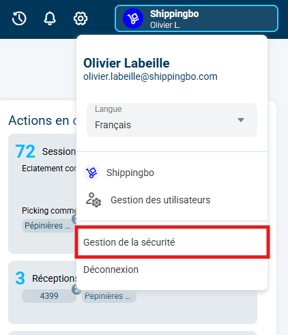
3. Generate temporary access
Click on the button Generate temporary access:
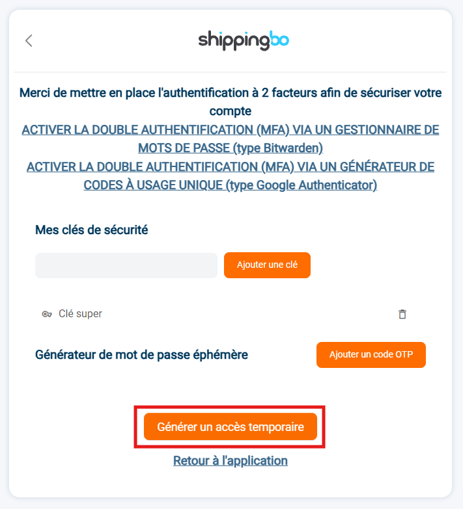
➡️ The generated temporary code is:
- Valid for 10 minutes
- Usable as a substitute password
- Allowing you to bypass MFA
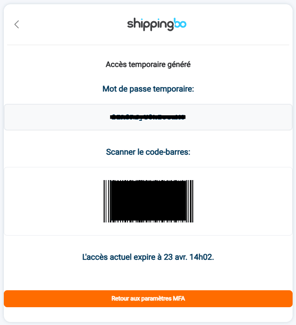
4. Use the code on the PDA
On your PDA device, enter your usual username and use the temporary code as the password.
✅ You are logged in without going through MFA.
💬 Good to know:
- The temporary code is limited in time (10 minutes)
- It can also be used on another computer, if necessary
- This method remains secure because it requires prior MFA authentication on the PC
Contact us 📬:
Questions about this feature? Feel free to write to us here so that we can answer your questions.