.png?width=210&height=40&name=bleu%20et%20gris_Sigle+logo%20SBO%20(4).png)
Benefits of the feature ✨
-
Increased productivity: Automating the weighing and final labeling considerably reduces the manual handling time of each parcel.
- Improved reliability: Systematic picking control combined with automatic reading by the conveyor secures the shipment and eliminates addressing errors.
- Organizational flexibility: Ability to multiply picking control and injection stations in parallel on a single conveyor to handle large volumes.
1. Prerequisites
- This feature requires specific activation and configuration by Shippingbo support, which you can contact here.
- Have a connected conveyor system able to weigh, scan barcodes and communicate via API.
- The setup of Shippingbo's API routes must be configured with your conveyor integrator.
2. How the conveyor process works
The conveyor comes into play directly after the preparation and picking phase of your orders. This flow is split into two main phases: injection by the operator, then automated processing by the conveyor.
%20(1)-png.png?width=670&height=443&name=image%20(1)%20(1)-png.png)
⭐ Key point:
Only single-parcel orders can be processed by this process. Multi-parcel orders do not allow unit-by-unit parcel processing on the conveyor, and must therefore be prepared outside the conveyor flow.
2.1 Injection phase: Preparation and Picking control
Step 1: The operator carries out the overall preparation and picking of the orders in the warehouse.
Step 2: At the injection station (which also serves as a control station), the operator scans the products of the parcel to carry out the Picking control.
Step 3: Once the control is validated, Shippingbo does not immediately print the carrier label. Instead, the system automatically generates and prints a temporary parcel label (10*15cm format). This label includes a barcode containing the unique parcel number. The operator is then instantly redirected to their control screen to process the next parcel.
2.2 Machine phase: Weighing and API communication
Step 4: The operator places the parcel with its temporary label on the conveyor.
Step 5: The conveyor carries the parcel, automatically weighs it and scans the barcode of the parcel label.
Step 6: The conveyor system sends the exact weight of the parcel to Shippingbo via API and requests the generation of a carrier label.
2.3 Automatic carrier labeling
Step 7: The conveyor retrieves the carrier label file returned by Shippingbo (via API), prints it and applies it automatically to the parcel.
Step 8: The conveyor carries the parcel to the exit station corresponding to the carrier for shipment.
💬 Good to know:
This setup makes it possible to parallelize the work: you can install several picking control / injection stations that all feed the same single conveyor.
🚩 Special case:
If an anomaly occurs during the picking control, the operator can always manually print a "parcel error label".
➡️ The parcel is then set aside from the conveyor to be processed later, and the operator can immediately move on to the next parcel.
3. Activating the conveyor process
3.1 Activation by our technical teams
This order preparation process requires activation and support by our technical teams. You can contact them to schedule this setup by clicking here.
➡️ Setting up this preparation process with our technical teams does not include API development. Please contact your conveyor provider for the development of the API system.
3.2 Setup in your Shippingbo space
-
In Configurations > Logistics:
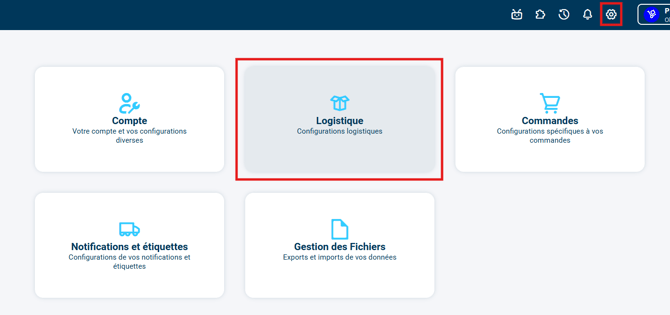
- In the Packing / Picking control, tab, the field Only generate the parcel label when these tags are present) makes it possible to determine the tag, and therefore the order to ship via conveyor:
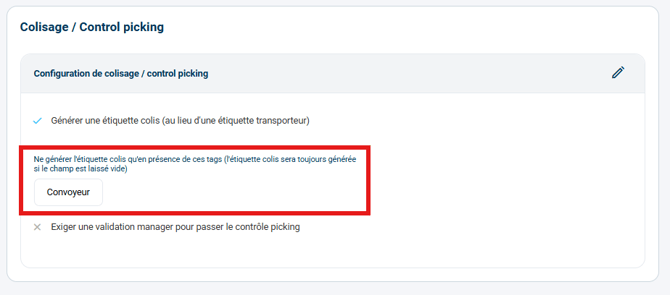
➡️ In this example, only orders with the tag "Conveyor" will be shipped with the conveyor shipping process. - It is therefore necessary to set up a tag mapping that includes the tag entered in the field Only generate the parcel label when these tags are present) to fully benefit from this feature
➡️ More information on tag mapping in our dedicated tutorial: TAG MAPPING.
4. Practical example
Situation: Operator Jean prepares a single-product order (a pair of shoes).
- Jean scans the barcode of the shoebox at his picking control station.
- Shippingbo validates compliance and prints a temporary parcel label. Jean's screen resets instantly for the next order.
- Jean sticks the temporary label on the box and places it on the conveyor.
- The parcel passes under the conveyor gantry: it is weighed at 1.2 kg and the temporary label is scanned.
- The conveyor calls the Shippingbo API and sends the weight of 1.2 kg. Shippingbo instantly generates the final Colissimo label.
- The conveyor's automatic applicator prints and sticks the Colissimo label over the old one or on another side, then directs the parcel to the Colissimo exit station.
⚒️ Framework and responsibilities:
Before fully using the feature described in this tutorial, we strongly recommend running a test phase with your own settings to check that the result matches your expectations. As the customer remains fully responsible for the actions carried out in the Shippingbo account, these tests are essential to use the tool with complete peace of mind.
To go further 🛫:
Contact us 📬:
Questions about this feature?
Feel free to write to us here so that we can answer your questions.