.png?width=210&height=40&name=bleu%20et%20gris_Sigle+logo%20SBO%20(4).png)
Access the verification tool
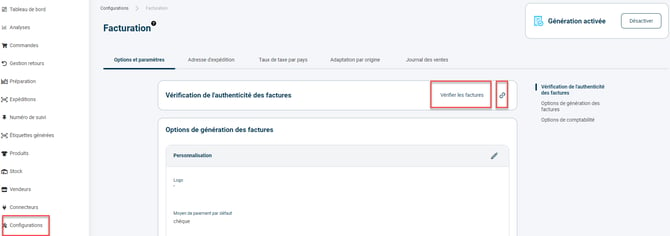
How the tool works
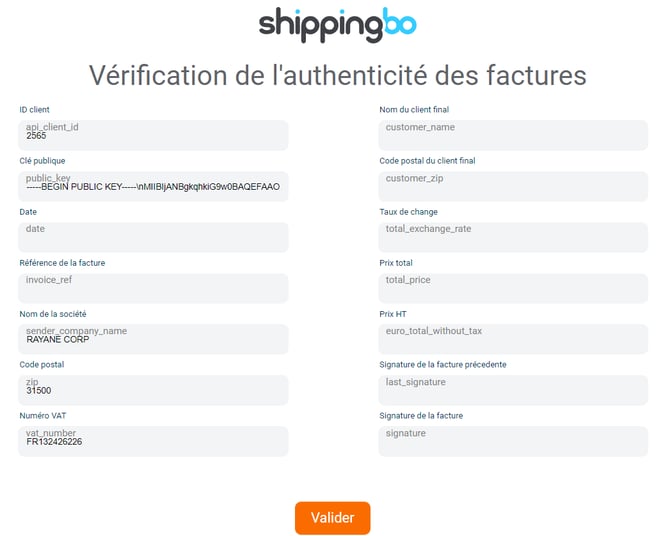
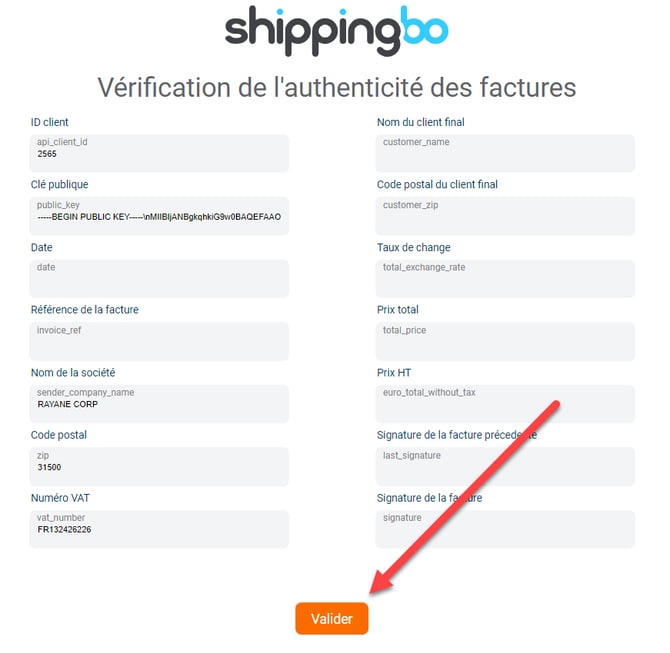
1) Pre-filled information
The pre-filled information is automatically retrieved from your Shippingbo account. This information is as follows:
-
Customer ID
-
Public key
-
Company name
-
Company postal code
-
VAT number
Once this document has been retrieved, you need to look up the rest of the information to complete it.
2) Information to complete
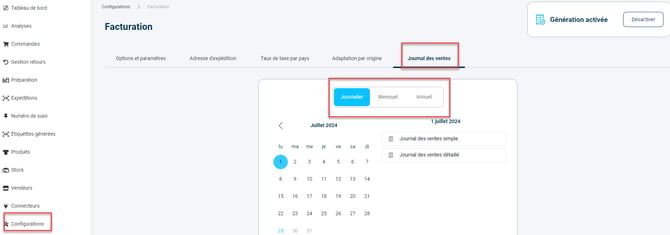
Step 1: To retrieve the missing information, go to the menu Configurations -> Invoicing -> Sales journal and select the period for which you want to retrieve the export (daily, monthly or yearly):
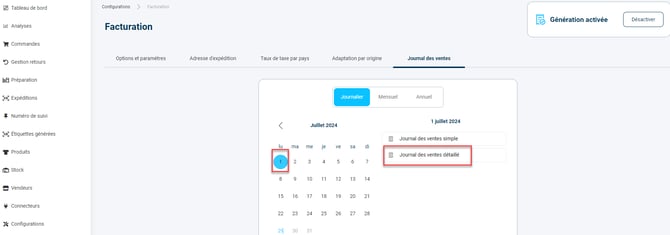
Step 2: Once the period is selected (here we will take July 1, 2024 as an example), download the "Detailed sales journal" export:
Step 3: Fill in the missing data in the form with the information contained in the export you downloaded earlier:
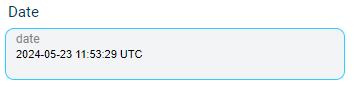
- Date: you will find the date in the column "date" of the export. Make sure to enter the date exactly as it is formatted in the export:
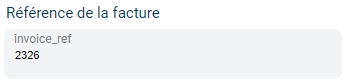
- Invoice reference: you will find the invoice reference in the column "invoice_ref" of the export:
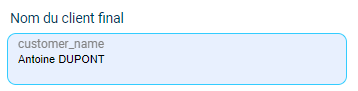
- Final customer name: you will find the final customer name in the column "customer_name" of the export:
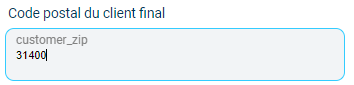
- Final customer postal code: you will find the final customer postal code in the column "shipping_address.zip" of the export:
📢Warning: Some spreadsheets (Excel, Libre Office, …) may remove the zero in front of postal codes that start with a zero. (Example: for 09500, the spreadsheet may open the export file showing “9500”. You must enter “09500” on the verification page.
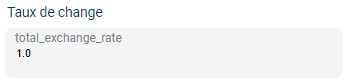
- Exchange rate: you will find the exchange rate in the column "total_exchange_rate" of the export:
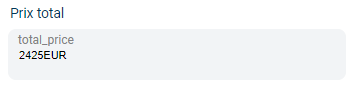
- Total price: you will find the total price by concatenating two columns of the export: the column “total_price_without_tax_cents” followed with no space by the column “total_price_without_tax_currency” (or total_price_cents followed with no space by total_price_currency if your export does not contain the previous columns):
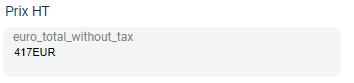
- Price excl. VAT: you will find the price excl. VAT by concatenating two columns of the export: the column “euro_total_without_tax_cents” followed with no space by the column “euro_total_without_tax_currency”:
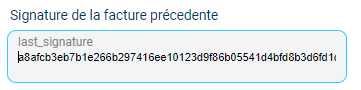
- Previous invoice signature: the signature of the previous invoice is required to ensure a tamper-proof encryption chain. It is available in the column “previous_signature” of the export:
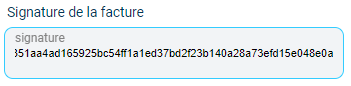
- Invoice signature: the invoice signature is calculated from all the information entered previously. It is available in the column "signature" of the export:
Verifying the authenticity of the invoice information
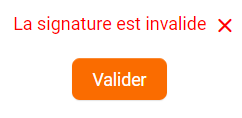
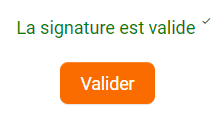
Once the form has been completed with the requested information, click on "Validate" to verify the authenticity of the invoice information:
Contact us 📬:
Questions about this feature? Feel free to write to us here so that we can answer your questions.