.png?width=160&height=30&name=bleu%20et%20blanc_Sigle+logo%20SBO_300dpi%20(2).png)
💠 Note:
To retrieve the necessary connection information, you can follow our tutorial Connectors - Connect a Mirakl.
1. Create an external service in Shippingbo
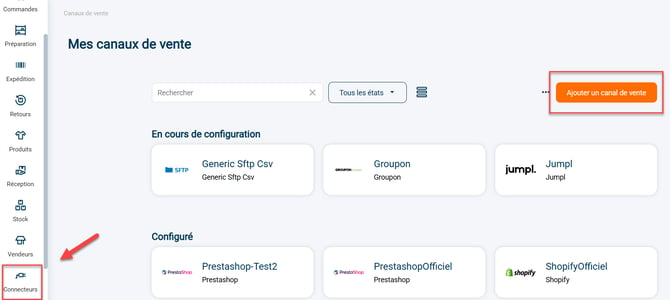
Step 1: Go to your Shippingbo interface to create your external service in the menu Connectors -> Sales channels -> Click on Add a sales channel:
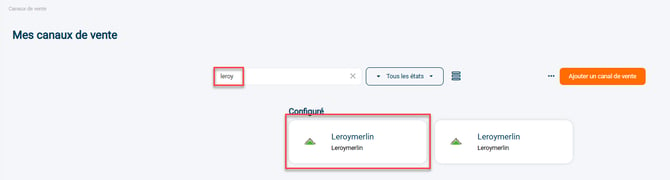
Step 2: Search for "Leroy Merlin" in the search bar, then click on the corresponding tab that appears:
Step 3: Your connector opens and a first category appears:

1) The pen to the right of Leroymerlin lets you change the name of your connector.
2) The "View help" button redirects you to this tutorial.
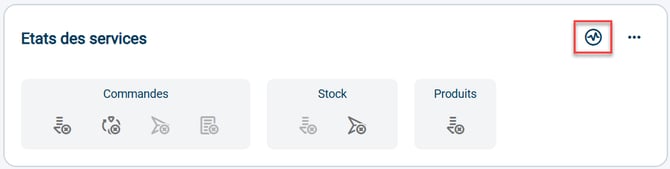
3) The graph icon lets you check the validity of the connection between Shippingbo and your Leroy Merlin store.
4) The Orders block informs you about the features that are enabled, disabled or unavailable between your Shippingbo account and your Leroy Merlin store at the order level: order retrieval, order closing, order sending, order acceptance.
5) The Stock block informs you about the features that are enabled, disabled or unavailable between your Shippingbo account and your Leroy Merlin store at the stock level: stock retrieval, stock sending.
💬 Good to know:
The color code of the icons is as follows:
 - in blue, the active features
 - in dark gray, the features that are disabled but available
 - in light gray, the unavailable features
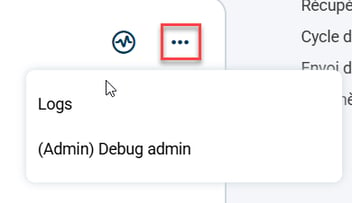
Step 4: By clicking on the 3 small dots to the right of the graph icon, you can access the calls made with this service:
2. Connect Leroy Merlin to Shippingbo
2.1: A minimum of 2 pieces of information must be filled in to connect Leroy Merlin to your Shippingbo account.
First, you must fill in the following information in the "General settings" block:
- The API key of your Leroy Merlin store
- Your store ID
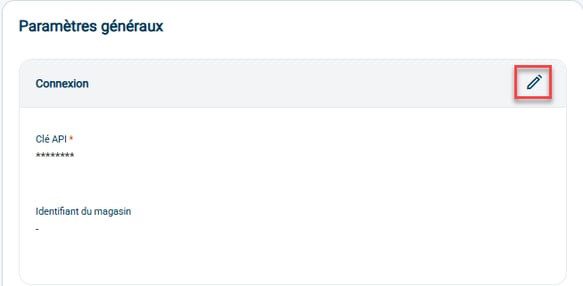
2.2 Then fill in the rest of the information you need in the block Order retrieval
To enable Order retrieval, click on the arrow to the right of the category:

💬 Good to know:
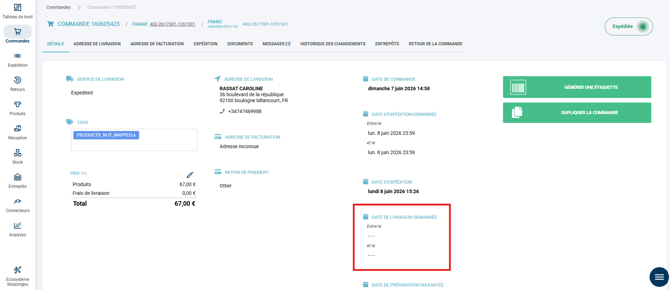
Shippingbo automatically retrieves the Estimated delivery dates set by the marketplace (SLA) via the Mirakl API and displays them directly in the order details, in the field Requested delivery date:
2.3 Enable the Order lifecycle (optional)
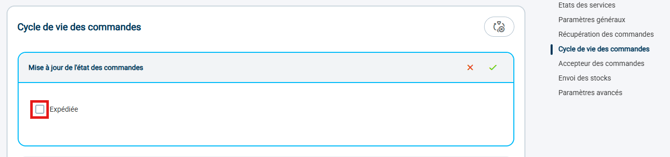
So that Shippingbo automatically sends the order status to your Mirakl store when orders change to the "Shipped" status, you must enable the order lifecycle feature.
To do this, select the order status you want, then validate:
2.4 Configure the Stock sending (optional)
The Stock sending is activated by clicking on the dedicated button:

The Stock sending call is made immediately from Shippingbo to your Mirakl as soon as a stock variation occurs on a product, provided that this product shares the same SKU on Shippingbo and your Mirakl.
You can adapt the stock value sent according to the specifics of your business.
If you use Stock types, you can set up the exclusive distribution of a single stock type to your Mirakl, in the field Stock type to publish on the service.

By default, this field is empty, so all stock types are sent to your Mirakl.
2.5 Then fill in the rest of the information you need in the Advanced settings:
-
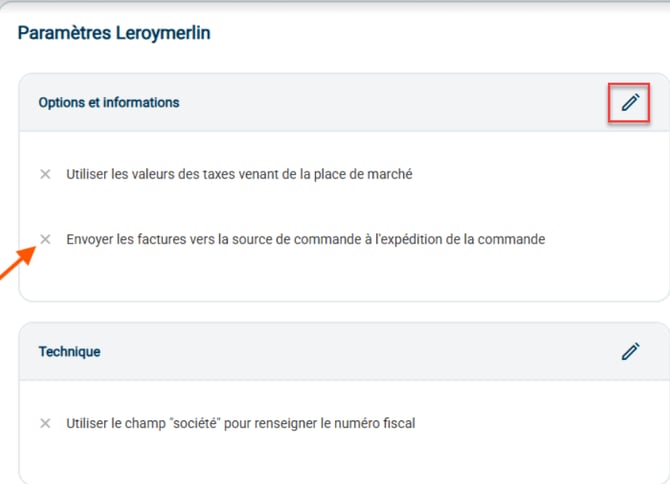
If you want to push invoices to your Leroy Merlin Mirakl, enable the option Send invoices to the order source when the order is shipped in the advanced settings:
-
If needed, to delete the connector, you can click on the dedicated button in the Advanced settings:

⚒️ Framework and responsibilities:
Before fully using the feature described in this tutorial, we strongly recommend running a test phase with your own settings to check that the result matches your expectations. As the customer remains fully responsible for the actions carried out in the Shippingbo account, these tests are essential to use the tool with complete peace of mind.
📢 Warning:
Only direct connections to sales channels allow Shippingbo to guarantee control over data flows. When orders are not retrieved via an official Shippingbo connector, but go through a third-party tool (intermediate CMS, external connector, FTP, manual or automated import), Shippingbo cannot guarantee the integrity, reliability or completeness of the transmitted data.
This data may be modified, truncated, reformatted or duplicated before it is received in Shippingbo, resulting in particular in processing errors, duplicate orders, status inconsistencies, label blockages, carrier or customs anomalies, as well as a degradation of the final customer experience.
In this context, Shippingbo is not able to investigate or correct the anomalies originating from the third-party system. Any anomaly related to upstream data falls outside Shippingbo’s scope of responsibility (more information on the scope of support here). These investigations can only be carried out as part of a specific service and will be invoiced.
For all these reasons, it is strongly recommended to connect your sales channels directly to Shippingbo via the official connectors.
Contact us 📬:
Questions about this feature?
Feel free to write to us here so that we can answer your questions.