.png?width=160&height=30&name=bleu%20et%20blanc_Sigle+logo%20SBO_300dpi%20(2).png)
Benefits of the feature ✨
- Intuitive interface The redesigned interface makes navigation and product searches easier.
- Advanced search : Filters allow you to find products according to specific criteria.
- Optimized management The compact mode displays more information to manage catalogues efficiently.
1. Prerequisites
-
This feature is available by default from the LMS Pro+ Pack Or WMS Premium+.
2. How does the new product search page work?
The new product search page offers a more user-friendly interface and more powerful filters, allowing you to search for your products faster and according to more precise criteria. It is divided into 2 types of search:Simple search andAdvanced search.
3. Activate the new product search page
Activate the new search page for your products:
- Access your Shippingbo account.
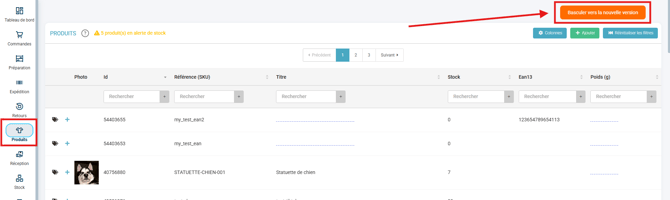
- Go to the menu Products in the sidebar.
- Click on"Switch to the new version" in the pop-up window at the top of the page:
4. Configure product search filters
On this new page, you will find all the old features along with new, more powerful ones.
Previously, in the old Products view, filtering your products was done via one field per column:

Now you can filter your products very quickly using the simple search, or the advanced search :
-
Simple search :
-
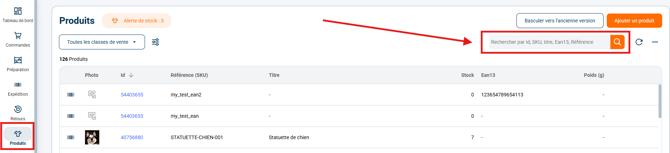
In the search bar at the top right of the page, you can perform a quick search to find a product:
-
The simple search is performede with the following filters:
-
SKU du product
-
Product title
-
product EAN
- Product ID Shippingbo
For example: if you are looking for a product with the title "Hamster bed", enter this term in the search bar and press Enter:

-
-
💬 Good to know:
The simple search is performed under the condition "contains"and not"is equal to"
2. Advanced search:
The following fields can be used in the advanced search for your products:
- Date of creation
- EAN13
- Supplier
- Height (mm)
- Id
- HS code
- Width (mm)
- Location
- Length (mm)
- Serial numbers
- Activated PCB
- Photo
- Weight (g)
- Hazardous products
- Customer reference
- Additional references
- Reference (SKU)
- Source reference
- Source
- Stock
-Title
- Salespeople
- Total volume (m3)
-
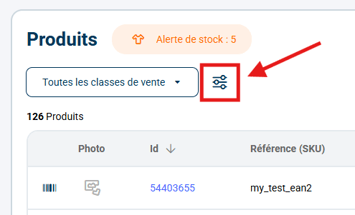
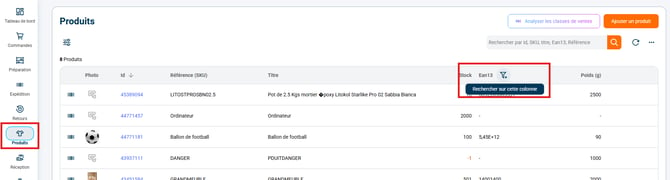
- To access the advanced search, click:
- either on theadvanced filters icon found under the titleProducts :
- either on thefunnel icon which appears in the header of the column you hover over with your cursor:
- either on theadvanced filters icon found under the titleProducts :
- To access the advanced search, click:
-
- Select the type of information you want and associate a criterion with it. Add other conditions if necessary and start the search:
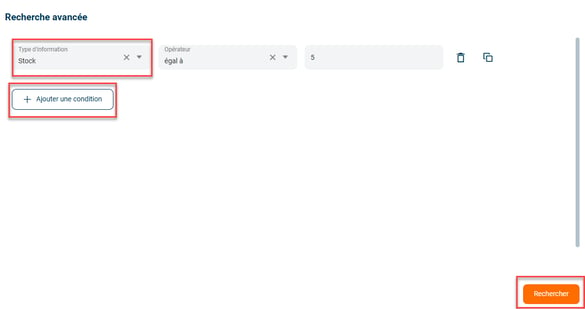
- Select the type of information you want and associate a criterion with it. Add other conditions if necessary and start the search:
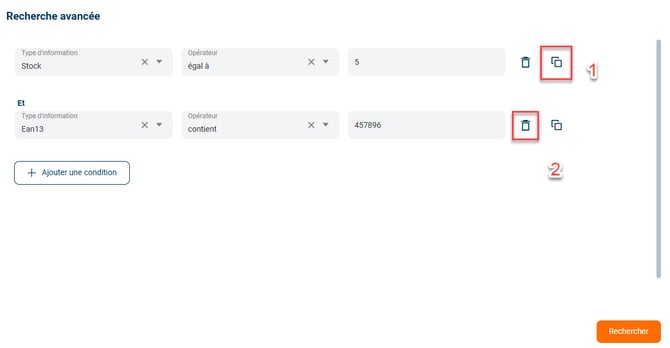
💡 Tip:
You can duplicate a search criterion by clicking on the icon with two copies, or delete it with the trash can icon:
💬 Good to know:
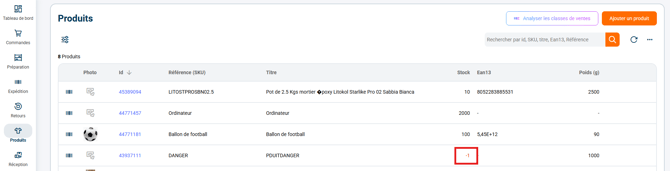
To help you quickly spot anomalies, all negative stock quantities (less than 0) are automatically displayed in red in the column Stock.
3. Compact mode
You can activate "compact mode" on your dashboard to have more information displayed on your screen at once.
To do this, click on the three small dots in the top right corner of the page, then select the "Compact Mode" option:

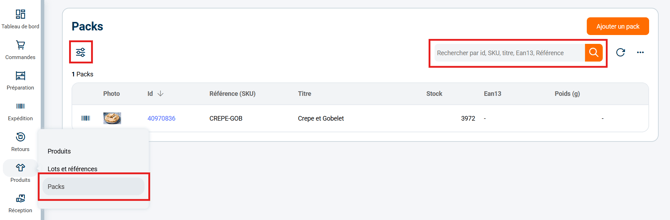
4. Improved view of the packs
The packs view has also been improved to match the Products view. You will find all the same features in the Packs view:
5. Example of practical application
Context : You have a larged product catalogue and you need to quickly find a specific item, such as a "Hamster Bed", to check its stock.
Using the feature:
- Access your Shippingbo account, go to the menu Products and activate the new search interface.
- Enter "Hamster bed" in the simple search bar, press Enter.
- To refine your search, use the advanced search by adding criteria such as Creation Date or SKU.
- Faster search thanks to an ergonomic interface.
- Powerful advanced filters for more accurate results.
Result : You can quickly find the "Hamster bed" product and all associated information, such as stock and location.
⚒️ Framework and responsibilities:
Before fully using the functionality described in this tutorial, it is strongly recommended to performa testing phasefollowing your own parameters to verify that the result meets your expectations. The remaining customerfully responsibleThese tests, based on actions performed on the Shippingbo account, are essential to ensure the tool can be used with complete peace of mind.
To go further 🛫:
- CREATE OR MODIFY PRODUCTS MANUALLY IN SHIPPINGBO
Contact us 📬:
Any questions about this feature?
Feel free to write to ushereso that we can answer your questions.