.png?width=160&height=30&name=bleu%20et%20blanc_Sigle+logo%20SBO_300dpi%20(2).png)
Time savings in order preparation: The process makes it possible to generate all the shipping labels at once as soon as the session is created, which reduces the time spent manually handling each order.
Optimization for low-volume orders: Ideal for identical orders, this preparation mode simplifies the workflow by avoiding the complexity of large orders, especially during peak periods.
Simplicity for best-sellers: It makes it possible to efficiently target fast-moving or seasonal items by creating specific sessions for a particular SKU, thus making it easier to manage high-demand products.
Prerequisites✔️:
-
This preparation process is not compatible with the generation of customs documents such as CN23.
- This process is not compatible with handling multiple parcels for one order
-
If you need to print customs documents at the same time as the labels, you will need to choose another preparation process.
Recommendations
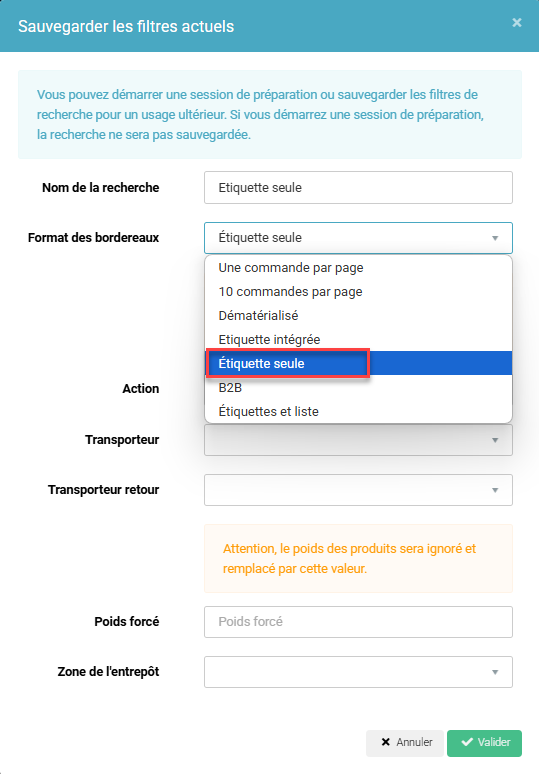
The label only slip format makes it possible to print only the shipping label during a preparation session. In this tutorial, we will show you how the preparation process works for a session with the label only slip format, from its creation to the shipment of the orders.
Process diagram (recommended by Shippingbo)
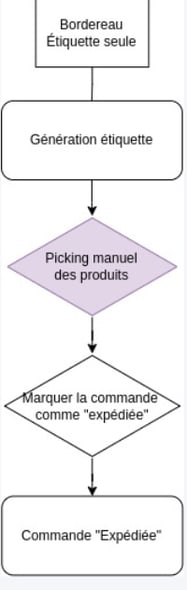
Step by step
Step 1: Generate your preparation session with the saved filter that has "label only" as its slip format:
Step 2: The labels are generated at the time the label is created.
📢 Warning:
Until all the labels have been generated, they cannot be downloaded.
Step 3: Once the labels have been generated, you can print them by clicking on "Labels":
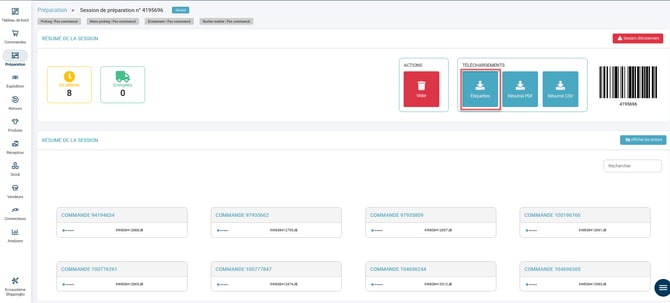
If you do not have a PDA, please go directly to step 5.
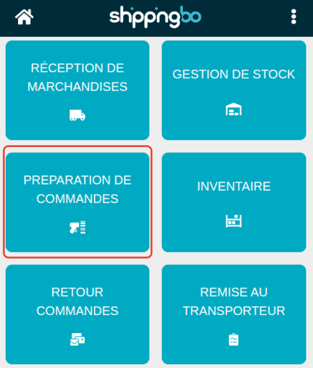
Step 4 (optional and only for PDA users): You can do your picking with the PDA to prepare your orders in label and list format.
-
To do this, go to your PDA and click on the menu Order preparation:
-
Then on the menu Picking session:
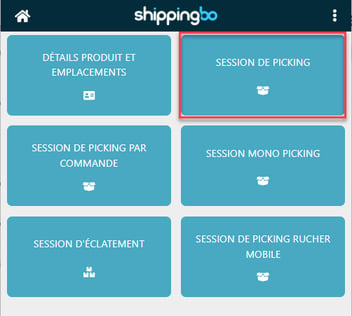
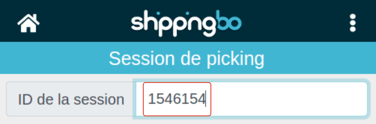
Scan the ID of your preparation session with the PDA: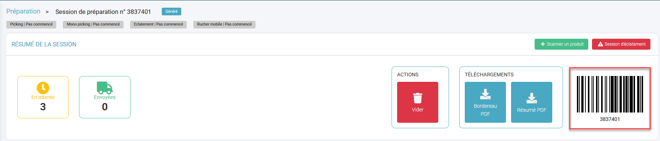
- If location validation is enabled, scan the location from which to take the product:
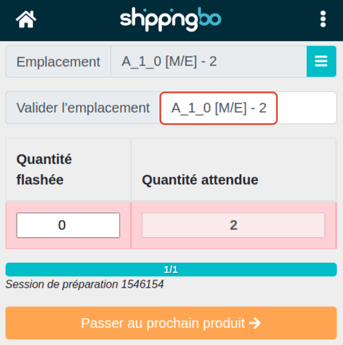
- Then, scan your product:
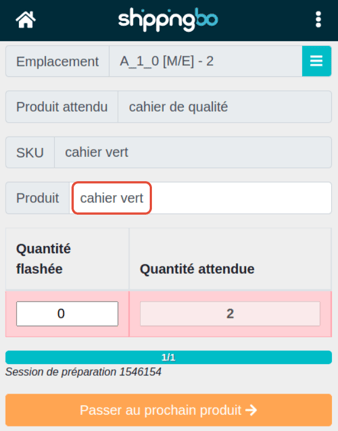
Do the same for all your products / quantities to scan, and once picking is complete, the PDA will indicate it:
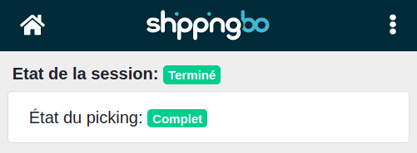
In addition, if you refresh the web page, this will also be shown on the preparation session:
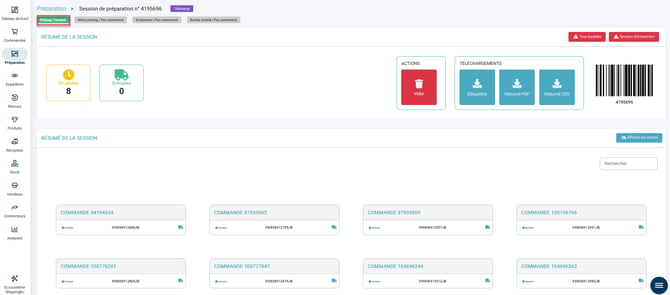
Step 5: Once your parcels are ready to be shipped, you can set your orders to the "Shipped" status in several ways:
- Method 1: you can click on the truck icon on your session to mark an order as "shipped". Do the same for all the orders in the session
The orders will then move to the "Shipped" status.
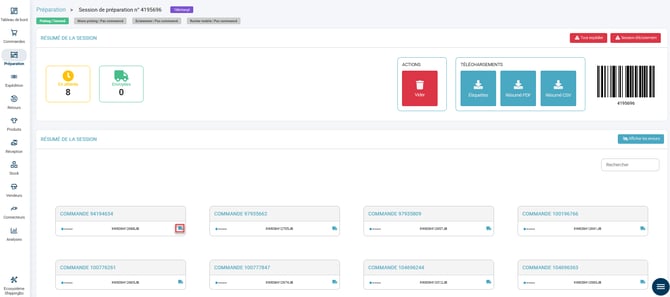
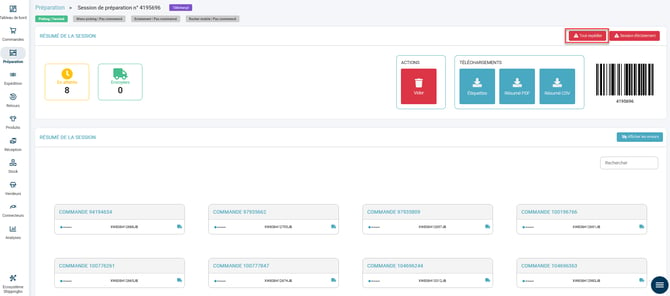
- Method 2: you can also set all the orders to the "Shipped" status at once by using the red button Ship all
A pop-up window will open and ask you to confirm the operation.
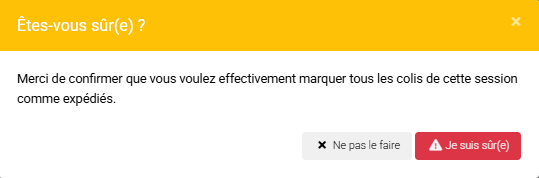
This operation is irreversible and will change the status of all the orders in the session.
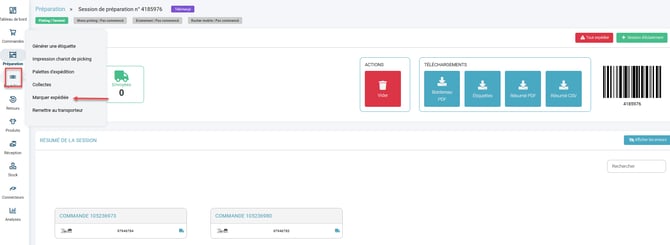
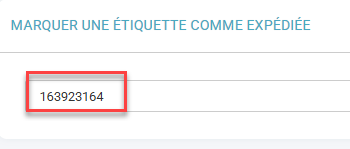
- Method 3: you can also set your orders as shipped via the menu Shipments and Marked as shipped
-
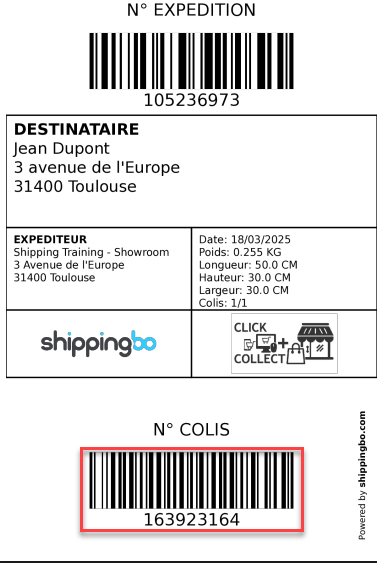
- Scan your shipping label stuck on your parcel using a barcode reader (barcode scanner)
- Scan your shipping label stuck on your parcel using a barcode reader (barcode scanner)
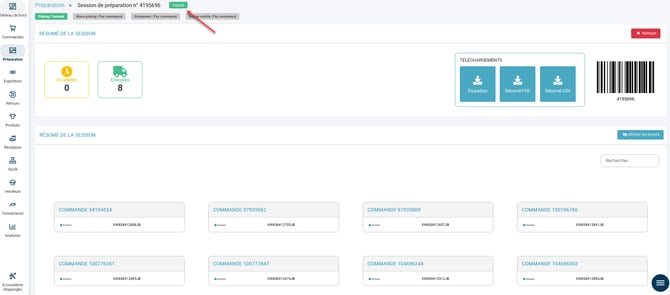
Step 6: Once you have finished, the session status changes to "shipped":
📢 Warning:
The label only preparation process does not allow the generation of customs documents for international shipments.
⚒️ Recommendation:
Before fully using the feature described in this tutorial, we strongly recommend running a test phase with your own settings to check that the result matches your expectations. As the customer remains fully responsible for the actions carried out in the Shippingbo account, these tests are essential to use the tool with complete peace of mind.
Contact us 📬:
Questions about this feature? Feel free to write to us here so that we can answer your questions.