.png?width=160&height=30&name=bleu%20et%20blanc_Sigle+logo%20SBO_300dpi%20(2).png)
- Paperless process: Elimination of the paper slip, reducing handling errors and improving traceability thanks to the PDA.
- Simultaneous picking and sorting: Time savings by directly matching products to order boxes during picking.
- Fewer errors and better stock management: Each product is validated by scan, limiting the risk of errors and making real-time stock tracking easier.
Prerequisites✔️:
- Available from the Premium + Pack.
- Support intervention is required to activate the option on your Shippingbo account.
- Preparation station equipped with a barcode reader (barcode scanner)
- Cart and boxes with physical barcodes
Recommendations
For this preparation process, all handling operations can be carried out without using a preparation slip.
We therefore advise you to use the paperless slip format in this preparation process in order to avoid handling errors.
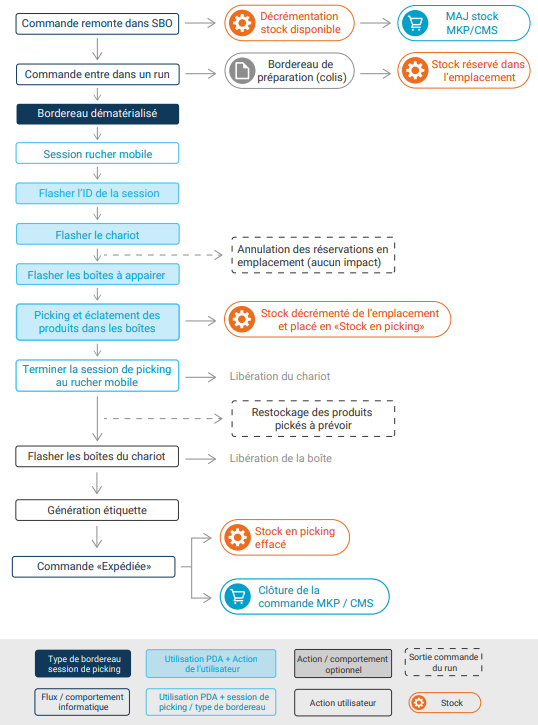
Diagram of the process recommended by Shippingbo:
Step by step
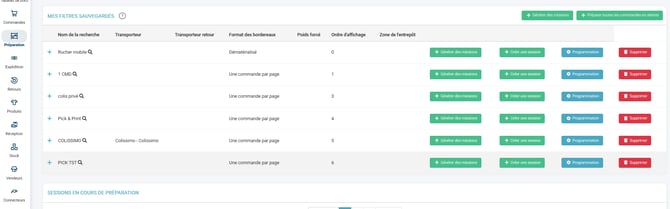
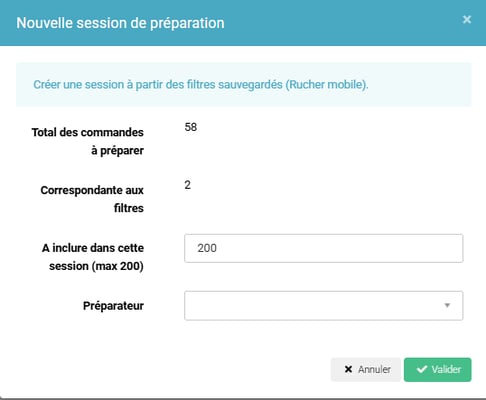
Step 1: Start the creation of the preparation session that you want to prepare with the mobile apiary in the menu Preparation -> Create a preparation session:
💠Note:
Include in your preparation session a number of orders less than or equal to the maximum number of boxes that your picking cart holds.
💠Note:
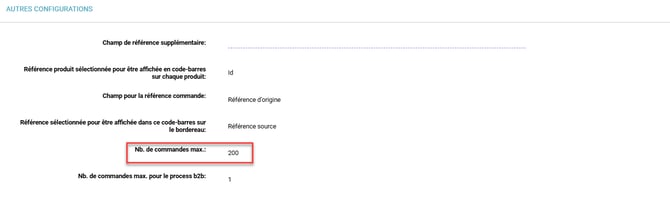
If mobile apiary preparation is your main preparation mode, we recommend setting a default maximum number of orders per session.
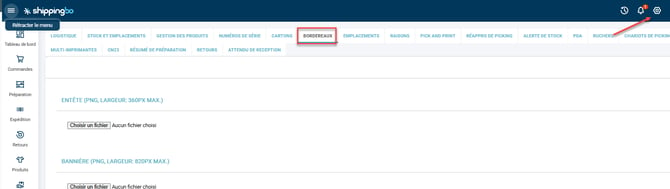
To change the default maximum number of orders, go to Configuration → Logistics → Slips then change the value Max. no. of orders to the number of boxes you can put on your cart.
📢 Warning:
Even if you do not manage locations on your Shippingbo account, we strongly advise you to enter dummy locations on your products so that you can continue the preparation on the PDA.
If you do not have a location, you can enter the SKU or EAN of the product instead.
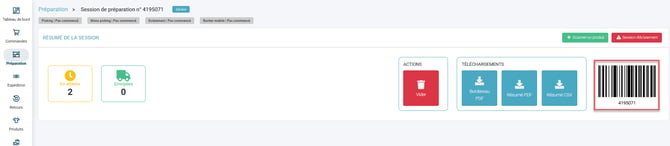
Step 2: Once the preparation session has been generated, retrieve or edit the ID of the preparation session.
Step 3: Switch to the PDA.
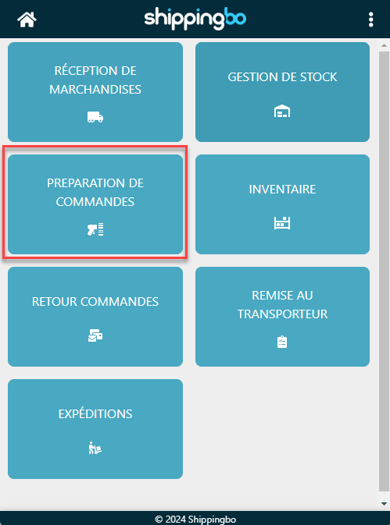
Open the "Order preparation" menu:
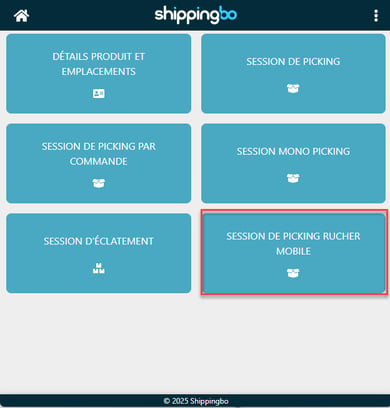
Then, go to the "Mobile apiary picking session" menu:
Step 4: Scan the ID of the preparation session that you want to prepare:
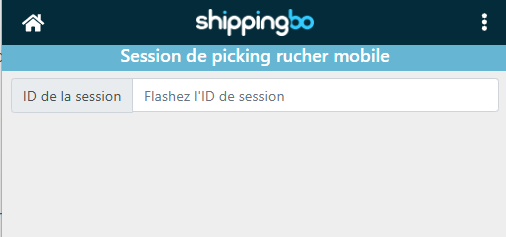
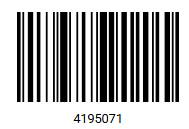
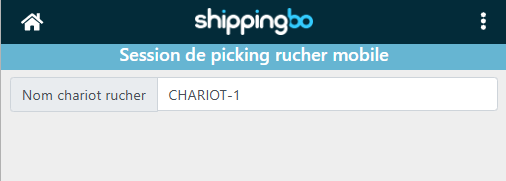
Step 5: Scan the name of your cart to associate this cart with this preparation session:
Step 6: Scan the first box that you want to associate with this cart:
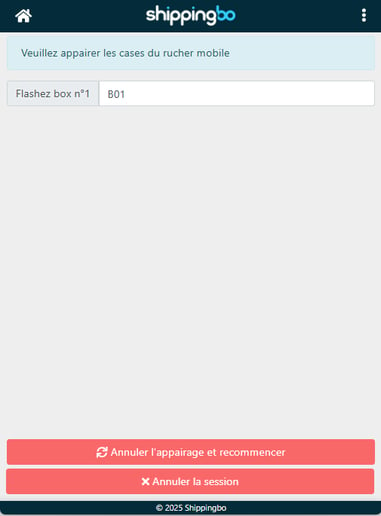
Then, scan a second box and so on until you have the same number of boxes as orders in the session:
💠Note:
You can scan any box to associate it with a cart. You can also put only 2 boxes in a cart that can hold 10 if you only have two orders in the session.
📢 Warning:
If you scan the wrong box when associating it with the cart, you can cancel the association at any time and start over by clicking on the button at the bottom of the page: "Cancel pairing and start over".
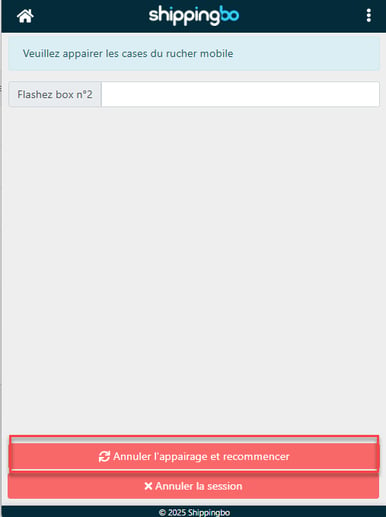
Carry out the picking of a preparation session with the mobile apiary
Once the last box has been scanned, the PDA application directly displays the page corresponding to the menu for picking the first product of the session.
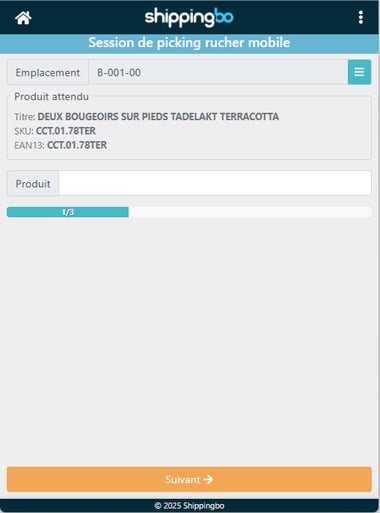
Step 1: You can now scan the first requested product, so that the application tells you which box to put it in. The expected quantity of the product for this order is also given. You can change the quantity manually if you want to put everything in at once
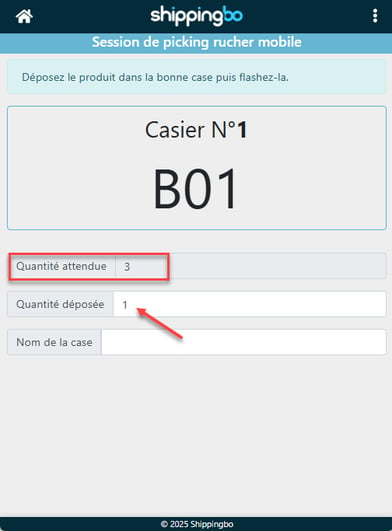
Step 2: Scan the box indicated by the PDA to confirm that you are placing this product in this box.
💠Note:
As indicated previously, it is during this step that we carry out the sorting at the same time as the picking for each of the products in the orders of this session.
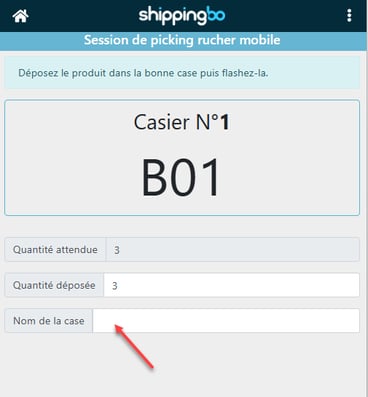
Repeat the operation with the other products in the session, scanning them and then scanning the indicated box each time, until the picking is complete and no products remain to be picked.
A message is displayed to tell you that the picking is complete.
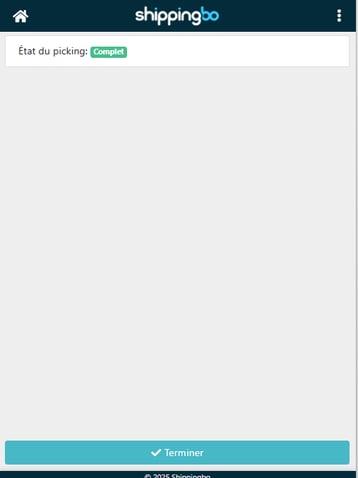
💠Note:
As soon as you finish your picking and this message appears, the apiary cart becomes available again.
You can therefore reassign new boxes to it to go and process a second session while another picker takes care of shipping the orders that have just been picked.
📢 Warning:
From this point, the products are considered to be in picking stock (= products taken out of the location but not yet shipped). If you remove the order from the run and do not continue to the end of the preparation process, you will then need to plan to restock the picked products using the PDA restocking feature.
Generate the shipping labels for the orders in your preparation session with the mobile apiary
Step 1: On the computer, go to the menu Shipments and select Picking cart printing to land directly on the printing field for the picking cart boxes 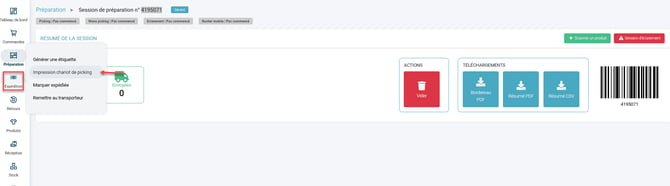

You can also click on Shipments and change the corresponding field and choose Apiary cart box
Step 2: Scan the first box (equivalent to an order in your session) that you want to ship.
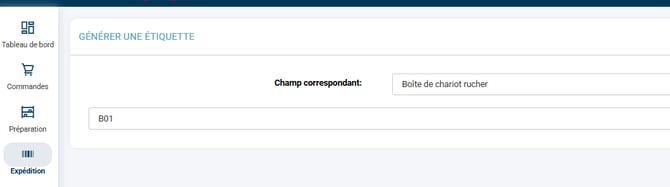
You will then land on the shipping label editing page, or if you have print automation, the shipping label will be printed automatically.
Repeat the operation for all the orders in your session.
We also invite you to watch our video showing how the mobile apiary preparation process works by clicking on the image below:
⚒️ Recommendation:
Before fully using the feature described in this tutorial, we strongly recommend running a test phase with your own settings to check that the result matches your expectations. As the customer remains fully responsible for the actions carried out in the Shippingbo account, these tests are essential to use the tool with complete peace of mind.
Contact us 📬
Questions about this feature?
Feel free to write to us here so that we can answer your questions.