.png?width=160&height=30&name=bleu%20et%20blanc_Sigle+logo%20SBO_300dpi%20(2).png)
You are using Multi-Shippingbo, meaning that you have a seller account (OMS) linked to a warehouse account (WMS), in which your stocks and shipments are managed.
The two accounts do not necessarily belong to the same company; an OMS can indeed be linked to the WMS of a logistics provider.
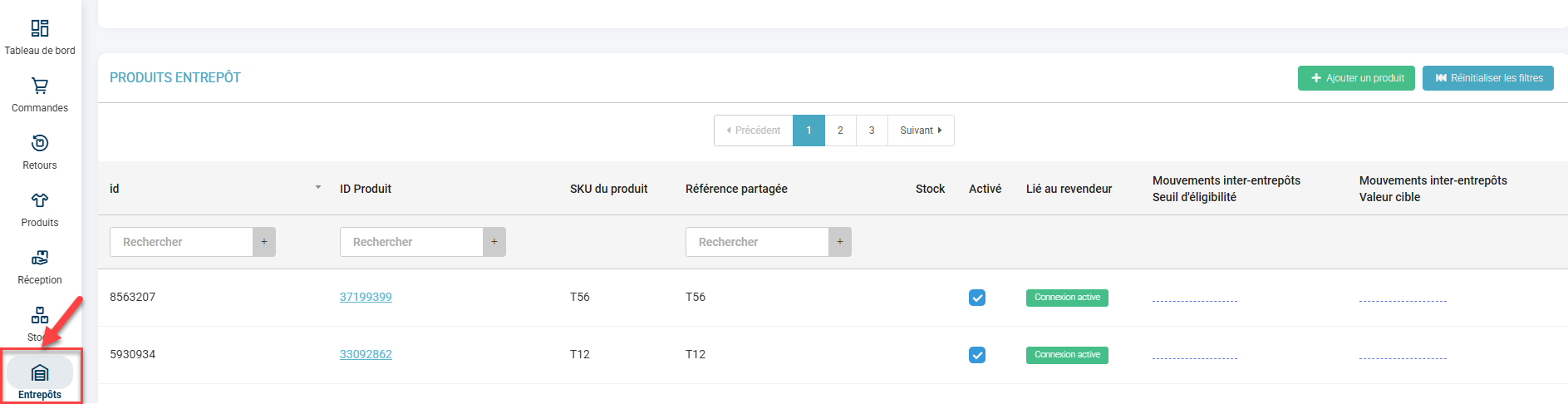
The product catalog of the OMS is linked to the product catalog of the WMS via a shared catalog, visible in the Warehouse tab of the side menu. On the WMS side, this shared catalog is visible in the Seller tab of the side menu.
This shared catalog links the OMS SKU and the WMS SKU. The link is made via the "shared reference", which allows stock updates in particular to be propagated correctly.
Example of a shared catalog on the OMS side:
Example of the same shared catalog but on the WMS side:
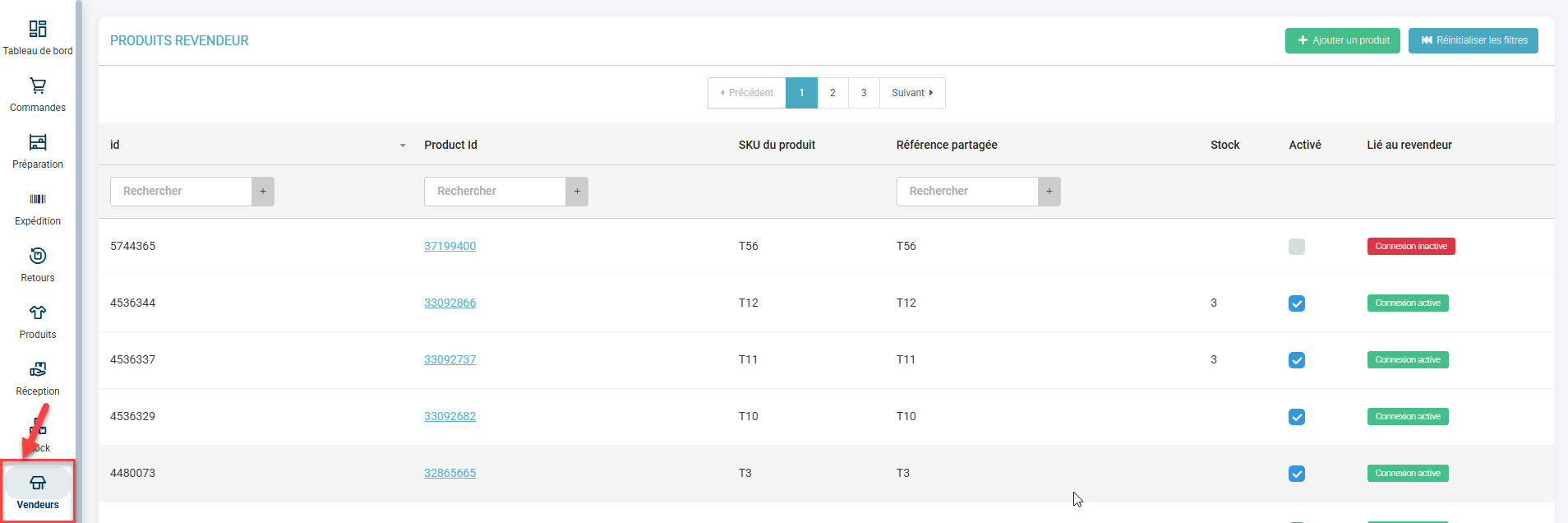
As you can see, the OMS SKUs and the WMS SKUs can be different. This is not a problem as long as the shared reference is exactly identical on both sides of the shared catalog, because it is what links the two SKUs.
You may sometimes need to change the shared reference, for example if you realize that it is not the same in the OMS and the WMS.
How to change the shared reference?
Manual change (useful if only a small number of references are concerned):
First, you will need to cut the link between the two accounts: on the OMS, go to the Warehouse tab -> filter on the reference in question -> deactivate the link by unchecking enabled:
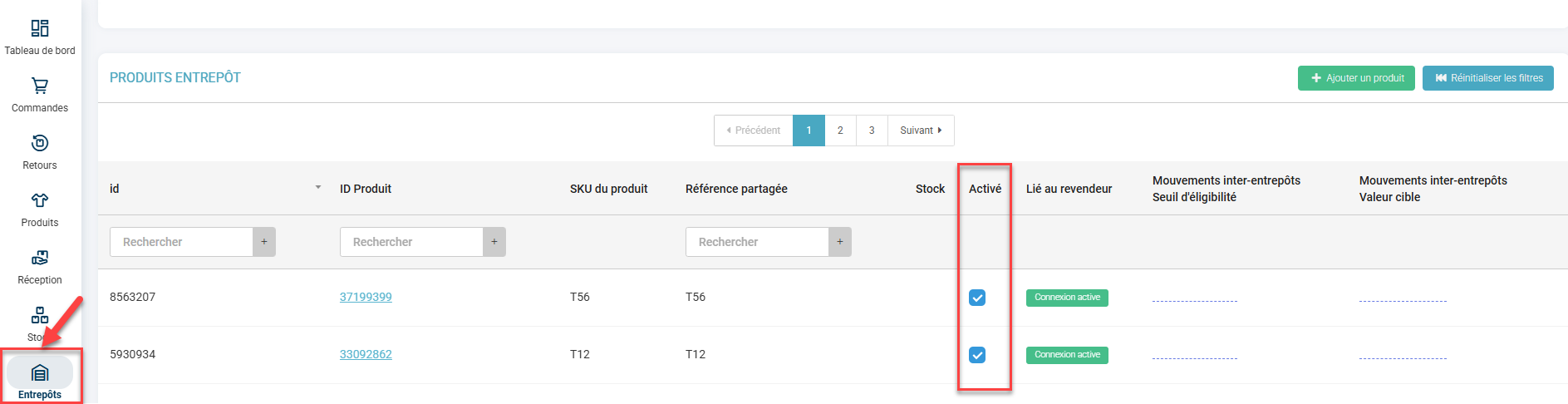
Once the link is deactivated, you can change the shared reference:

If the reference must also be changed on the WMS side, you will need to do the same on the WMS side, in the Seller menu.
Once this is done, you can restore the connection by checking the "enabled" box (if the connection was deactivated on both sides, you will need to check it again on both sides).
Bulk change by import (useful if a large number of references are concerned):
To cut the link from the OMS:
- go to the Configurations -> File management -> Export -> Warehouse products (also called Supplier products) menu -> run the export and keep only the "id" column.
- then go to the Configurations -> File management -> Import -> Warehouse products (or Supplier products) menu -> Import a file -> check the update box and download the template /example_csvs/supplier_product/update.comma.csv:
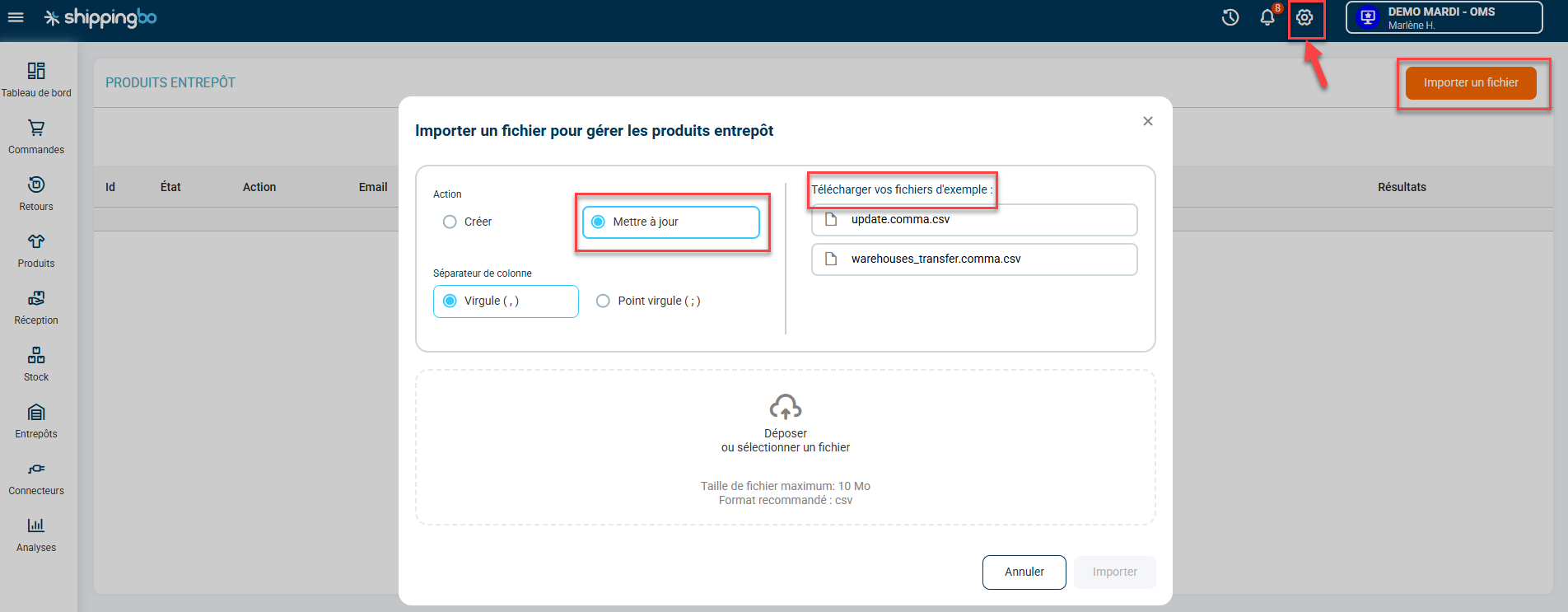
- keep only the "id" and "active" columns. In the "id" column, enter the values retrieved in the previous step. In the "active" column, enter the value "0", to cut the connection.
➡️The connection is now cut, you must now run the import to change the shared references.
- download the example template of the Warehouse products import again, and keep only the "id" and "supplier_ref" columns (supplier_ref = shared reference). Enter the ids as in the previous step, and in "supplier_ref", enter the new shared reference.
- import the file.
- then run another import (still with "update" checked) with the "id" + "active" columns, this time entering "1" in the "active" column to restore the connection.