.png?width=160&height=30&name=bleu%20et%20blanc_Sigle+logo%20SBO_300dpi%20(2).png)
Benefits of the feature ✨
-
Time savings: The Pick&Print Single-Product process enables fast and efficient order preparation by optimizing the steps.
-
Flexibility and fewer errors: Picking can be done using the PDA (option) for better control of the picked products, or you can use the preparation summary to collect the products.
-
Automation: Option to enable settings to automatically print labels after the scan, thereby reducing manual handling.
-
Logistics optimization: Saving of filters for simpler searching and better organization of preparation sessions.
1. Prerequisites
- Feature available from the Pro + pack.
- The Pick&Print option must be enabled on your Shippingbo account.
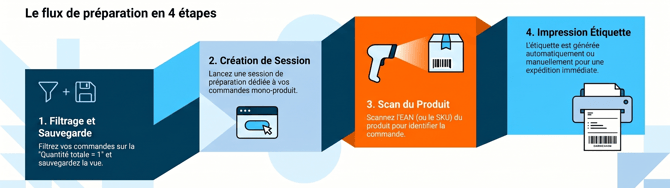
2. Explanatory diagram of Pick & Print
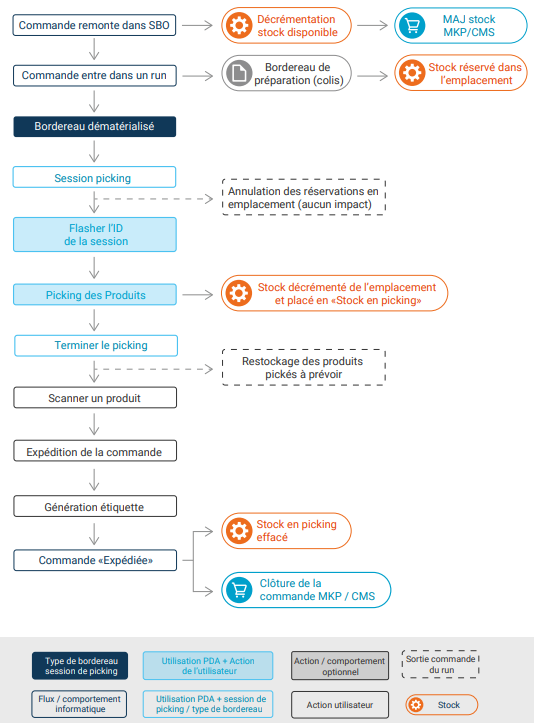
3. Diagram of the process recommended by Shippingbo
Here is an illustrated diagram of the pick&print preparation process:
4. Carry out a Pick&Print order preparation
⭐ Key point:
The Pick&Print order preparation process allows you to generate your labels directly by scanning your products.
To do this, you need to create preparation sessions that include only orders with a single product, so that you can scan them and generate the label directly.
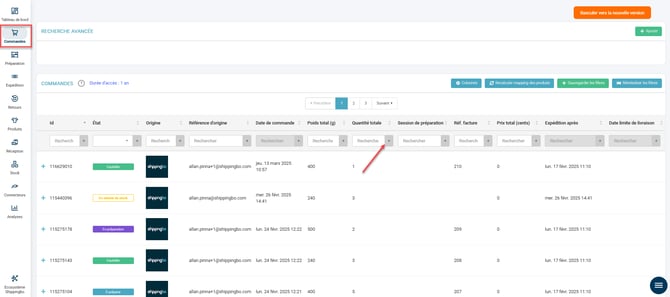
Step 1: You will start by defining the filters
Go to the Orders menu and click on the "+" next to the total quantity column to filter orders that contain only one product:
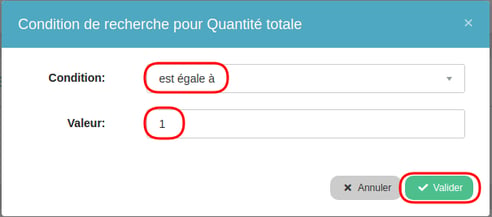
Step 2: Enter the value 1 in the total quantity filter. Then click on "Validate":
Step 3: You will then save the filter you created
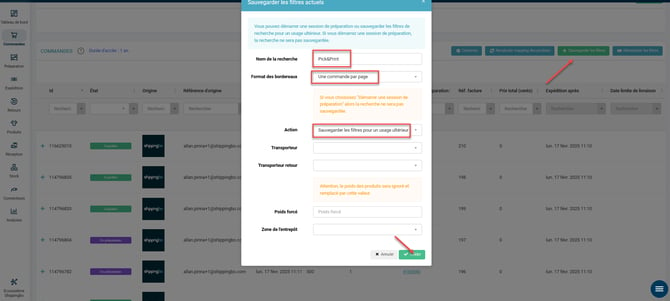
Click on the green Save filters button at the top right of your orders page.
Give your filter a name, choose Save filters for later use so that it appears in the Preparation menu and can be used to generate preparation sessions, then press validate
💬 Good to know:
You can choose whether or not to assign a carrier to your session.
5. Generate your Pick&Print Single-Product session
-
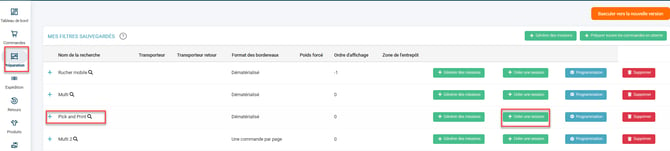
Step 1: Start the session by clicking on "Create a session":
-
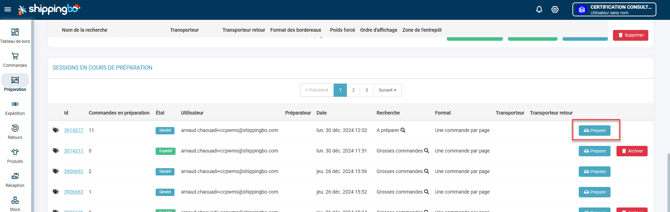
Step 2: The preparation session opens. If you leave the session, you can return to it by clicking on "Prepare":
-
Step 3: Here, you can choose to do the picking with the PDA for better control of the products, or to use the preparation summary to collect the products.
- Method 1: Picking with the PDA
➡️ For more information about picking sessions with the PDA, you can read our tutorial Perform your picking with your PDA.
- Method 1: Picking with the PDA
-
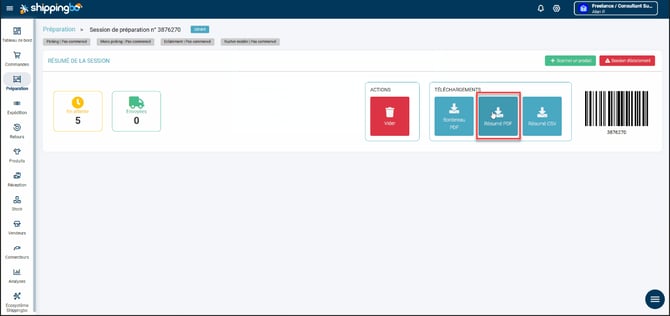
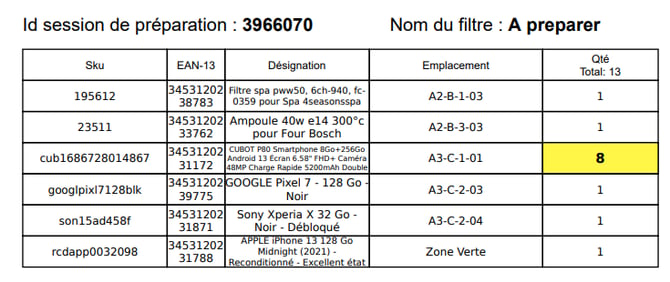
- Method 2: Picking with the preparation summary
➡️ Download the preparation summary
- Method 2: Picking with the preparation summary
-
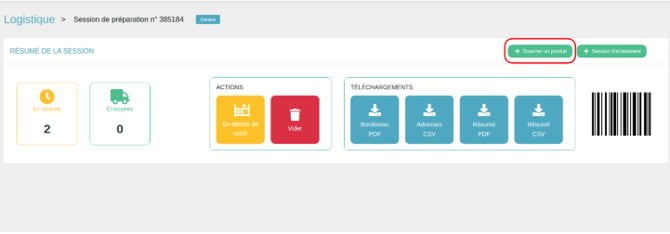
Step 4: Go back to your preparation session, then click directly on "Scan a product":
-
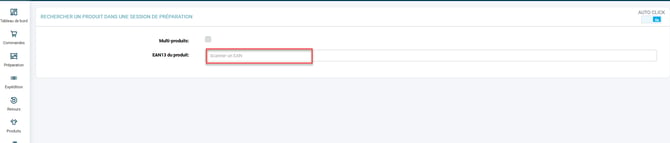
Step 5: Scan the EAN of your product in the indicated field:
-
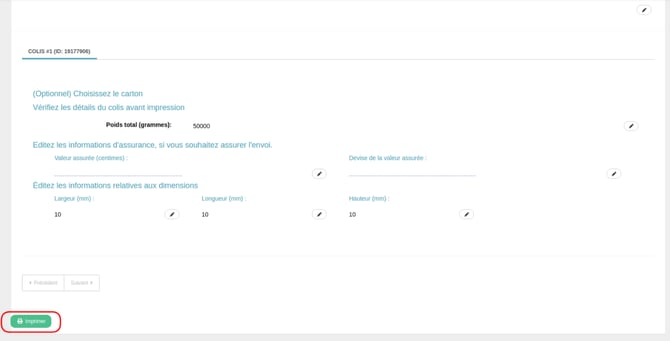
Step 6: This automatically takes you to the page to edit your label. Check your shipping information and click on "print":
💡 Tip:
You can also generate the label automatically once the product is scanned if you have previously enabled the print automation options.
💬 Good to know:
You can also use the pick&print order preparation process for multi-product orders.
For more information on these, you can read our tutorial Generate a pick&print multi-product preparation session.
-
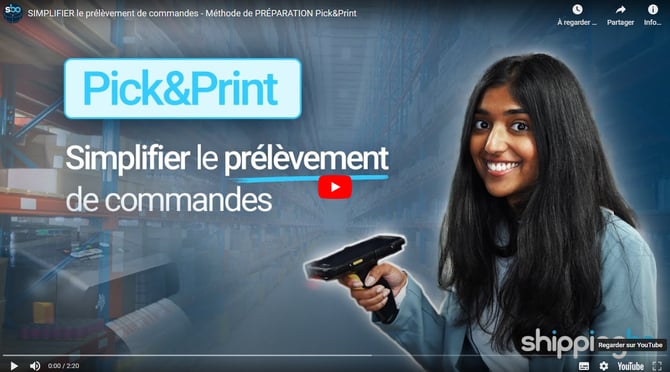
We also invite you to watch our video showing how the Pick&Print preparation process works by clicking on the image below:
⚒️ Recommendation:
Before fully using the feature described in this tutorial, we strongly recommend running a test phase with your own settings to check that the result matches your expectations. As the customer remains fully responsible for the actions carried out in the Shippingbo account, these tests are essential to use the tool with complete peace of mind.
Contact us 📬:
Questions about this feature? Feel free to write to us here so that we can answer your questions.