.png?width=210&height=40&name=bleu%20et%20gris_Sigle+logo%20SBO%20(4).png)
Benefits of the feature ✨
- Time savings: Automation of recurring tasks related to order distribution.
- Error reduction: Improved accuracy in order routing.
- Cost optimization: Better warehouse management based on stock and location.
1. Prerequisites
- This feature is available for Multi-Shippingbo packs.
- You must work with at least 2 different warehouses.
2. How does Warehouse Mapping work?
Warehouse Mapping works by creating specific routing rules for each warehouse, similar to Carrier Mapping or Tag Mapping. Each rule is associated with precise conditions that trigger the routing of orders to the relevant warehouse.
💡 Tip:
For example, if you define a rule so that orders coming from Amazon are directed to warehouse X, as soon as an order with the origin "Amazon" is received, it will automatically be routed to that warehouse.
3. How do I enable Warehouse Mapping?
3.1 Go to the Configurations → Logistics → Warehouse Mapping menu:
3.2 Click on Add to create a new rule. Then, select the relevant warehouse in the drop-down list and click on Confirm:

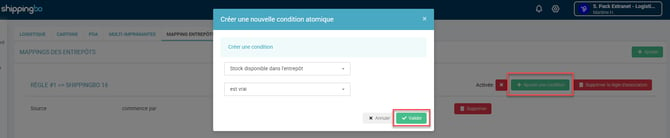
3.3 Once the new rule is created, click on Add a condition to define the rule. Then, in the window that opens, select the criteria you want to apply (e.g. Origin - equal to - Amazon), before confirming:
⭐ Key point:
By default, rules are created disabled. Remember to enable the rules by checking the box provided for this purpose once they are ready to be used:

You can add several conditions to a single rule. All of these conditions must be met for the rule to apply.
You can create as many rules as you want for each warehouse. Warehouse Mapping takes priority over the priorities assigned to warehouses at the time of their creation.
💬 Good to know:
If the order does not match any rule, the standard routing rules apply: warehouse priority, available stock, etc.
If you want the order to remain blocked "in error", you can create an error mapping.
4. Practical example
Context: You are an e-merchant in the textile sector and you manage several warehouses spread across different territories (North and South of France). You sell your products on several online platforms such as Amazon, eBay, and on your own e-commerce website. To optimize your logistics processes, you want to automate the routing of orders to the most suitable warehouse based on where the orders come from.
Use of the feature:
You use Warehouse Mapping to define specific rules according to the origin of the orders. For example, you create a rule so that all orders coming from Amazon are directed to the warehouse located in the South, and another rule so that orders coming from your e-commerce website are sent to the North warehouse.
Result:
From now on, when an order is received, it is automatically routed to the appropriate warehouse: Amazon orders are shipped from the South warehouse, and those from your e-commerce website from the North warehouse. This process allows you to speed up order preparation, reduce routing errors, and optimize costs by shipping from the warehouse closest to the end customer.
⚒️ Framework and responsibilities:
Before fully using the feature described in this tutorial, we strongly recommend running a test phase with your own settings to check that the result matches your expectations. As the customer remains fully responsible for the actions carried out in the Shippingbo account, these tests are essential to use the tool with complete peace of mind.
To go further 🛫
- Inter-warehouse stock movements
FAQ ❔
- Filter orders by routing warehouse
Contact us 📬
Questions about this feature? Feel free to write to us here so that we can answer your questions.