.png?width=210&height=40&name=bleu%20et%20gris_Sigle+logo%20SBO%20(4).png)
Summary

- Time savings: Centralized and quick recording of received products.
- Guaranteed traceability: Direct link with the expected receipt.
- Flexibility: Ability to receive product by product or all at once.
2. Prerequisites✔️:
-
Available from the Premium + pack.
-
Requires the use of a PDA with the Shippingbo application installed.
-
Works only for stock management in a simple warehouse (excluding advanced warehouse).
3. How does receipt via an expected receipt work?
The feature allows you to receive goods by linking the operation to an expected receipt previously created in Shippingbo. This ensures that incoming stock is correctly associated with the original expected receipt, making logistics tracking easier.
Example: "If you enable this feature, each product added to stock will be automatically linked to an existing expected receipt, allowing complete tracking of the operation."
4. How to perform a goods receipt linked to an expected receipt?
4.1 On the Shippingbo interface
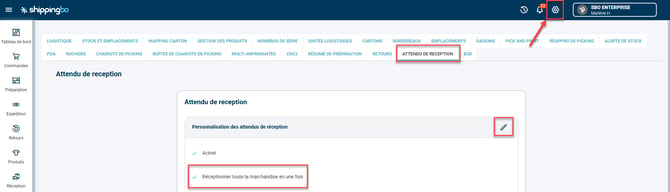
From the side menu, go to the menu Configurations -> Logistics -> Expected receipt, then check the option Receive all goods at once if you want an automatic global receipt:
4.2 On the PDA
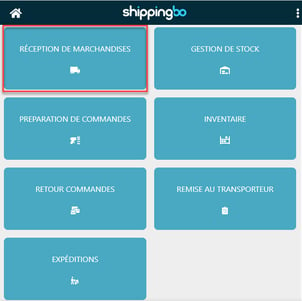
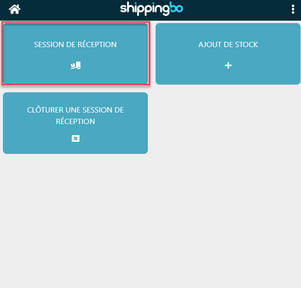
- Go to the menu Goods receipt -> Receipt session:
-
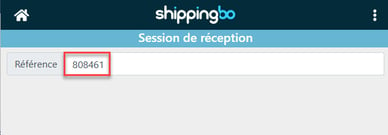
Scan the reference of the expected receipt:
-
Create the session:
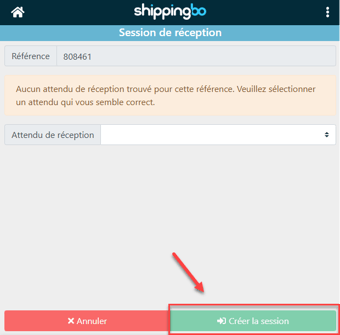
-
Add the products manually or click on Receive all goods (if enabled):
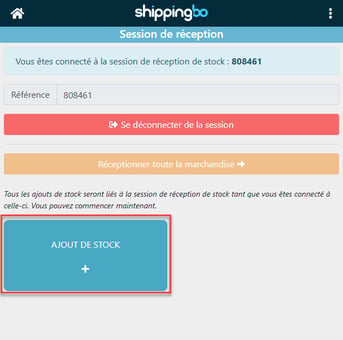
💡 Tip:
The step where you select the Add stock button can be skipped automatically via the option Skip the intermediate page in a receipt session in Configurations>Logistics>PDA:
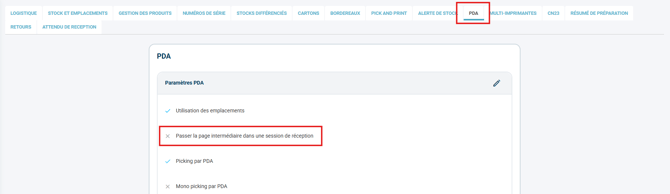
- Once all the products of the expected receipt have been scanned, log out of the session:
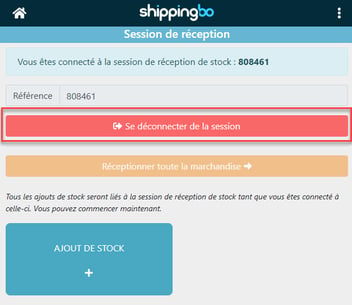
📢 Warning:
If the products have a Best-Before Date or a lot number, the global receipt option will be automatically disabled. The target location must also be of type multi-product.
💡 Tip:
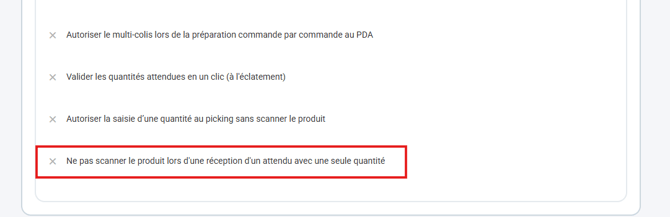
If you need to handle expected receipts containing only 1 product in a quantity of 1, the option Do not scan the product when receiving an expected receipt with a single quantity lets you skip the product scan step in Configurations>Logistics>PDA:
5. Example of practical use
You are an e-merchant in the cosmetics sector. You have just received an expected delivery of 5 references. By scanning the expected receipt via your PDA, you can add each product to stock smoothly, without data loss or re-entry.
⚒️ Recommendation:
Before fully using the feature described in this tutorial, we strongly recommend running a test phase with your own settings to check that the result matches your expectations. As the customer remains fully responsible for the actions carried out in the Shippingbo account, these tests are essential to use the tool with complete peace of mind.
To go further 🛫:
- Create, edit and delete an expected receipt
- Goods receipt / Expected receipts on the PDA
Contact us 📬:
Questions about this feature?
Feel free to write to us here so that we can answer your questions.