.png?width=210&height=40&name=bleu%20et%20gris_Sigle+logo%20SBO%20(4).png)
Summary

- Optimizing inventory management : Organizing stocks into categories for more optimal management.
- Gain in precision : Limiting errors through an ordered classification of stock types.
- Compliance with stock rules : Compliance with constraints related to different types of stock (e.g. "Second Hand" and "New").
2. Prerequisites ✔️
- Feature available from the Pack Expert+.
💬Good to know:
This tutorial describes the functionality when using Multi-Shipping BoxTo access the tutorial dedicated to LMS Expert+ Packageclick here.
- This feature is paidPlease contact your account manager to add it.
3. How does inventory differentiation work?
⭐ Key point:
All locations must absolutely to be attached to a zone.
To assign a location to a zone, go to the menu Stock -> Zones, Then add a zone. Next, associate the location with this zone via the menu. Stock -> Locations.
For more information, please see our tutorial on creating locations here.
3.1 How inventory differentiation works
Inventory differentiation relies on warehouse zone segmentation. Each product type is assigned to a specific zone within the warehouse, and the WMS calculates the stock available for sale according to these zones.
➡️ With this feature, a warehouse area is associated with a stock type.
Example A company that manages both "New" and "Second Hand" items can, thanks to this feature, separate these two types of stock into two distinct zones, thus ensuring different publication and management adapted to needs.
💡 Tip:
Configure strict stock allocation rules to ensure that no item is moved from one stock area to another inappropriately (i.e., prevent it from being moved from one stock type to another).
3.2 Transmission of stock information from the WMS to the WHO
-
For each type of stock, the account WMS can assign a specific OMS account: this allows only the stocks available for that type to be transmitted to that OMS.
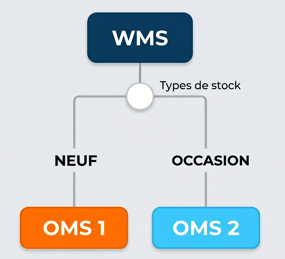
➡️ Each type of stock must be managed by a single OMS, preventing any transmission of stocks to several WHOs. -
On the part WMSIt is important to add order preparation management with picking in the designated locations.
➡️ When retrieving an order, only products corresponding to the stock type defined on this WMS should be included, excluding any order line containing a product that is not typed or not associated with this WMS.
-
When the order is being prepared, the product is reserved in the correct location, and at the time of picking, if the product is distributed across two locations (one typed and the other not), the picking must necessarily be carried out in the typed location.
➡️ That's why the following steps are necessary:
-
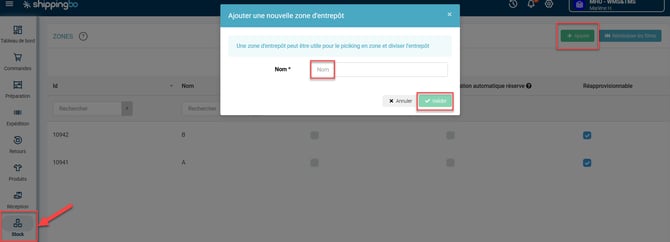
- Go to the menu Stock -> Zones -> Add.
Name your zones, this will automatically generate your stock types, which will have the same name. - Next, associate your locations with these new zones to link them to a stock type:
- Go to the menu Stock -> Zones -> Add.
-
- Specify which areas are authorized for which vendor: Go to the menu Salespeople -> Seller details in question and scroll down to the option Stock types available and select the type(s) of stock you wish to allow for this seller:

3.3 Differentiation of stocks according to the WHO
The OMS account can receive multiple types of stock from different WMS accounts. For each product, it's possible to view the available stock by type. For example, "Second Hand" and "New" stock will be clearly differentiated, making it easier to manage and plan orders based on the available product types.
💬 Good to know:
The stock type is assigned to the product, either:
-
upon its assignment to a location,
-
upon its appearance in a receipt expectation (a stock type can be assigned to a receipt expectation, only via API).
⭐ Key point:
The same type of stock can only be authorized to one seller.
This ensures a unique allocation and avoids any confusion when transferring data to the WHO.
3.4 Calculation of available stock in WMS
The available stock for each category is calculated taking into account current orders for that type of stock. If items are in transit, they remain counted in their original location until the transaction is completed.
🚩 Special case:
If items are in motion, ensure they are associated with their area of origin to avoid inventory confusion.
3.5 Picking Constraints
When preparing an order, the WMS account automatically reserves the physical stock corresponding to the stock type linked to the order line. This ensures that pickers retrieve the items from the correct stock type, thus preventing any errors.
3.6 Switch Authorization Mapping
It is possible to configure a mapping that allows splitting an order into several sub-orders if the available stocks are located in different warehouses or areas.
Order of execution of mappings:
The mappings are executed in the following order:
- Mapping of stock types
- Warehouse mapping (also called Switching rules)
- Switch authorization mapping
If a warehouse is designated for the order, the entire order is routed to that warehouse. Otherwise, the order may be split into sub-orders to meet stock constraints, depending on the availability of the different types.
The order will then change to "shipped" status once all sub-orders have been shipped.
💡 Tip:
The mapping behavior can be modified according to the option Do not take into account the stock available during the mapping In Configurations > Logistics :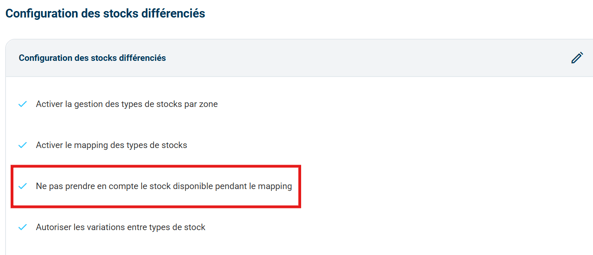
- Default (Option unchecked): A stock type mapping rule that redirects to multiple warehouse zones will apply a cascade systemThe system first looks for stock in the first zone of the list. If there is no stock available, it switches to the second zone, and so on.
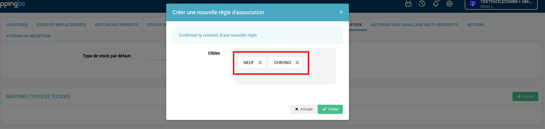
Example: here, the system will search for stock in the area dedicated to the NEW stock type and then in the area dedicated to the CHRONO stock type.
➡️ If no area with available stock is found, the order changes to the status In error (once the stock is replenished, the switching process will need to be restarted to correct the error). - When the option Do not take into account the stock available during the mapping East checked : The cascade system is broken because the WHO no longer verifies the available stock. As soon as the rule matches, the system automatically allocates the first area indicated in the rule, regardless of the rest of the list and the actual stock.
Example: here, the system will systematically assign to the stock type zone NEW.
➡️ This option allows orders to be directly assigned to the correct warehouse zone by applying the status Awaiting stock availability, thus preventing them from making mistakes in the event of a temporary disruption.
3.7 Stock Type Management in Receiving Expectations
- It is possible to add a stock type to the receiving expectations only via API.
- The stock type is visible solely based on the expected WMS.
Upon receiving the products, only locations corresponding to the same stock type will be allowed. An error will be reported if the location does not correspond to the one specified in the expected order: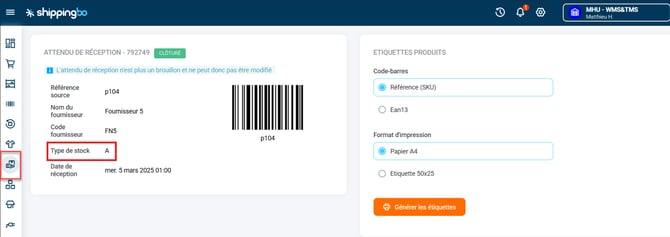
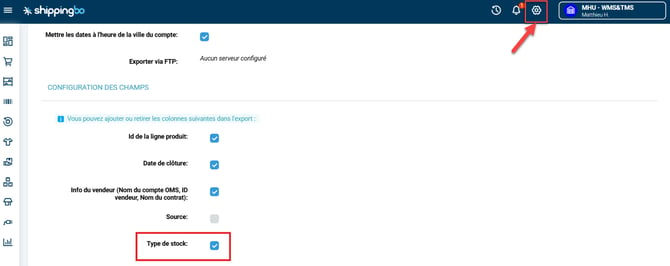
Regarding the export of expected receipts, on the WMS, it is possible to add a "Stock Type" column in the export configuration, thus facilitating tracking:
4. How do I activate stock type mapping?
4.1 Prerequisite configurations
For the activation to proceed smoothly, it is necessary to:
-
Create your zones beforehand
-
Associationto link ALL its locations to an area
-
For moreFor more information on this configuration, please follow our dedicated tutorial: CONFIGURE YOUR WAREHOUSE ZONES.
-
4.2 Activate the necessary options
-
Please contact your Shippingbo account manager to enable activation. of the necessary option on your account WHO.
⭐ Key point:
The rest of this tutorial is imperativeonce the option is activated.
Unexpected behavior may occur if stock types are not configured after the option is activated.
-
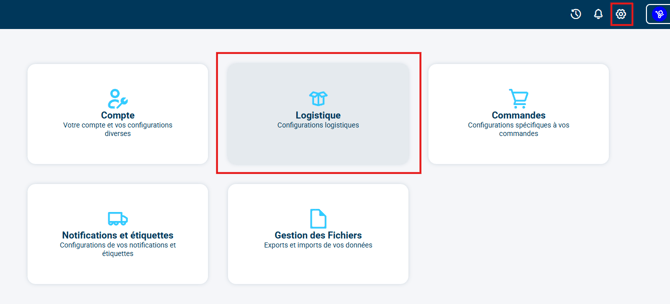
Next, once the option is activated on the WHO, to activate it on the accountWMSYou can activate the feature in the menu. Configurations -> Logistics :
-
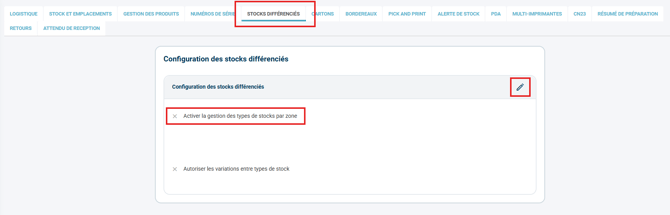
Then in the tab Differentiated stocks, activate the optionEnable stock type management by zone :
➡️ At this stage, the following error appears if you have not yet linked all your locations to a zone; you must repeat the step 3.2 :

💬 Good to know:
By defaultTo ensure proper management, stock movements between different types of zones are not not available.
However, you can enable stock movements between different type zones via the option Allow variations between stock types :
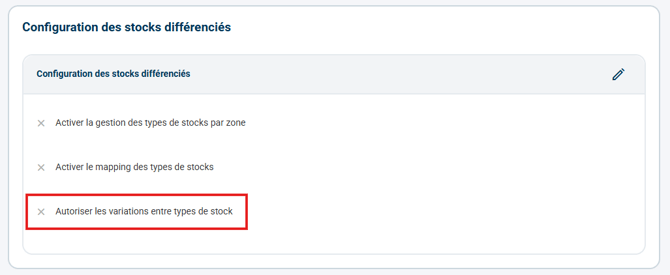
➡️ This option has serious consequences and is not recommended for typical use of "New"/"Used" stock types.
💡 Tip:
When the option Allow variations between stock types is activated, the stock type can be modified either via API or directly in the order lines, in the Orders > Order Details pane:

The stock type can also be forced when creating an order via API.
4.2 Create the mapping of stock types
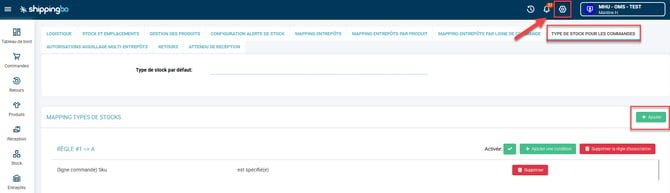
- Once the options have been activated by the support team, go to the account WHOmenu Configurations -> Logistics -> Stock type for orders -> Click on Add :
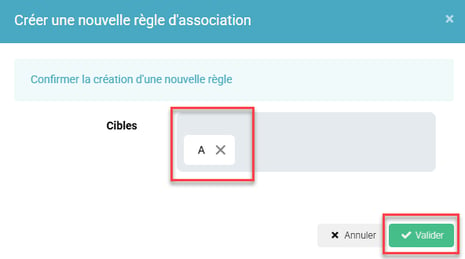
- Select the warehouse zone(s) targeted for this rule, then confirm:
⭐ Key point:
Only targets authorized for the WHO account will appear here.
To authorize them, go to the WMS account, menu Salespeople -> details of seller in question -> Option Stock types available : Check the areas to allow.
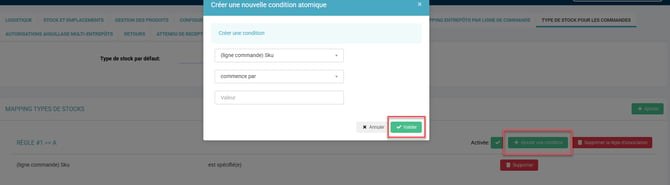
- Add the desired conditions to your rule by clicking on Add a conditionSelect the criteria for your conditions, then validate:
💡 Trick :
Don't forget to activate the rule once it's complete:

4.3 Create your Warehouse Mapping
To create your warehouse mapping, consult our tutorial directly. here.
4.4 Create your multi-warehouse routing authorization mapping
To create your multi-warehouse switching authorization mapping, please refer to our tutorial. here.
5. Example of practical application
Context :
You are an e-commerce business specializing in the sale of electronic equipment. You offer both new and second-hand products. It is crucial for you to manage these two categories of inventory separately, while publishing them distinctly on your e-commerce website.
Thanks to the inventory differentiation feature in your WMS account, you can assign a specific zone for new products and another for second-hand products. Each zone is thus associated with a distinct stock type, allowing your WMS account to receive and process this information separately.
Using the feature :
When you receive an order for a second-hand product, the system will:
- Automatically reserve items in the "Second hand" stock area, without interfering with new product stocks.
- Direct the preparer to retrieve the products from the exact location, thus avoiding any confusion between new and second-hand product stocks.
- Publish information about your available stock based on product type on your e-commerce site, ensuring a clear distinction for your customers.
Result :
Optimized inventory management with reduced picking errors and accurate display of available products. Your customers can see new and used product stock in real time, improving their shopping experience and ensuring the correct items are shipped without errors.
To go further 🛫:
- Configure the warehouse mapping
- Multi-warehouse authorization routing mapping
Contact us 📬:
Questions about this feature? Feel free to write to us.hereso that we can answer your questions.