.png?width=210&height=40&name=bleu%20et%20gris_Sigle+logo%20SBO%20(4).png)
Benefits of the feature ✨
- Time saving: Centralized return management between your OMS and WMS systems.
- Logistics efficiency: The return is routed directly to the relevant warehouse.
- Better tracking: Synchronization of statuses and notifications between OMS and WMS.
1. Prerequisites
- Available for Shippingbo packages working in Multi-Shipping Box.
2. How does the returns management work in Multi-Shippingbo?
When you create a return on your OMS, it is routed to the connected WMS warehouse for physical processing. Tracking information and return status updates are then sent back to the OMS to ensure complete traceability.
⭐ Key point:
Any change to the reason for a return or to the Reference of that reason is entirely bidirectional.
➡️ So if you change this information on your WHOThe change is automatically propagated to the WMS concerned. Similarly, any modification made to the WMS is instantly reflected on your WHO.
Example : If you are an e-commerce merchant operating multiple warehouses, you can centralize return requests on your OMS and have the packages physically processed by the warehouse closest to the customer, in complete transparency.
3. How do I activate Multi-Shippingbo returns management?
3.1 Create a return in Shippingbo on the OMS side
- In your WHO account, go to the menu Orders -> Details of the order for which you wish to create a return:
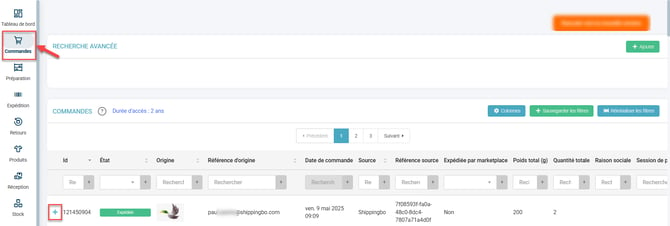
- Next, go to the tab Order returnthen click on Add :

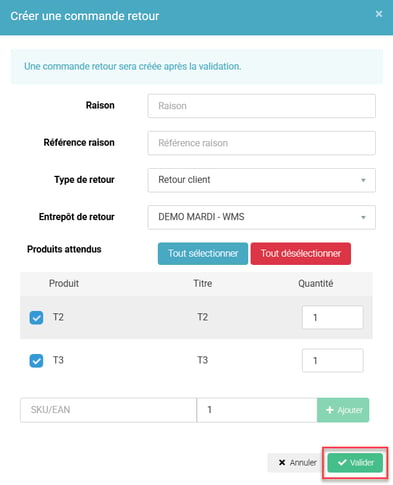
- Fill in the requested information, then confirm :
💬 Good to know:
In order to select the warehouse, the returned product must exist in the warehouse and the warehouse must be configured to accept returns.
-
The return will go directly into the " status"needle" and will need to be processed in the previously selected warehouse.
⭐ Key point:
If you route a return to a warehouse other than the sending warehouse, the return will only appear in the returns management menu of your OMS and not in the order for which you are making the return.
3.2 Processing a return to the PDA on the WMS side
The return processing in the WMS follows the same procedure as usual. However, you can also scan the return ID and tracking number provided by the WHO. The information entered in the WMS is automatically synchronized with the WHO, including the change in return status (e.g., from "New" to "Returned").
3.3 Management of return notifications from the WMS account to the OMS account
-
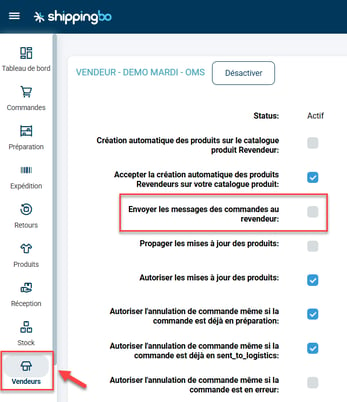
If you create a return from the WMS, a message will be displayed in the OMS command line. uniquely if the option Send order messages to the reseller (Sellers menu -> details of the seller in question) is activated in the seller settings:
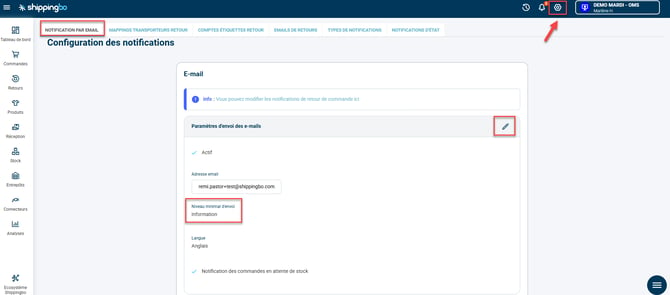
- In addition, an email notification will be sent to the WHO if its notification level is set to Information (menu Configurations->Notifications and labels->Minimum sending level) :
4. Actions available on the WMS account
4.1 Restocking of products
From the menu Returns of your WMSYou can put the returned products back into stock at the location of your choice.
To do this, access the return details, then click on Back in stock:
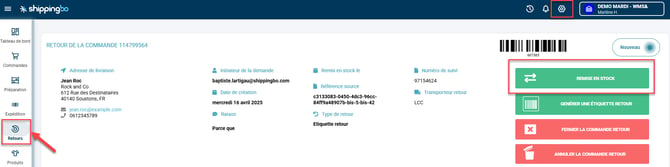
Once this action is performed, the return automatically changes to the status Returned.
A message is also sent in the order details on the side WHOaccompanied by a notification email.
4.2 Closing a return order
-
You can also choose to close manually a return order from your account WMS :
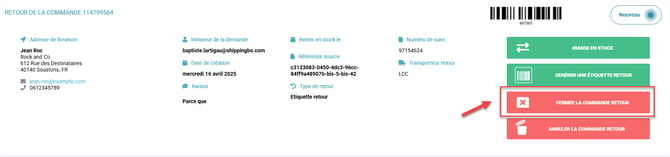
-
Closing it changes the status "Closed" in the returns management menu.
💬 Good to know:
No notification is sent to the WHO.
This status is useful for indicating that the return has been processed by the WMS, even if it has not yet been officially recorded on the WHO. It is therefore a intermediate status.
4.3 Cancelling a return
-
It is possible toCancel a return order if it was created in error or if the return ultimately does not take place:
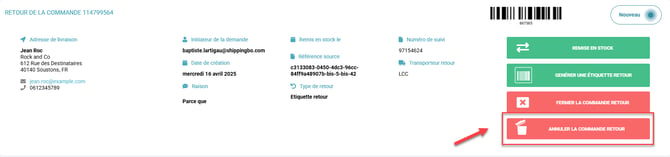
-
In this case, the return changes to the status Canceledin the WMS returns menu, without sending a message or notification to the OMS.
💬 Good to know:
If a returned product is not mapped on the WHOOnly SKUs retrieved from the WHO will appear in the menus. Back And Return switch.
⭐ Key point:
THE returns without merchandise are automatically considered Closed and are not directed to a warehouseTherefore, no logistical processing will be carried out.
4.4 Return Processing Notification
-
To automatically inform the WHO that a return has been processed:
- Go to the Settings menu of your WMS.
- Access the section Logistics -> Returns.
- Activate the option Notify when a return is processed.
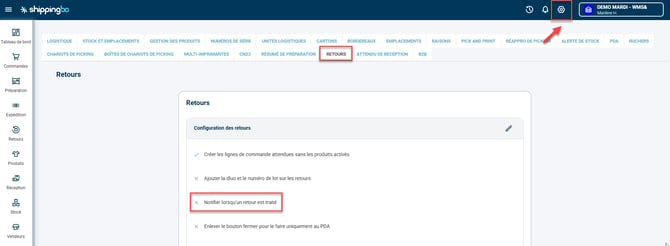
- This will trigger a automatic notification on the WHO side as soon as a return is finalized in the WMS.
⚒️ Framework and responsibilities:
Before fully using the functionality described in this tutorial, it is strongly recommended to performa testing phasefollowing your own parameters to verify that the result meets your expectations. The remaining customerfully responsibleThese tests, based on actions performed on the Shippingbo account, are essential to ensure the tool can be used with complete peace of mind.
To go further 🛫:
- Record a return using the PDA (in the advanced warehouse)
- Restock returned products using the PDA (in the forward warehouse)
- Register and restock a returned product on the PDA (excluding advanced warehouse)
Contact us 📬:
Any questions about this feature?
Feel free to write to ushere so that we can answer your questions.