.png?width=210&height=40&name=bleu%20et%20gris_Sigle+logo%20SBO%20(4).png)
Benefits of the feature ✨
-
Automation of packaging management.
-
Optimization of warehouse operations (picking and receipts).
-
Reduction of errors when preparing orders.
1. Prerequisites
- This feature is available from the Pack Expert+.
- Have already enabled the PCB option and followed the steps in the dedicated tutorial: ENABLE PCB.
- Have already added logistic units by following the steps in the dedicated tutorial: ADD AND DELETE LOGISTIC UNITS MANUALLY OR BY IMPORT (PCB).
2. How does PCB management work?
2.1 Definitions of terms
In logistics in general, we speak of Par-Combien (PCB) containing Sous-Par-Combien (SPCB) which themselves contain Sales Units (UV).
For example: a carton (PCB) containing ten packs (SPCB) of six bottles of water (UV).
To keep things simple, Shippingbo does not distinguish between the different PCB and SPCB levels.
-
In Shippingbo, the PCB option lets you manage logistic units (UL) and consumer sales units (UVC) within your product catalog. You can arrange your logistic units in a hierarchy however you like, with as many levels as you like.
- In Shippingbo:
- UVC stands for Consumer Sales Unit: the basic packaging of a product, i.e. the unit that the consumer can purchase separately.
For example: a bottle of sparkling water.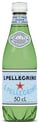
- UL stands for “Logistic Unit”. A Logistic Unit contains several consumer sales units or several other Logistic Units. It is a uniquely identifiable physical unit made up of packaging and contents.
For example: a pack (UL) of 6 bottles of sparkling water (UVC).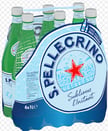
For example: a carton (UL) containing 6 packs (UL) of 6 bottles of sparkling water (UVC) each.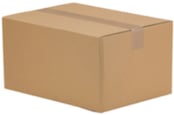
For example: a pallet (UL) containing 10 cartons (UL) of 6 packs (UL) of 6 bottles of sparkling water (UVC) each.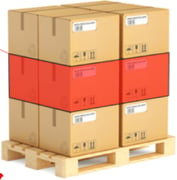
- UVC stands for Consumer Sales Unit: the basic packaging of a product, i.e. the unit that the consumer can purchase separately.
2.2 Enabling product packaging by logistic unit
In the previous tutorial ENABLE PCB you enabled product management by logistic unit for one or more products.
Packaging by logistic unit was enabled manually on each product sheet or by import.
➡️ More information in the dedicated tutorial: ENABLE PCB.
2.3 Adding logistic units in Shippingbo
In the previous tutorial ADD AND DELETE LOGISTIC UNITS MANUALLY OR BY IMPORT (PCB), you added logistic units to each product to define the number of packagings (pallet, carton, ...) and the quantity in each packaging.
➡️ More information in the dedicated tutorial: ADD AND DELETE LOGISTIC UNITS MANUALLY OR BY IMPORT (PCB).
3. Setting up PCB
You can now use PCB, as some of your products are packaged in Logistic Units. You can now add stock in logistic units. A few additional settings then let you adjust how you use PCB.
3.1 Assigning logistic unit stock to a location
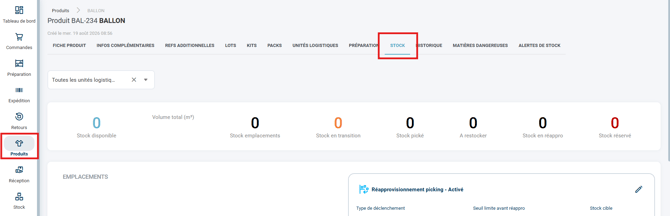
Let us assume a product with SKU BAL-234 whose stock is 0:
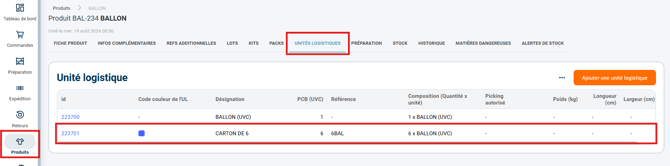
And let us assume that we have already added a Logistic unit of 6 UVC, reference 6BAL, i.e. a carton containing six units of the product with SKU BAL-234:
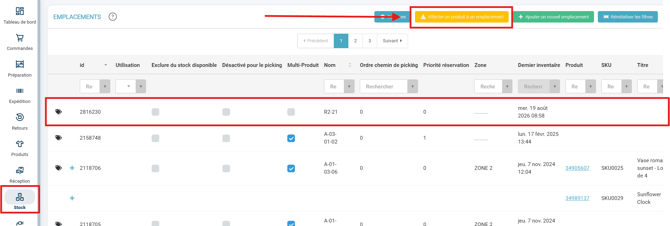
In the Stock pane, in a free location (here, R2-21), we are going to add 100 units of the logistic unit 6BAL (so 600 UVC):
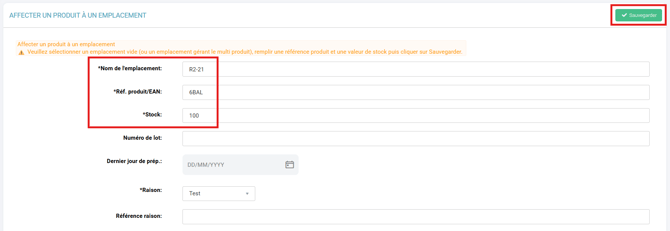
So we enter the location reference, R2-21, in Location name; the logistic unit reference, 6BAL, in Product ref./EAN; and a stock value of 100 in Stock. We save:
In the sheet of our product with SKU BAL-234, we do find 600 units of the product in the Stock tab (since we have 100 logistic units each containing 6 UVC of the product, so 600 units in total):
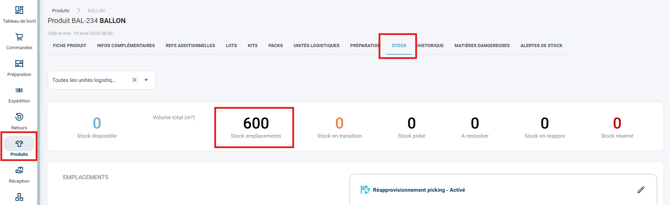
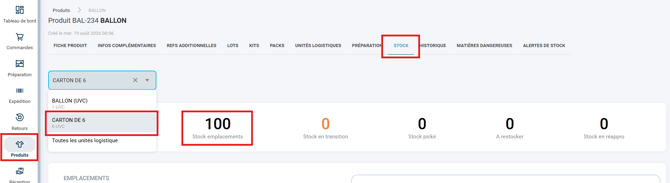
In this view, by default, the stock displayed includes All logistic units. You can filter by logistic unit. Here, we can filter by carton of 6, to see the 100 cartons we have just added to location R2-21:
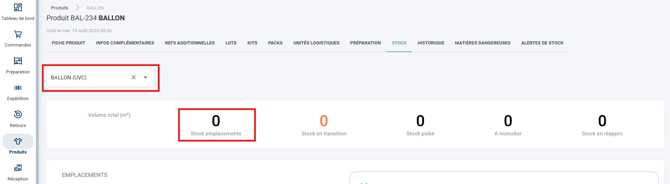
If we filter on UVC, we do find 0 units of stock, since the only stock added for this product in our example was in logistic units. The stock is therefore segmented between UVC stock and logistic unit stock:
➡️ This segmentation allows optimal stock reservation, as we will see in the next section.
3.1 Adjusting the reservation priority order
You can adjust the reservation priority order, which determines which quantity from which location is reserved first by orders. Depending on your business, the optimal reservation priority order may vary.
To adjust it, please send your needs to our customer service team, who will prioritize them as you see fit. By default, the reservation priority order is as follows:
- Minimum quantity of UVC picked
- Number of different locations picked from
- UL with the largest quantity of UVC
- Highest-priority location
- Closest Best-Before Date
Example: Let us assume an order for 12 units of a product; and that the stock of this product is 20 UVC in one location, and 2 logistic units containing 6 units each in another location.
➡️ With the default reservation priority order, this example order will reserve the 2 logistic units of 6 units first; because priority 1. is Minimum quantity of UVC picked, so by reserving only the 2 logistic units and 0 additional UVC, we reserve the minimum possible UVC.
➡️ This system promotes fast picking for optimized order preparation.
3.2 Receiving and preparing products in logistic units
-
Receiving stock in UL:
When receiving products:-
Quantities must be expressed in UVC when creating the expected receipt, so the product SKU must be entered.
If you enter the logistic unit reference when creating an expected receipt, you get an error: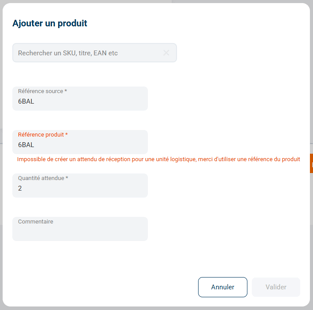
-
If your UL has an EAN reference, you can scan this reference as early as the Add stock step in a receipt session on the PDA:
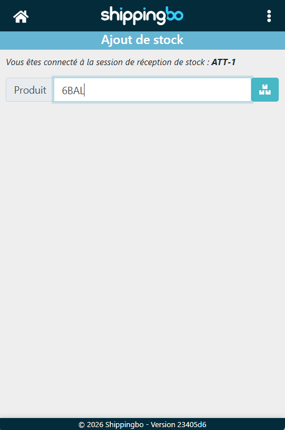
➡️ Shippingbo will count the receipt of the UL. -
If your UL has no EAN reference, the receipt can be done by scanning the UVC (i.e. the product SKU/EAN) and by manually selecting the UL.
On the PDA, Goods receipt > Receipt session by expected receipt > [Scan the expected receipt] > Add stock, you can click on the button dedicated to logistic units to receive logistic units: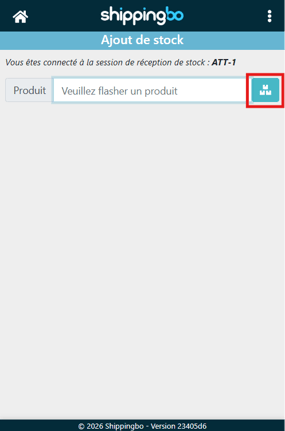
➡️ Clicking this button can be automatic, if the option Automatically open stock addition by UL after the EAN scan when adding / removing stock is checked.
➡️ This option only clicks the button dedicated to logistic units for products that have logistic units set up. In Configurations > Logistics > tab Logistic units: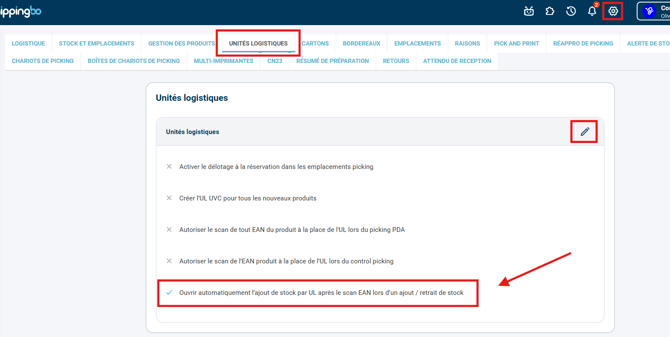
-
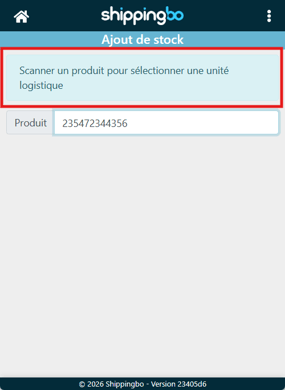
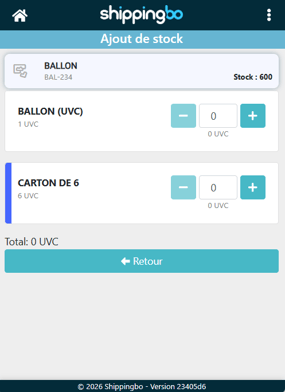
Once in the logistic unit stock addition screen, you can scan the SKU/EAN of the product:
-
Then select the logistic unit to add to stock, without needing to scan a logistic unit reference:
-
- Preparing orders with ULs:
- Ordered quantities must be expressed in UVC
Example: an order contains 12 products with SKU BAL-234 (UVC), and not 2 ULs with reference 6BAL containing 6 UVC each. - Shippingbo automatically calculates the quantity of packaging to pick.
Example: if UL stock is available, an order for 12 products with SKU BAL-234 will require picking 2 ULs 6BAL containing 6 UVC each, rather than 12 units of the product with SKU BAL-234.
➡️ Here, by default, scanning the UL is mandatory. If you have not entered a reference for your ULs, you cannot pick your ULs as your PDA requires.
➡️ By checking the option Allow scanning any EAN of the product instead of the UL during PDA picking, the PDA accepts the scan of any EAN associated with the product (SKU/EAN of the UVC) instead of the strict barcode of the UL. If you have not entered a reference for your ULs, you will still be able to pick your ULs all the same.
You will find the option to check in Configurations > Logistics > tab Logistic units: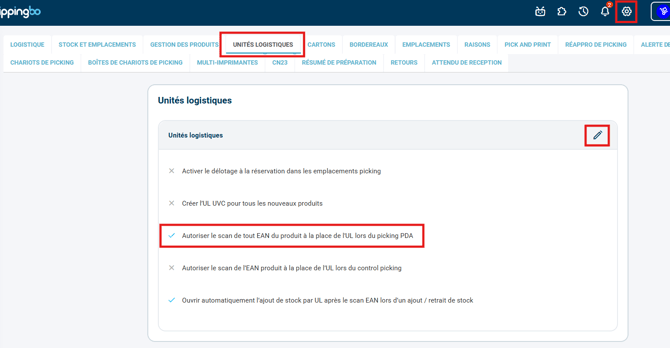
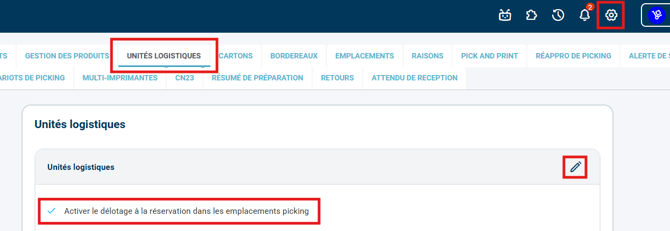
- If you want to be able to de-kit your ULs during picking, checking the option Enable de-kitting at reservation in picking locations meets your need. In Configurations > Logistics > tab Logistic units:
✅ You have finished configuring your logistic units in Shippingbo.
- Ordered quantities must be expressed in UVC
⚒️ Framework and responsibilities:
Before fully using the feature described in this tutorial, we strongly recommend running a test phase with your own settings to check that the result matches your expectations. As the customer remains fully responsible for the actions carried out in the Shippingbo account, these tests are essential to use the tool with complete peace of mind.
To go further 🛫:
- Create locations manually and by import
- Create or delete products in Shippingbo
Contact us 📬:
Questions about this feature?
Feel free to write to us here so that we can answer your questions.